-
Creating Animations on Blender then exporting to Daz3D
Padone said:
In your video it is not clear how you animate the feet, as the ik controls don't move. If you animate mixing ik and fk controls then bake ik to fk I guess the addon is trying to preserve your fk animation, possibly altering the end result. This looks like a bug. If you can explain the steps to reproduce your animation I can try it myself and eventually prepare a bug report for Thomas.
However, if you use the IK controls to animate the feet, as it's usually done, then everything works fine here. I attached the videos for IK and baked FK, where you can see I use the IK controls to animate the feet. Just remove the zip extension to watch the mp4 videos, as the forum doesn't allow to upload mp4 directly.
note. important. If you imported the figure with locks and limits, then the daz FK limits may come in the way when switching IK or baking, as IK has different limits than FK. To prevent this it is best to import the figure without locks and limits, so just disable them in the global settings. May be this is what happens in your example if you didn't animate the feet on purpose.
https://github.com/Diffeomorphic/import_daz/wiki/Setup_Rigging
Ty for the video example and explination, so far things are working fine atm, I have to pay attention to where the shins are postioned terms of rotation, if they aren't placed properly they will be gittery. Luckily after I figured that out the animations are not gittering and it's working really well especially after I export to daz, it's 1:1, previous tool i used looked like it worked properly but it didn't after daz export, great work you two! I intentionally have strechness to 0, because I want to have things exported to Daz, I haven't planned to move to Blender yet, from what I've seen however when I ported my models it worked quite flawlessly.
But my question is which might be difficult. What would you recommend that I do before importing my model and settings I should go for if I want to import back to Daz animations? Also if I pose in FK, I can't seem to find a bake option, at least with IK I can just do IK transfer to FK and it bakes, but there isn't one where FK just bakes unless I'm missing something. I've been trying to go through the wiki here but sadly no clue https://github.com/Diffeomorphic/mhx_rts/wiki/Animation
I'll try and recreate it again the issue for you today or tomorrow then share steps on how I did it!
[Going momentarily blank] morph loader V4WendyLuvsCatz said:
I cannot seem to export an object with groups, tried a number of settings using a rigged figure but not finding success, even though the bone groups show in other software D|S doesn't see them in morphloader
also there are no options by that box with the little arrow, there used to be Poser
Do the OBJs import grouped as geometry in DS? Are the names preserved (there was a time that ZBrush would keep the grouping, but give them random names).
Yet another category talk.jjoyner said:
For several years, in the Tags tab of an item I have been adding Keywords to products, as needed, to help me find content via a keyword search. Sometimes I may add a unifying genre keyword (such as scifi so that I don’t have to depend on the variations used by vendors such as SciFi, Sci-Fi, or Sci Fi; or medieval, etc.), a vendor and/or store name (usually for products from third party sites), etc. I don’t need to assign keywords to every item in a product. I assign a keyword to just one item in a product. A keyword search brings up entire product packages that contains the keyword.
If Moyra is set as the artist of your version of the 'La Ferme for Old Country Farmhouse' product, typing key::Moyra should get you every product with 'Moyra' as the artist without the need to add a tag:
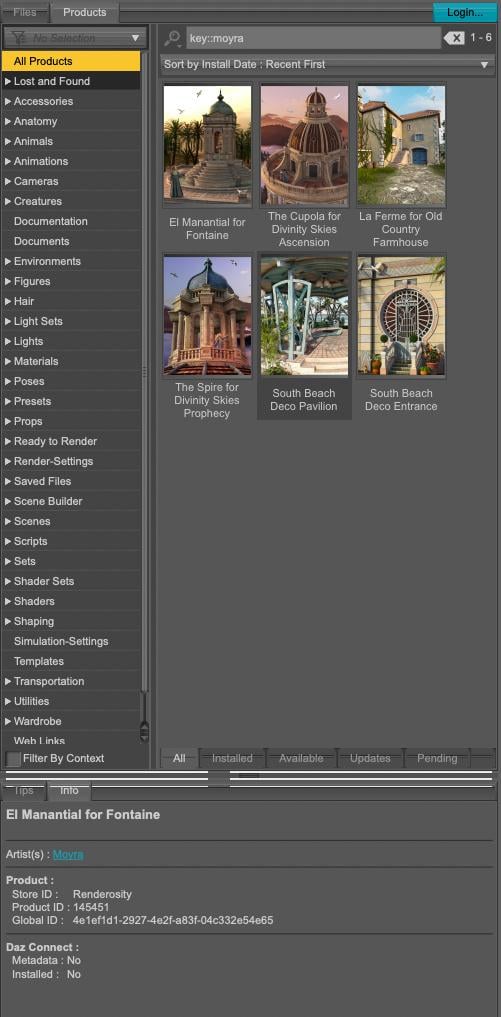
I don't use tags, but I think I will add at least a Renderosity tag because I don't know if you can get only items from a specific store (the Renderosity store was created by Content Wizard, no idea how to create one myself, the metadata were created using Daz metadata editor though) because key::renderosity only shows me a list of products with a link to the Renderosity store of an artist.
Creating Animations on Blender then exporting to Daz3DIn your video it is not clear how you animate the feet, as the ik controls don't move. If you animate mixing ik and fk controls then bake ik to fk I guess the addon is trying to preserve your fk animation, possibly altering the end result. This looks like a bug. If you can explain the steps to reproduce your animation I can try it myself and eventually prepare a bug report for Thomas.
However, if you use the IK controls to animate the feet, as it's usually done, then everything works fine here. I attached the videos for IK and baked FK, where you can see I use the IK controls to animate the feet. Just remove the zip extension to watch the mp4 videos, as the forum doesn't allow to upload mp4 directly.
note. important. If you imported the figure with locks and limits, then the daz FK limits may come in the way when switching IK or baking, as IK has different limits than FK. To prevent this it is best to import the figure without locks and limits, so just disable them in the global settings. May be this is what happens in your example if you didn't animate the feet on purpose.
https://github.com/Diffeomorphic/import_daz/wiki/Setup_Rigging
DAZ Director Plugin (WIP)sidcarton1587 said:
Tugpsx said:
I see you rolled off USD support into its own project. USD Load and USD Export for Daz studio, very nice.
I started adding to the script server but then it occurred to me that I don't want to stuff everything into it, in the interest of keeping it lean. So instead added a mechanism for other DAZ plugins to register an endpoint with the script server so that they too can be exposed via REST endpoints (and the Python package). The USD support is basically an example plugin that works that way. Now comes the hard part, actually make USD import/export work. :-)
So true, this link forms the basis for exporting importing in Studio . https://github.com/daz3d. It has the source for the various requirements but i'm sure you already have access to this information.
DAZ Director Plugin (WIP)Tugpsx said:
I see you rolled off USD support into its own project. USD Load and USD Export for Daz studio, very nice.
I started adding to the script server but then it occurred to me that I don't want to stuff everything into it, in the interest of keeping it lean. So instead added a mechanism for other DAZ plugins to register an endpoint with the script server so that they too can be exposed via REST endpoints (and the Python package). The USD support is basically an example plugin that works that way. Now comes the hard part, actually make USD import/export work. :-)
Let's appreciate/discuss today's new releases - ongoinger still further threadHavos said:
From what I understand about the wall wizard is that it is quite different from Gescon. The latter can punch holes in existing walls, as long as they are closed geometries (ie cubes not flat planes). Geson also tends to add a lot of polygons, and it can mess with the UV, so it might not look the same as before the hole was punched in.
Wall Wizard from what I assume based on the description, creates completely new walls for you. In which you can place doors, window, or just openings. If you have an existing wall you want a door in, then you would create a new wall, add any existing windows, then add the desired door. You would copy the materials over from the old wall, and adjust the tiling to make it match.
For some reason all the polygons created are triangles. This is not necessarily a problem as long as the UVs are correct, so it will take shaders as expected.
You are quite correct Havos except that, a flat plane is the cleanest input you can give Wall Wizard — one axis already has zero extent, so the projection is exact (no
silhouette guessing). The shape can be anything: rectangle, arch, gothic, irregular polygon, etc. Smooth vs sharp tags are
preserved per-vertex.1. You import a subset DUF or OBJ/FBX mesh.
2. It computes the 3D bounding box and auto-detects which axis is thinnest — that's treated as "depth."
3. It projects the remaining two axes to 2D and runs a left/right silhouette extractor (ExtractOutline line 668) that
captures concavities (unlike a convex hull).
4. The resulting outline becomes a CutoutShape.Custom punched through the wall.Released: Auto Rigging Pipeline [Commercial]Auto Rigger Pipeline - Feature List
- Import a single OBJ file or batch import all OBJ files from a selected folder in a single run.
- Includes seven source application scale presets for DAZ/Maya, Carrara, XSI, Silo, Blender, 3DS Max/C4D, and Bryce/Poser to ensure geometry imports at the correct size regardless of the originating application.
- Includes five built-in figure profiles for Genesis 9, Genesis 8 Female, Genesis 8.1 Female, Genesis 8 Male, and Genesis 8.1 Male, along with automatic projection template directory resolution and a free-entry field for custom figure labels.
- Automatic platform detection for Windows and macOS correctly resolves content library paths and path separators without user intervention.
- Per-item projection template assignment uses a browsable drop-down populated live from the selected templates folder, while remembering and pre-selecting the last-used template for subsequent items during the session.
- Full Transfer Utility rigging via DzTransferUtility transfers bindings, morphs, face groups, and region groups while automatically setting the source figure as the primary scene selection to avoid Transfer Utility warnings.
- Post-transfer node re-resolution automatically refreshes rigged nodes by label after doTransfer replaces the original DzNode with a new DzFigure.
- Automatically deletes unweighted bones after rigging to keep rigs clean and store ready.
- The Optional Daz Smoothing Modifier application is available per node.
- Optional Sub-D subdivision modifier support includes selectable render subdivision levels from 1 to 4.
- Pipeline stages, including Import, Rig, Delete Unweighted Bones, Smoothing, and Sub-D, can all be toggled independently so any combination of steps can be run or skipped without editing the script.
- Features a wizard-style multi-page dialog with a branded dark interface that guides users through Import, Rig, and Bones and Modifiers pages with clearly labeled controls and inline status feedback.
- An integrated Import button allows importing directly during the Rig setup page, so results can be verified before committing to rigging.
- All pipeline settings are automatically saved to a JSON file next to the script and restored on the next launch, with forward-compatible merging to preserve existing saved values when future versions introduce new settings.
- Comprehensive console logging includes a consistent [Pipeline] tag on all messages for easy filtering in the DAZ Studio log.
- Critical and non-critical failure handling is implemented throughout the pipeline. Missing source figures or zero imported nodes stop the process immediately, while individual node failures generate warnings and allow processing to continue for the remaining nodes.
- The script follows full linter compliance standards, including IIFE encapsulation, Hungarian notation, g_-prefixed globals, style constants, camelCase functions, tab indentation, structured section separators, and extensive try/catch coverage.
A very important note: This does not do auto weight mapping/jcms etc.
Released: DAZ 2 RizomUV [Commercial]DS2RizomUV - Feature List
DS2RizomUV is a one-click bridge between DAZ Studio and RizomUV, allowing you to send any mesh from your scene directly into RizomUV for UV editing, then seamlessly reimport the updated UVs without losing your materials, morphs, pose, or Sub-D settings.
Core Workflow
- One-click export sends your selected object to RizomUV instantly with no manual file management required.
- Automatic OBJ handoff exports your mesh, generates the required RizomUV load script, and launches RizomUV automatically in a single operation.
- Live file monitoring detects updated files after saving in RizomUV and prompts you to accept the UV changes before import.
- Confirm or cancel at re-import with a simple Accept or Cancel dialog that lets you approve or discard UV updates before any changes are applied to your scene.
Scene State Protection
- Before export, the script captures and neutralizes scene state to ensure the exported mesh is clean and accurate. All settings are fully restored after the UV update or immediately if you cancel.
- Morph and shape zeroing memorizes and zeroes figure morphs before export, then restores them afterward. This ensures the exported mesh always reflects the base geometry regardless of active morphs.
- Pose zeroing memorizes and zeroes figure poses before export, then restores them after re-import.
- Sub-D level preservation captures both viewport and render Sub-D levels, then temporarily switches the mesh to base resolution for export. Original settings are restored automatically afterward.
- Cancel-safe restore immediately restores morphs, poses, and Sub-D settings if you decline the UV update.
Material Preservation
- Deep material backup duplicates all materials on the selected object before geometry updates, preserving shader graphs, texture maps, and ERC links.
- Accurate material restoration restores materials to matching surfaces by name, with index fallback when needed.
- No material loss ensures that only geometry data is updated, preserving original surface assignments and shader setups.
Parented Figure Support
- The Figure is parented option allows the script to memorize and zero the parent figure pose when clothing or props are attached to another figure, preventing export offset issues.
- Graceful fallback warns the user if no parent figure is detected while continuing safely without parent pose handling.
- Cross-platform support stores settings and temporary files in platform-appropriate locations on both Windows and macOS.
Export Quality
- Clean OBJ export exports meshes at base resolution with UV coordinates, geometry groups, and material assignments intact using the DAZ Studio 1 unit = 1 cm preset for correct RizomUV scale.
- UV coordinate passthrough imports geometry groups along with full UV and position data into RizomUV, with UV normalization enabled for optimal workspace results.
[Solved] Metadata: how to remove a wrong Scene ID from a Compatibility Base ?Oh, it's very clever trick, I wish I thought about it.
Thank you for sharing it!
I'll edit the problematic .dsx files (and open a ticket, hoping for a fix), but in the meantime, I did it the following way (so I only have to deal with one product and not three):
1. I created a dummy.duf file in an empty library (not sure if it's really needed or if Daz Studio will accept to create a product without any file in the directory)
2. I created a product called Dummy Dummy (then changed it to '0 Dummy Dummy', thinking it would appear at the top of the reimport windows, but I forgot that it's sorted by store first and I have other stores in my database that DAZ3D and Local_User, so a better product is likely Z Dummy Dummy, no relation to Zeddicuss at all, I could also try to make it a DAZ3D product, but I prefer to avoid using the Daz3D store outside of products transfered from elsewhere and distributed without any metadata)
3. I loaded Genesis 3 Female, Genesis 8 Female and Genesis 9 Base (Dev version for G8F and G9, to load them a bit faster) and I selected them in the scene tab.
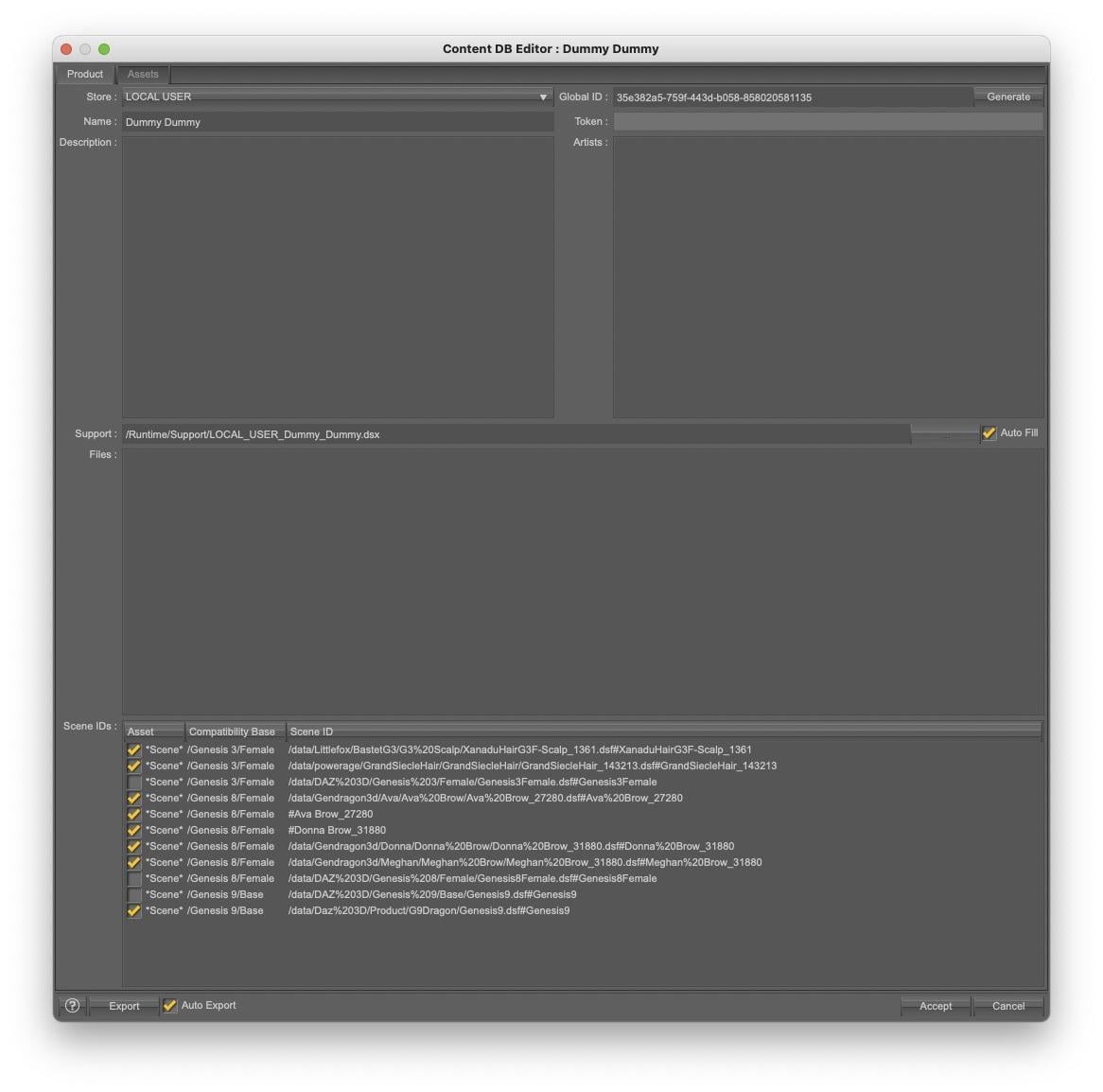
I opened the metadata data editor, unselected the correct Compatibility Bases, to prevent them from being saved in my dummy product, and saved the metadata (the screenshot was taken while the product was called Dummy Dummy):
4. I opened LOCAL_USER_0_Dummy_Dummy.dsx in my text editor (that file is located in ~/My Documents/DAZ 3D/Daz Studio/My Library/Runtime/Support on my Mac, I suppose it's in a similar place on a Windows computer) and replaced any mention of Genesis 9/Base by Dummy/DummyG9, and so on eve if I don't think it's necessary (if you really want to go as fast as possible, in other word without even to type Dummy to search the root compatibility base, just use 000 Dummy as a root compatibility base, it's very likely to be the first visible).
5. I re-imported 0 Dummy Dummy and voila, Genesis 3/Female, Genesis 8/Female and Genesis 9/Base were back to only use their intended Scene IDs.
6. Then I removed the Dummy root compatibility base, which removed the sub ones in the process, then the dummy product and I got back to a cleaner database

Thank you again, it was driving me crazy.
Now I just have to alert the nice person who shared free Yoga poses for G9 on Renderhub and who likely has Marley installed too because in the provided metadata, the problematic Scene ID from Marley appears.
If anyone has the same set of bugged metadata, I can share my Dummy Dummy product if they don't want to do the whole process themselves (but it's a minute or two if you know your way around the metadata editor).
[Solved] Metadata: how to remove a wrong Scene ID from a Compatibility Base ?I have the same data in my version of Absinthe. That comes directly from DAZ, so we both could not have made the same mistake.
I found another product with similar statements, but much worse. Melantha Witch and Beauty for Genesis 8.1 Female(s). It is the only Gendragon3D character I have, yet it touches all Gendragon3D characters, notably the eyebrows, plus a few others that are not even Daz products.
I had to check my notes, and recalled the same problem with Greenzkin Orc. I did not have the product at the time, but it was defined in a similar way in many places. The problem was that the left side of the object compatibility statement did not exist (no such object), so it did not show up in the uber list of compatibility bases. My solution was to redefine the errant assignments to a dummy base, and then delete the dummy base from the list, then remove the bad references from all metadata files that have them.
Here is the thread that outlines the process Greenzkin Infiltration - Daz 3D Forums. You should be able to adapt it easily. I have done it several other times, too.
[Solved] Metadata: how to remove a wrong Scene ID from a Compatibility Base ?Thank you but G9Dragon is not a Compatibility Base: it won't appear in the list, and doesn't, I checked

It's part of the path of geometry file someone at Daz wrongly linked with the compatibility base 'Genesis 9/Base' and I don't know how to unlink it: since then, I also tried to remove Genesis 9 Starter Essentials, but the problem is still here.
To make the matter worse, they did a similar mistake Z Bending Down Pose Partials Mega Set: through this product, they linked 'Genesis 3/Female' with two hairs products (I think, considering the name of the files) on top of having the usual Scene ID for 'Genesis 3/Female' (a scene ID that is not needed at all because poses don't have Compatibility Bases)

<ObjectCompatibility VALUE="/data/Littlefox/BastetG3/G3%20Scalp/XanaduHairG3F-Scalp_1361.dsf#XanaduHairG3F-Scalp_1361" REF="/Genesis 3/Female"/>
<ObjectCompatibility VALUE="/data/powerage/GrandSiecleHair/GrandSiecleHair/GrandSiecleHair_143213.dsf#GrandSiecleHair_143213" REF="/Genesis 3/Female"/>
<ObjectCompatibility VALUE="/data/DAZ%203D/Genesis%203/Female/Genesis3Female.dsf#Genesis3Female" REF="/Genesis 3/Female"/>I also have a similar problem with 'Genesis 8/Female' but I have yet to be able to identify which product is reponsible: I searched for them inside all .dsx files with metadata I have and none have the bogus scenes IDs in them. My current guess is the problem is from products refunded since December 2025 because I created metadata for a Genesis 8 Female character before December 2025 and there is no bogus Scene IDs here and I saw them.
I don't think it's a problem related to other stores, because most of them don't provide metadata and when they do, I'm usually redoing them because most of the time, they are bad.
And I don't think it's a mistake I made while creating metadata, because how could I link a Compatibility Base with geometry files I don't own or knew about in the first place, to say nothing of the fact that if it was a mistake I did, I should see the bogus scene IDs linked to 'Genesis 8/Female' in my metadata files and I don't.
Edit : I just identified the product responsible for the problem for Genesis 8/Female.
It's Absinthe for Genesis 8 Female. I just don't get why I didn't see the problem when I created metadata at the end of 2025 because it's a freebie from September 2025.
<ObjectCompatibilities>
<ObjectCompatibility VALUE="/data/Gendragon3d/Meghan/Meghan%20Brow/Meghan%20Brow_31880.dsf#Meghan%20Brow_31880" REF="/Genesis 8/Female"/>
<ObjectCompatibility VALUE="/data/Gendragon3d/Donna/Donna%20Brow/Donna%20Brow_31880.dsf#Donna%20Brow_31880" REF="/Genesis 8/Female"/>
<ObjectCompatibility VALUE="#Donna Brow_31880" REF="/Genesis 8/Female"/>
<ObjectCompatibility VALUE="#Ava Brow_27280" REF="/Genesis 8/Female"/>
<ObjectCompatibility VALUE="/data/Gendragon3d/Ava/Ava%20Brow/Ava%20Brow_27280.dsf#Ava%20Brow_27280" REF="/Genesis 8/Female"/>
<ObjectCompatibility VALUE="/data/DAZ%203D/Genesis%208/Female/Genesis8Female.dsf#Genesis8Female" REF="/Genesis 8/Female"/>
</ObjectCompatibilities>[Solved] Metadata: how to remove a wrong Scene ID from a Compatibility Base ?Just saw this one. I have had similar conflicts in the past, but I do not have this particular product. As you have realized, the metadata file cannot undo Compatibility Base assignments once they are made. What you do is load Genesis 9, then select Edit->Scene Identification. In the dialog, look for Compatibility Base. Click the ellipsis at the far right. This will open the list of all defined compatibility bases. Search for the erroneous string (G9Dragon) (I can't recall if it would be a Compatibility Base of its own or a Sub-Compatibility Base under Genesis 9) and delete the bad reference. This will clear the entry from the database. (There are other ways to access the "Choose a Compatibility Base" dialog)
Don't forget to delete the line from the metadata file, or it will get back in if ever you re-install or re-import metadata.
If you mess it up, you can re-install Genesis 9 Starter Essentials (or re-load the metadata from DIM) to reset any missing parts.
Texture issue in the Daz Dragon 3 in Blender with DiffeomorphicI tried importing a dragon I made with the Daz Dragon 3 addons into Blender using Diffeomorphic and I like to use normal textures made in https://cpetry.github.io/NormalMap-Online/ in it to make it more detailed, but this time when I use Easy Import Daz it says it comes with a warning and the normal head texture does not work properly, as you can see in the image. Does anyone have any idea what the cause might be and how I can fix this?
[Released] Mirror Geometry for Genesis 9 [Commercial]It’s a year later and I still can’t get the script to work. This time trying the G8F version to mirror https://www.daz3d.com/dforce-roma-dress-for-genesis-8-females. I’m following the steps in the PDF manual precisely.
1. Load G8F base figure, and nothing else.
2. Select figure.
3. Launch script and configure.
4. Click Run. In the viewport, I see the script load the dress onto the figure. Then I see it flip (mirror). Then it disappears and the script apparently stops running. The expected “Update Base Geometry” dialog does not appear.
The script does create !MIRRORED ITEM.obj in the working directory but does not invoke the import step. If I try to import !MIRRORED ITEM.obj in the normal way, the program freezes — it doesn’t quit, but the import dialog is nonresponsive.
DAZ 4.24.0.4, Windows 11
[diffeomorphic] some hairs look like plastic in cyclesMake sure it's using the normal map. I imported the asset myself and the Normal map makes a massive difference Diffeo doesnt import the normal map in either FBX compatable, or Extended for that asset.
Star 2.0 for G3F!!! whoot!!
--- I'm very sorry to bother you after all these years. May I ask what parameters I need to adjust in order to replicate the eyelashes shown in the poster? (The poster shows two distinct peaks in the lashes, but when I directly import the model, the lashes appear completely smooth.) I've been trying for a long time without success, so I have no choice but to turn to the developer for help.Lady Littlefox said:Yeah the rotational centers are in weird places due to them being disks that float, they're like three joints in to make it work ;P
I was actually thinking about adding an expansion to the eyes... give me another week and it'll probably be a freebie or something... main intent woudl be to put one last joint right on the eye disk itself so that it has a pivot to twirl around easier for the grab and move crowd. That sound like a happy solution?(Need help) Eyelashes on the Star 2.0 modelI want to style the character's eyebrows to look like those in a product poster, but I haven't been able to find the corresponding parameters. Her eyelashes have two sharp protrusions, but after I import the model, the eyelashes look very smooth.Sagan: A DAZ Studio to Blender Alembic ExporterAlembic doesn't transfer the materials, just the material slots.
There was no point in implementing some sort of materials converter when Thomas and Padone had already done so in Diffeomorphic, and far better than I would have done. But you can do an import with Diffeomorphic, tell it to alphabetixe the material slots but not to remove duplicate materials, and then easilt copy the materials from the diffeo import to the Sagan import. Or ask your favorite LLM to write a script to do it.
Urgent question about Blender to Daz Studio PluginRather than importing a rigged character, you could maybe pose against a reference image or a similar sized character in Daz, do the pokemon posing in blender, then export a textured/baked statue without any rigging and import that into Daz. Wouldn't be as versatile as being able to pose directly in Daz since you'd essentially be importing a prop, but it might make the workflow more doable for some still renders.
Daz 3D is part of

Connect
DAZ Productions, Inc.
7533 S Center View Ct #4664
West Jordan, UT 84084Licensing Agreement | Terms of Service | Privacy Policy | EULA
© 2026 Daz Productions Inc. All Rights Reserved.