-
Daz Studio 6 Beta - version 6.25.2026.19821! (Updated July 23, 2026)
Sorry, I was unclear - When I am working on scenes, switching between Iray and Filament seems to keep the scene decently lit but when I switch to Texture Shaded, it becomes too dark. I have to toggle Preview Lights (Ctrl+L) so the scene would be lit similarly as the other viewport modes. It seems like a bug to me but wanted to be sure I was not seeing some odd behavior or if it was something I did.
Also, will there be documentation on what surface settings will be able to be previewed in Filament and Texture shaded (i.e. displacement, opacity, normals, etc...)?
And will shadows be something available in Texture Shaded?
Daz Studio 6 Beta - version 6.25.2026.19821! (Updated July 23, 2026)cain-x said:
The Universal Viewport mode is interesting but will there be parity in lighting/exposure when it comes to changing modes between Iray, Filament, and Texture Shaded?
I am not sure what you are asking. If you mean, will Iay and Filament be item overrides with Universal mode then no - they don't work like other Drawstyles and so cannot be mixed in a single draw.
Daz Studio 6 Beta - version 6.25.2026.19821! (Updated July 23, 2026)The Universal Viewport mode is interesting but will there be parity in lighting/exposure when it comes to changing modes between Iray, Filament, and Texture Shaded?
Does Magix 101 SkyRay Worlds - Complete World Builder set use lots of instancing?Yeah, I actually just bought it about 20 minutes ago and already did a fast conversion of a road scene to Filament. Took me all of 10 minutes to convert everything. This will be really great for Filament use, granted I need to work on the lighting a bit, but all the materials are converted.
Does Magix 101 SkyRay Worlds - Complete World Builder set use lots of instancing?Yes, the supplied scenes use a lot of instancing, but is surprisingly light on the memory load. The templates with grass (2 of the 4) use thousands of grass patch instances, but, again, surprisingly light on the memory. Everything shows, but you can't see all of them at the same time (360 degree environment). The Filament view looks off, so some tweaking will be needed.
Does Magix 101 SkyRay Worlds - Complete World Builder set use lots of instancing?Does Magix 101 "SkyRay Worlds - Complete World Builder set" use lots of instancing?
I'm using Filament now and too many instances are a problem. Does this set use geometry for everything or is there lots of instancing involved? I can't even see the readme file, I keep getting 503 service unavailable errors trying to access the readme: http://docs.daz3d.com/doku.php/public/read_me/index/92800/start
Anyone own this and can you see everything when in Filament viewport mode? This is the easiet way to tell me if it will work.
Single-sided materials?I've been fighting with a custom object for a while, trying to get it to work right... I finally have it 95% sorted, just 2 things to complete.
1: Apply the bone system so I can move the main surface anywhere I like (not first time, shouldn't be hard)
2: Make the 4 sides of the pyramid (whose base is the main surface) only visible from inside. Which is proving to be a challenge.
So essentially, it needs to be that no matter what angle you stand viewing this pyramid, you can see its base and the farther sides, while the nearer ones are invisible. In *any* other application, I would just make the material 1-sided, no bother. In fact, most of the time, materials are 1-sided unless you specifically make them otherwise.
Can I find a way to do this in Daz? No. Also couldn't find anything about it in tutorials. Any help would be much appreciated. (Ideally, this would be to work in the Filament engine, but the material doesn't have to be Filament)Daz Studio 6 Beta - version 6.25.2026.19821! (Updated July 23, 2026)Issue: HDRI larger than 8k crash DAZ Alpha.
I give up. I have the exact same issue on two completely different computers:
AMD Desktop with 5070ti Win 10
MSI intel gamer laptop 4070 8Gb VRAM Win 11It crashes during the HDRI file loading process as far as I can tell:
> A tiny grey "Please wait" window with a progression bar appears (Too fast for a screenshot), then DAZ stops respondin
> The log file does not show the expected "Loaded image: XXXXXXXX.exr" - it just stops at one of the typical "IRAY:RENDER :: 1.0 IRAY rend info : Received update to 00045.20 iterations after 726.759 ms."
- Same issue with EXR and HDRI, 16k or 24k
- Same issue with Gamer and Studio Nvidia drivers
- No particular settings in the DAZ preferences, default only. No effect when changing the quality settings.
- No matter if the scene has objects or is completely empty, it crashes as soon as I load the image file.
- The rendering mode has no effect, filament, iray or else
- Changed the screen scaling back to default 100% with original screen resolution. No difference.
- Tried with many different domes of course, mostly from Polyhaven.
- The perf monitor in the Task Manager does not show anything special, I have plenty of RAM, VRAM and CPU/GPU availability when it happens.
- Of course, no problem whatsoever with DAZ 4.24. Fast and easy, loading the HDRI is no issue.
- It did work a couple of times only in the last few months when troubleshooting the issue, and I have no idea why.
I am stumped, very few people have this issue as far as I can see and I can´t figure out what´s so special AND in common in my two very different computers. Both Windows are regular, legal licence and up to date.I have had this issue with every version of the alpha build, which I have been using for almost a year. It is not a massive constraint - I just render the 16k+ on DAZ 4.24 on the gamer laptop and then apply it as a background. But it really buggers me. I´m not used to fail at troubleshooting ^^'
DS 4 without Rosetta 2inquire said:
is there any chance that version 4.24 of DS will be made to run natively on an Apple M Chip? The benefit of this would be that if there are scripts that will not work in the new alpha version of DS, a Macintosh user could use the script in version 4.24 of DS, and then save the scene, and reopen it in the new alpha version, and of course, later in the new full version of DS?
Otherwise, when Apple Drops Rosetta 2, Which is probably going to happen in about another year, then all the scripts that will not work in the new version of DS, will not be available to a McIntosh user.No, they won't be able to make 4.24 Apple Silicon Native, it uses an older version of Qt that doesn't support Metal, to the best of my knowledge. It's the reason we couldn't have Filament prior to the Alpha.
Daz Studio 6 Beta - version 6.25.2026.19821! (Updated July 23, 2026)JD said:
barbult said:
Richard Haseltine said:
barbult said:
DoctorJellybean said:
barbult said:
TromNek said:
I still have a problem with turning off the 'Display in Viewport' in Daz 2025.
When I do that the light does not emit light in my scene (it used to emit in 4.x)
I like a lot of lights to light up small little areas in my scene. But without the ability to 'Display in Viewport'->Off, they clutter up my scene and I can't see to manipulate objects well.
Is there anyway to change the display of the 'white lines' to be invisible ?
Like add a material to the light and then set transparency to zero ?
Yes, I have the same issue. I am interested to hear that I am not the only one unhappy with the change. I believe the developers are aware of it. I don't think it has been determined whether it is a bug in DS6, or a correction to an error in DS4, or something else. We'll have to wait for the developers to investigate it.
It is not a bug in 6.x, it is a correction to a bug (unintentional) in 4.x
What 4.x did would be a feature request (making it intentional) for a "Display Avatar" property that could be used to toggle display of a node's avatar - to align it with the Drawing > Draw Avatars property in the Draw Settings pane for the Filament DrawStyle, and the Drawing > Draw Node Avatars property in the Draw Settings pane for the NVIDIA Iray DrawStyles). So explaining that reveals an inconsistency in the labeling of the Draw Avatars vs Draw Node Avatars properties - the Filament DrawStyle property needs to be relabeled to Draw Node Avatars to be consistent.
Unfortunately, I don't understand any of that. I don't know what avatars and node avatars are, or what Filament has to do with the issue I see in Texture Shaded mode. I think I initially misunderstood the message I responded to. My problem is with cameras, not spot lights. If the camera selected in the viewport has its visibility eye closed (visibility off) the scene is unlit (black). Toggling Show Preview Lights has no effect. Camera visibility did not affect Texture Shaded scene lighting in DS4. Is that an intentional change in DS6? It has been confusing and frustrating to figure out that camera visibility can make the viewport black and impossible to work in.The avatar is the little camera or light mesh that appears in the scene view. You are wanting to be able to hide that, but keep the effect (in this case the light coming from the camera), which is also part of the node drawing, visible.
Dr. Jellybean's reply to me talks about Filament and Iray Preview, neither of which I am using. I am using Texture Shaded. His reply talks about Draw Settings pane labeling discrepancies. I don't understand how any of that applies to the problem of the Texture Shaded viewport going black when the selected camera's visibility is off.
Richard, thank you, now I understand that a "node avatar" refers to the little line drawing representation of that node in the viewport. For example, a camera's location in the viewport is represented by a little drawing of a camera. You can see that camera's node avatar in the viewport when you are viewing the scene from a different camera.
But Richard, I am not wanting to keep light coming from a camera. The headlamp is the only light I know that comes from a camera. Even if headlamp is on, it doesn't illuminate the scene when the camera visibility is off. I am wanting a camera whose visibility is OFF to be able to see the scene. I am using Texture Shaded draw style in the viewport. I want the viewport to have the same appearance when viewed through the camera, regardless of whether that camera has its visibility On or Off. I cannot work in a viewport that is all black. I can't imagine a scenario where that is an advantageous implementation of camera visibility. I'm not trying to be argumentative. I'm trying to clarify what I see as a DS6 problem and understand how that could be the intended implementation. There must be something I don't understand yet, maybe related to the statement about "light coming from a camera".
The reason I noticed this problem in DS6, is that BJ Camera Manager plugin (which I use in DS4) sets camera visibility fo OFF by default for any new camera it creates. The explanation for this is that it reduces viewport clutter. If you have a scene with 10 cameras, when you view your scene through one camera, or perspective view, having 9 or 10 camera node avatars cluttering the viewport makes it more difficult to see the elements you are trying to work with. This works fine in DS4. When the camera visibility is Off, the Texture Shaded view is still visible and toggling Preview Lights works as expected. Now, when I open that saved scene in DS6, the viewport is suddenly black and I can't see my characters, or environment, or props, or anything. Toggling Preview Lights does nothing. It took a long time to figure out that this had to do with CAMERA visibility.
Although I understand what a node avatar is now, I still don't understand what that has to do with the selected camera not being able to see what is in the scene. Why would camera's node avatar visibility affect what that same camera can see? I never expect to see the selected camera's node avatar in the viewport, because I am viewing the scene through that camera (My "eye" is behind that camera, looking through its viewfinder.)
I would like a feature request to bring back the behavior of the camera and spotlight to behave the same as in 4.24.
My main issue is when I switch to spotlight, with the preview lights off, the whole scene is black. I want it to behave like the perspective where it will see everything lit. Having my scene turn dark provides no benefit when I switch to a spotlight's POV with the preview lights off. The point of going to a spotlight's POV for me is to set up the spotlight easier in the scene.
barbult's issue is close to mine, as both the camera and spotlight seems to behavior similarly. Reverting to how it behaved in 4.24 as the unintentional bug feels more beneficial compared to the current behavior in the ALPHA build. It doesn't help to have the scene turn dark.
These are the testings I did on ALPHA build 6.25.2025.32308
When in perspective view with the...
- preview lights off,
- scene is evenly lit (good)
- preview lights on,
- you can see the scene with any active lights.
When in camera view with the...
- preview lights off,
- scene is evenly lit (good)
- preview lights on,
- you can see the scene with any active lights.
- camera visibility off
- scene is dark.
Because the camera is off. A way to handle this, as has been mentioned, would be to allow the camera avatar (the thing that appears in the Viewport) to be off separately from having the camera itself on.
When in spotlight view with the...
- preview lights off,
- scene is dark. (bad) (I want it to work like the perspective and camera view)
The light is off (Preview Lights off) in this view, though not in renders. I'm not sure this copuld be resolved by splitting avatar and function since it is the function that is being switched off.
- preview lights on,
- you can see the scene with any active lights.
- spotlight visibility off
- scene is dark.
This one could be resolved by separating avatar visibility and function.
I believe this issue arise because of scene clutter and control. Giving the user more control will help set up their scenes with a better experience. I mentioned clutter because as TromNek mentioned, there is clutter when setting up a scene with all the display lines. This is something I experienced, which I found a decent solution, but ideally, there can be something better. I like the way Blender does it by having a way to uncheck certain nodes' visibility in order to reduce the clutter in the working viewport, but it shouldn't disable the nodes in the "Scene" tabs.
Doing this would give the users more control to set up their scenes easier, which I think is what barbult is aiming for with their workflow.
I think Daz ALPHA is able to build these features to expand more on the "Viewport" tab options. It would help to give a list of spotlights/cameras/etc and you can disable its display visibility in the "viewport" without affecting if it is on/off in the "scene" tab. It would be great for each viewport to have its own "options" to remember. Because I like to work with a 2-4 viewports at various angles. One viewport lets me see the camera's POV which will be the render and it helps to see how the render will look as I adjust the scene around. It helps to disable the clutter of one viewport while allows the display in other viewports in order to move things around as needed.
Daz Studio 6 Beta - version 6.25.2026.19821! (Updated July 23, 2026)barbult said:
Richard Haseltine said:
barbult said:
DoctorJellybean said:
barbult said:
TromNek said:
I still have a problem with turning off the 'Display in Viewport' in Daz 2025.
When I do that the light does not emit light in my scene (it used to emit in 4.x)
I like a lot of lights to light up small little areas in my scene. But without the ability to 'Display in Viewport'->Off, they clutter up my scene and I can't see to manipulate objects well.
Is there anyway to change the display of the 'white lines' to be invisible ?
Like add a material to the light and then set transparency to zero ?
Yes, I have the same issue. I am interested to hear that I am not the only one unhappy with the change. I believe the developers are aware of it. I don't think it has been determined whether it is a bug in DS6, or a correction to an error in DS4, or something else. We'll have to wait for the developers to investigate it.
It is not a bug in 6.x, it is a correction to a bug (unintentional) in 4.x
What 4.x did would be a feature request (making it intentional) for a "Display Avatar" property that could be used to toggle display of a node's avatar - to align it with the Drawing > Draw Avatars property in the Draw Settings pane for the Filament DrawStyle, and the Drawing > Draw Node Avatars property in the Draw Settings pane for the NVIDIA Iray DrawStyles). So explaining that reveals an inconsistency in the labeling of the Draw Avatars vs Draw Node Avatars properties - the Filament DrawStyle property needs to be relabeled to Draw Node Avatars to be consistent.
Unfortunately, I don't understand any of that. I don't know what avatars and node avatars are, or what Filament has to do with the issue I see in Texture Shaded mode. I think I initially misunderstood the message I responded to. My problem is with cameras, not spot lights. If the camera selected in the viewport has its visibility eye closed (visibility off) the scene is unlit (black). Toggling Show Preview Lights has no effect. Camera visibility did not affect Texture Shaded scene lighting in DS4. Is that an intentional change in DS6? It has been confusing and frustrating to figure out that camera visibility can make the viewport black and impossible to work in.The avatar is the little camera or light mesh that appears in the scene view. You are wanting to be able to hide that, but keep the effect (in this case the light coming from the camera), which is also part of the node drawing, visible.
Dr. Jellybean's reply to me talks about Filament and Iray Preview, neither of which I am using. I am using Texture Shaded. His reply talks about Draw Settings pane labeling discrepancies. I don't understand how any of that applies to the problem of the Texture Shaded viewport going black when the selected camera's visibility is off.
Richard, thank you, now I understand that a "node avatar" refers to the little line drawing representation of that node in the viewport. For example, a camera's location in the viewport is represented by a little drawing of a camera. You can see that camera's node avatar in the viewport when you are viewing the scene from a different camera.
But Richard, I am not wanting to keep light coming from a camera. The headlamp is the only light I know that comes from a camera. Even if headlamp is on, it doesn't illuminate the scene when the camera visibility is off. I am wanting a camera whose visibility is OFF to be able to see the scene. I am using Texture Shaded draw style in the viewport. I want the viewport to have the same appearance when viewed through the camera, regardless of whether that camera has its visibility On or Off. I cannot work in a viewport that is all black. I can't imagine a scenario where that is an advantageous implementation of camera visibility. I'm not trying to be argumentative. I'm trying to clarify what I see as a DS6 problem and understand how that could be the intended implementation. There must be something I don't understand yet, maybe related to the statement about "light coming from a camera".
The reason I noticed this problem in DS6, is that BJ Camera Manager plugin (which I use in DS4) sets camera visibility fo OFF by default for any new camera it creates. The explanation for this is that it reduces viewport clutter. If you have a scene with 10 cameras, when you view your scene through one camera, or perspective view, having 9 or 10 camera node avatars cluttering the viewport makes it more difficult to see the elements you are trying to work with. This works fine in DS4. When the camera visibility is Off, the Texture Shaded view is still visible and toggling Preview Lights works as expected. Now, when I open that saved scene in DS6, the viewport is suddenly black and I can't see my characters, or environment, or props, or anything. Toggling Preview Lights does nothing. It took a long time to figure out that this had to do with CAMERA visibility.
Although I understand what a node avatar is now, I still don't understand what that has to do with the selected camera not being able to see what is in the scene. Why would camera's node avatar visibility affect what that same camera can see? I never expect to see the selected camera's node avatar in the viewport, because I am viewing the scene through that camera (My "eye" is behind that camera, looking through its viewfinder.)
I would like a feature request to bring back the behavior of the camera and spotlight to behave the same as in 4.24.
My main issue is when I switch to spotlight, with the preview lights off, the whole scene is black. I want it to behave like the perspective where it will see everything lit. Having my scene turn dark provides no benefit when I switch to a spotlight's POV with the preview lights off. The point of going to a spotlight's POV for me is to set up the spotlight easier in the scene.
barbult's issue is close to mine, as both the camera and spotlight seems to behavior similarly. Reverting to how it behaved in 4.24 as the unintentional bug feels more beneficial compared to the current behavior in the ALPHA build. It doesn't help to have the scene turn dark.
These are the testings I did on ALPHA build 6.25.2025.32308
When in perspective view with the...
- preview lights off,
- scene is evenly lit (good)
- preview lights on,
- you can see the scene with any active lights.
When in camera view with the...
- preview lights off,
- scene is evenly lit (good)
- preview lights on,
- you can see the scene with any active lights.
- camera visibility off
- scene is dark.
When in spotlight view with the...
- preview lights off,
- scene is dark. (bad) (I want it to work like the perspective and camera view)
- preview lights on,
- you can see the scene with any active lights.
- spotlight visibility off
- scene is dark.
I believe this issue arise because of scene clutter and control. Giving the user more control will help set up their scenes with a better experience. I mentioned clutter because as TromNek mentioned, there is clutter when setting up a scene with all the display lines. This is something I experienced, which I found a decent solution, but ideally, there can be something better. I like the way Blender does it by having a way to uncheck certain nodes' visibility in order to reduce the clutter in the working viewport, but it shouldn't disable the nodes in the "Scene" tabs.
Doing this would give the users more control to set up their scenes easier, which I think is what barbult is aiming for with their workflow.
I think Daz ALPHA is able to build these features to expand more on the "Viewport" tab options. It would help to give a list of spotlights/cameras/etc and you can disable its display visibility in the "viewport" without affecting if it is on/off in the "scene" tab. It would be great for each viewport to have its own "options" to remember. Because I like to work with a 2-4 viewports at various angles. One viewport lets me see the camera's POV which will be the render and it helps to see how the render will look as I adjust the scene around. It helps to disable the clutter of one viewport while allows the display in other viewports in order to move things around as needed.
Daz Studio 6 Beta - version 6.25.2026.19821! (Updated July 23, 2026)TheNathanParable said:
f7eer said:
I should say it was and is no longer an issue when using the "NVIDIA Iray" option in the DrawStyle options menu.
f7eer said:
This issue was fixed in 6.25.2025.32308 (currently the latest version). It was not remarked on in the change log, as far as I could tell.
TheNathanParable said:
I'm sorry if this has been asked before, but am I the only one experiencing issues with the viewport not updating unless I move my mouse over the camera controls?
For some reason, most of the shader and environment parameters (including FilaToon's Shadow Softness and Opacity controls, and most of the Environment's Color Correction and Tone Mapping controls) won't actually show any changes in the viewport unless I wiggle my mouse over the camera controls in the top right corner afterwards, making it incredibly tedious to do any kind of visual tweaks (especially color correction). This was never an issue with the previous version of Daz, so I can't imagine what would be causing this in the 2025 version. I have a GeForce 4090 GTX graphics card, so that shouldn't be the issue.
I should've clarified, my issue is with the Filament view mode. But i'll update and see if that fixes it.
EDIT: Ok, there isn't an update, so unfortunately this is still an issue for me in the current version and hasn't been fixed.
I just experienced a similar problem with the texture shaded view while adjusting a sphere obj's opacity. I had to move the view slightly just like you explained for it to update the obj's surface opacity adjustment.
Edit: I adjusted a skin texture's opacity on both Genesis 8 male and female figure, and it appears that there is a few second delay in the surface opacity being updated. The behavior of the surface update is not consistent. Sometimes it updates with a delay. Moving the view does help, but sometimes you don't need to for it to update. Sometimes doing nothing after adjusting it does nothing.
Daz Studio 6 Beta - version 6.25.2026.19821! (Updated July 23, 2026)f7eer said:
I should say it was and is no longer an issue when using the "NVIDIA Iray" option in the DrawStyle options menu.
f7eer said:
This issue was fixed in 6.25.2025.32308 (currently the latest version). It was not remarked on in the change log, as far as I could tell.
TheNathanParable said:
I'm sorry if this has been asked before, but am I the only one experiencing issues with the viewport not updating unless I move my mouse over the camera controls?
For some reason, most of the shader and environment parameters (including FilaToon's Shadow Softness and Opacity controls, and most of the Environment's Color Correction and Tone Mapping controls) won't actually show any changes in the viewport unless I wiggle my mouse over the camera controls in the top right corner afterwards, making it incredibly tedious to do any kind of visual tweaks (especially color correction). This was never an issue with the previous version of Daz, so I can't imagine what would be causing this in the 2025 version. I have a GeForce 4090 GTX graphics card, so that shouldn't be the issue.
I should've clarified, my issue is with the Filament view mode. But i'll update and see if that fixes it.
EDIT: Ok, there isn't an update, so unfortunately this is still an issue for me in the current version and hasn't been fixed.
I hope you like - Using DazYou can sort of fake softer shadows in Filament using Spotlights by setting the spread angle to near 180 deg.
Please help me get back in the game...SofaCitizen said:
...
As far as I am aware Cararra no longer gets updates - however there are some people who still use it regularly for things ...
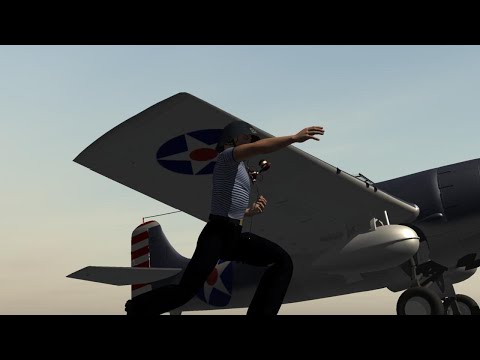
Yes, I am one of those people, using Carrara on a near daily basis for short animations. I'm not a modeler, so I don't feel I'm missing much versus other more up to date programs. I've used Carrara so long it has become second nature, so I can think about what I want to do, rather than how to do it. I am finally getting into DAZ Studio 4.24, but only for still images due to the long render times with the great iRay. Then I use the stills as background in Carrara animations. I have most recently checked out DS with Filament rendering, maybe some animation possible with that fast render time, but the quality is not the same as iRay renders. Here is a short Carrara animation, a 48 second trailer for a 7 minute animation for the 48 Hour Film contest this year:
 3D Printed Action Figures
Thanks for that update on printers and resins.
My work has a filament printer, and at the moment we use ABS as the resin. It's very useful for showing customers new ideas, but even though it's more stable than PLA, it's not useable for any 'real' jobs where a life of 25 years is needed from all materials.
I reckoned my 2k Photon was good enough to do static statues, I'm intrigued to hear the resins are good enough for action figures.
Since Yamato Toys USA disappeared, there appears to be a dearth of decent fantasy statues. Getting the colours on the model (like the attached Luis Royo 'A Touch of Ice' ) is so hard to replicate. Having a range of printable customisable action figures would be really good.
Regards,
Richard
3D Printed Action Figuresrichardandtracy said:
A very intriguing idea.
Can I ask a few things about this?
What printers are required and what print resolution? My experience would suggest that filament printers would require a lot of post work. Are current SLA resins up to much use? I'm trying to ascertain whether these could be robust enough to be toys or more aimed at being posable statues for adults. Also, have you found a minimum/maximum practical size for the models? The knee articulation looks quite clever, but I suspect it would be vulnerable to damage if too small and also have an upper limit on the size (scale effect: cross section area & strength is a squared factor, mass is a cubic factor).
In the past I printed some DS characters on an Anycubic Proton SLA printer, before becoming very allergic to the resin available at the time (2019-20), and have been a bit wary about experimenting further.
Regards,
Richard.
Initially I designed it for FDM printers but filament is terrible for joints (see attached pics). Most thermoplastics, PLA especially, start warping and the joints will become loose even if you don't move them (a phenomenon called "creep"). For this reason I changed to using UV resin exclusively.
UV resin has come a long way since the 2020s. The resin I used is Resione TH-74, which was designed for action figures and it's pretty great but has some downsides. There are a bunch of other alternatives out there but I didn't get the chance to test them all.
As far as a printer goes, any resin printer is fine. The female figure was printed on a 4k printer but 2k works as well though 2k printers have been discontinued for years. Specifically it was printed on an Anycubic 4k printer (not to be confused with the Anycubic 4 printer which is the upgraded version).
The scale is true 1/10. To get an idea, most collector action figures from Marvel or DC are sold as 1/12 but they're actually closer to 1/10-1/11th scale. Import figures from Japan are also sold as 1/12th but they're noticeably smaller in size. There's no real standard in the toy industry but I myself am using the Genesis 9 scale divided by 10.
The figure itself has ~50 points of articulation and I designed it to be a competitor to collectible action figures which aren't really aimed at young kids in the first place. So it can be a toy but the level of poseability is too sophisticated for a small child to manipulate properly. Some figures on the market cost 200$ and they're definitely not child-proof. The advantage of having a 3D printable figure is that even if a kid breaks something, it can easily be replaced for only a few cents.
3D Printed Action FiguresA very intriguing idea.
Can I ask a few things about this?
What printers are required and what print resolution? My experience would suggest that filament printers would require a lot of post work. Are current SLA resins up to much use? I'm trying to ascertain whether these could be robust enough to be toys or more aimed at being posable statues for adults. Also, have you found a minimum/maximum practical size for the models? The knee articulation looks quite clever, but I suspect it would be vulnerable to damage if too small and also have an upper limit on the size (scale effect: cross section area & strength is a squared factor, mass is a cubic factor).
In the past I printed some DS characters on an Anycubic Proton SLA printer, before becoming very allergic to the resin available at the time (2019-20), and have been a bit wary about experimenting further.
Regards,
Richard.
I'm new to daz3D and I'd like your opinion on my renders.lilweep said:
So in the interest of constructive feedback.. in my opinion you will need to work on:
- Render quality. What render engine is that? Is it actually Iray, it looks like filament or 3delight? Iray is what you should be using in Daz for more realistic renders.
- Lighting. The subject isn't lit properly in any of the examples. Maybe some you could argue they are lit okay. Of course, there are 10 million ways to light a scene, and good lighting is subjective obviously, but note that I am not saying blow out the subject with one big large harsh intense light, but rather suggesting you can look at photography or film lighting techniques, or just use your innate artistic intuition to do it. At the moment in all your renders the lighting is flat and not enhancing the renders.
-Skin textures and skin shaders . Again, these look dull and flat. They look like old videogame quality. Where did you get your shaders? They look worse than the default materials that come with characters on Daz store, and seem to be missing SSS and other qualities of skin? Again, is this just because you arent using iray?
- Background asset quality. These look like quality of video games from PS3 era. Please look at using high quality assets from marketplace ecosystems (Daz3d.com being obvious, but there are other places)
- Hair. The hair in your renders is not rendering properly. Again, may be because you are using iray assets while not rendering in iray, or assets you chose are bad quality.
If you intend to sell renders, your competition is people on the front page of Daz gallery, front page of Artstation, etc and increasingly AI. So anything short of that quality wise is not going to be competitive in the marketplace, if there even is one? And I think if you dont have exceptional artistic intuition, then it will take a lot of youtubing and a lot of learning theory to supplement your current render level?
Thanks for the feedback, as I'm a beginner I hadn't paid attention to these bigger issues.
Well, in those renders above I used 3Dlight for my first tests, but I intend to improve, especially in those hair and lighting details you mentioned!
Thanks for the feedback, boss!
I'm new to daz3D and I'd like your opinion on my renders.So in the interest of constructive feedback.. in my opinion you will need to work on:
- Render quality. What render engine is that? Is it actually Iray, it looks like filament or 3delight? Iray is what you should be using in Daz for more realistic renders.
- Lighting. The subject isn't lit properly in any of the examples. Maybe some you could argue they are lit okay. Of course, there are 10 million ways to light a scene, and good lighting is subjective obviously, but note that I am not saying blow out the subject with one big large harsh intense light, but rather suggesting you can look at photography or film lighting techniques, or just use your innate artistic intuition to do it. At the moment in all your renders the lighting is flat and not enhancing the renders.
-Skin textures and skin shaders . Again, these look dull and flat. They look like old videogame quality. Where did you get your shaders? They look worse than the default materials that come with characters on Daz store, and seem to be missing SSS and other qualities of skin? Again, is this just because you arent using iray?
- Background asset quality. These look like quality of video games from PS3 era. Please look at using high quality assets from marketplace ecosystems (Daz3d.com being obvious, but there are other places)
- Hair. The hair in your renders is not rendering properly. Again, may be because you are using iray assets while not rendering in iray, or assets you chose are bad quality.
If you intend to sell renders, your competition is people on the front page of Daz gallery, front page of Artstation, etc and increasingly AI. So anything short of that quality wise is not going to be competitive in the marketplace, if there even is one? And I think if you dont have exceptional artistic intuition, then it will take a lot of youtubing and a lot of learning theory to supplement your current render level?
Daz 3D is part of

Connect
DAZ Productions, Inc.
7533 S Center View Ct #4664
West Jordan, UT 84084Licensing Agreement | Terms of Service | Privacy Policy | EULA
© 2026 Daz Productions Inc. All Rights Reserved.