How can I change the colors for the X, Y and Z Parameters sliders
 Halcon Bluesky
Posts: 700
Halcon Bluesky
Posts: 700
Hello everyone.
First let me share briefly my recent experience.
I had the misfortune to get the Windows 11 24h2 update over the 23h2 that broke everything.
I had to download Windows 25h2 via Media Creation Tool and do a clean install.
Fortunately, the Daz Studio files are on Drive D.
The HDD had to disconnected, but before I did that, saved these Daz Studio assets somewhere else, just in case in the following folders:
File Formats Assets
Obj
Presets
Scene Subsets
User Scenes
When the installation was finished, I shut down the computer, reattached the HDD cables and connected the cables to the back of the computer.
Installed the essential software for everyday use one by one including Daz Studio. (Although, there are some content files I have to install manually, I will do that later)
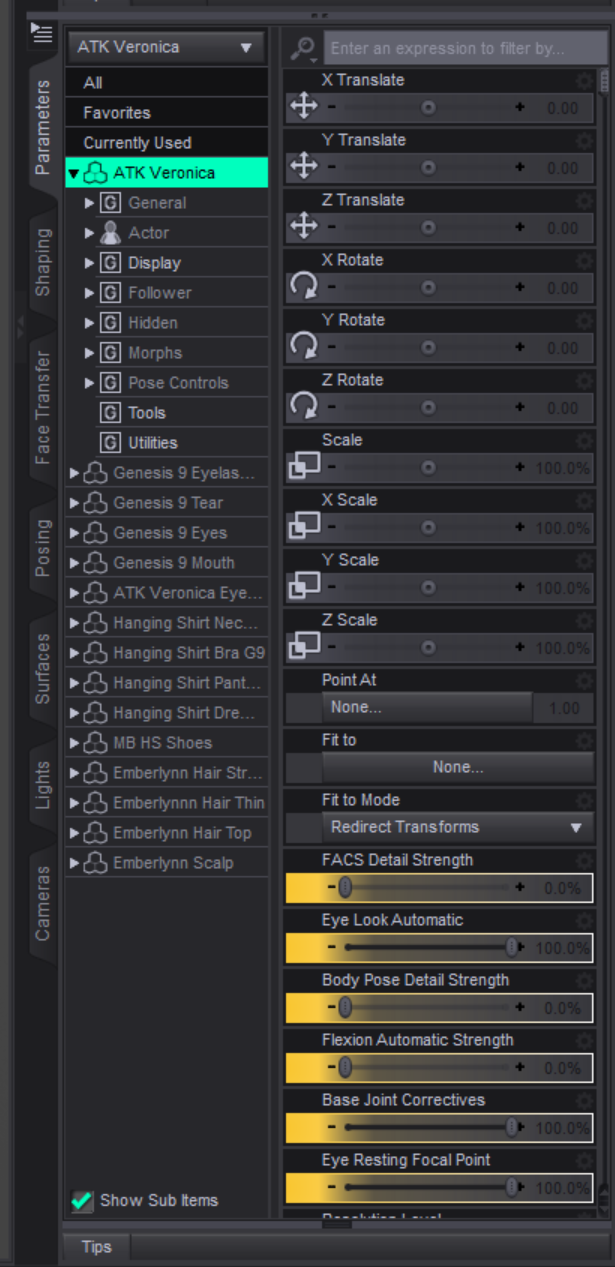
Now, I have lost the way, how can I change the colors for the X, Y and Z Parameters sliders of Translate, Rotate and Scale to Blue, Green and Yellow.
Please, I need your help!


Daz 3D is part of 
Connect
DAZ Productions, Inc.
7533 S Center View Ct #4664
West Jordan, UT 84084
Licensing Agreement | Terms of Service | Privacy Policy | EULA
© 2026 Daz Productions Inc. All Rights Reserved.
Comments
Go to Windows > Style > Customize Style > 5 3D Axis
felis You are very quick to answer this.
I will try your suggestion later, I need some zzz
And talking to the Z, I can change the color of the Z cube in the scene view?
When changing these colors, you will change it whereever X, Y, Z indications are used including the cube.
All the axis colours are the same, at least in the core UI (as far as I know). You can alt(Win)/Opt(Mac) click on the colour pickers to restore the older, stronger colours.
Thanks for your help, I have changed the colors to the Red, Green and Blue.
All of this was achieved.
This issue is solved!