Motion Capture - Perception Neuron - Daz Import
 WayOfTheSword
Posts: 32
WayOfTheSword
Posts: 32
Has anyone gotten the new motion capture rig, the Perception Neuron and tried using it with Daz Studio?
I gave it a go and after some trial and error got a proper rig map for Genesis 1 characters and got the data imported properly. Haven't tried Genesis 2 yet.
There is a little bit of wonkiness in the output, but nothing that was too difficult to straighten out in Animate2.
Here's my test render:
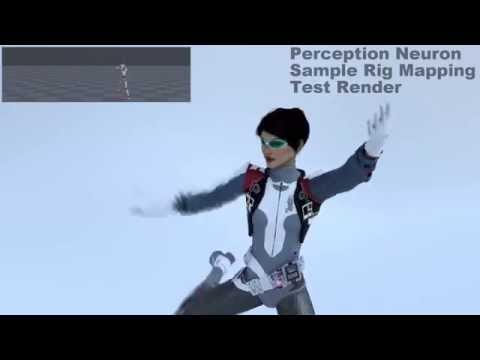
It'd be cool to have a plugin for Daz that does real-time import so you can see the animation on the actual character you're using rather than just the PN bare bones.

Daz 3D is part of 
Connect
DAZ Productions, Inc.
7533 S Center View Ct #4664
West Jordan, UT 84084
Licensing Agreement | Terms of Service | Privacy Policy | EULA
© 2026 Daz Productions Inc. All Rights Reserved.
Comments
Hi @wayofthesword ,
What program is the character that you rendered in on your video? I'm looking to do realtime mocap with Perception Neuron and Daz genesis but think that I may have to invest in iClone or do it in Unity. Does the Daz Genesis rig need to be changed at all to get PN working properly with it? Thanks!
That was done in Daz Studio using Genesis 1. The Perception Neuron has its own rigging system. You can take the performance capture files from the axis neuron software and save them as .bvh files.
Daz Studio can import those files, but the Perception Neuron rig has different bone names than Genesis does and not all Genesis bones are used. The first time you do the import, you have to make a translation map for the bones. It was a lot of trial and error for me. But once you find the correct settings, you can save the map and load it from that point forward.
DAZ Studio: Import BVH Instructions
(Updated 2/2019 - Added instructions to apply motion to G1, G2, G3 & G8)
The following instructions are for getting MOCAP data from the Perception Neuron mocap suit into DAZ Studio for animating G1, G2, G3 & G8 figures:
1. In the Axis Neuron software load the .RAW motion file you wish to bring into DAZ.
2. Next do a File | Export, choose output file type as Biovision *.bvh format, then choose the file name and directory for the saved file.
3. Open DAZ and load the Genesis 1 Female figure. Always start with G1F for new BVH imports.
4. With the G1 character selected in DAZ do a File | Import, change file type to Biovision *.bvh, and then navigate to your saved PN clip, click the OPEN button.
5. The BVH Importer Options box will now be open. Click the SHOW DETAILS button so you can see the Bone Mapping (you will probably have to drag a corner to expand the size of the box to see all or most of the bones listed).
6. The Bone Mapping is where the magic occurs. Select SPINE 3 on the left hand side and the right hand side will display the corresponding mapped bone in G1, in PN’s case it will probably say LEFT COLLAR. This is wrong and should be remapped to the CHEST, which is done simply by clicking on CHEST. The following are the 7 bones that I have found that need to be remapped:
a. SPINE 3 -----> CHEST
b. LEFT SHOULDER -----> LEFT COLLAR
c. LEFT ARM -----> LEFT SHOULDER
d. LEFT FOREARM -----> LEFT FOREARM
e. RIGHT SHOULDER ----> RIGHT COLLAR
f. RIGHT ARM -----> RIGHT SHOULDER
g. RIGHT FOREARM -----> RIGHT FOREARM
7. Once the remapping is completed choose SAVE MAP button, give it a NEW name and SAVE. This will allow you to LOAD this saved map for future imports. Load this saved MAP each time you do a new BVH import.
8. After you saved your named map, click SHOW DETAILS, then click LOAD MAP button, choose your saved/stored map and click LOAD. Before you click ACCEPT to load the motion file decide if you want "In Place Mode (no X or Z hip translation)" checked or unchecked. Once you click ACCEPT your animation will be loaded and then you can click the play button in the Animation Panel to see it in action.
9. Once your G1F figure is animated to your liking save it as a POSE PRESET - with animation. Select your G1F figure, do a File | Save As, choose Pose Preset, then give it a name and include the Animated Range (start and end frames) for the animation you want saved, choose ACCEPT.
10. You can now easily animate G1, G2 and G3 figures simply by dragging the saved POSE PRESET file onto each of these figures in your scene.
11. To apply to G8 figures you need to put them into a T-Pose first. Select G8 and BEND the Right & Left Should Bend bones up 45-degrees. Similarly, adjust the Side-Side pose of the Left & Right Thigh Bones in by 6-degrees each. Now choose the JOINT EDITOR Tool and right click on your G8 Figure and choose EDIT | Bake Joint Rotations. (You can save this as a G8 T-Pose Pose Preset to save time next time). Now just drag your G1F Animated Pose Presets you saved onto your G8 figure and it should animate properly.
12. If G3 or G8 figures to not animate quite right, you can try this DAZ Store script which works quite well. https://www.daz3d.com/animation-conversion-genesis-2-to-genesis-3
END
@FirePro9 - I bought the Perception Neuron suit about 3 years ago. Tested once, never used it again! Maybe after reading these instructions I will give it another try. I was actually trying to sell the suit but... it's very hard to find a buyer for it. Just in case someone in Germany wants to buy it... it's availeable! :-)
You may wish to also post sale on iClone forum as they have plugin for PN suit.
@FirePro9 - Oh, I already did! No luck... It seems like no one wants/needs it here in Germany. :-(
Thank you for the info in this post! I will be buying the PN 2.0 setup later this month and I already have all the iclone software so this will be useful! I have been watching Solomon Jagwe's posts on YT. With examples, he is using PN and Axis to iclone then using Mixamotion to bring it into Daz. His videos are mind blowing!! He mentioned he would post a tutorial of how he did it and I am chomping at the bit to see! Also, freenomn is nearly done with his developing of a live/realtime plugin for Facemotion for Daz. I think I prefer his product over FaceMojo.
Heh, Perception Neuron... Nice to see that somebody happy with it. I've tried to buy PN three years ago, but, fortunately, with no success: they didn't send it to my country. The data you receive from mocup systems requres postwork to clean it up. Even data from expensive mocup systems, like Vicon. Amount of postwork depends on qualification of mocup system operatior. And that cleaning up is really pain in ass. Because every frame is a key-frame. I rented Vicon mocup system with 24 cameras for 1 day for $800 (in my country) and when I saw raw data and how much postwork it required... I was shocked. I think it would be better (in my case) to hire an animator and he would make better animation by hands from video for the same money. Just a story about my expirience as amateur. And this video with animation from Perception Neuron is a clear confirmation of my expirience.