-
Opening A store at Daz 3D
Genesis = Victoria 5 and Mike 5 (plus all othe 5th generation daz human figs)
Genesis 2 = Victori 6 and Mike 6 (and all other 6th generation)
Genesis 3 = Victoria 7 and Mike 7 (+ all 6th gen)\
Genesis 8 = Victoria 8 ( an other 8th gen figures)
Opening A store at Daz 3DTy Rita
So for example they are always talking about "victoria" she is a genesis 8 model?
yes i think a merchant will be able to answer my requests efficiently :)
How can I organize all of this mess?Oh and by the way - this also helps with the "compatible items" question you raised. It helps to understand the chronology of figure development. David, Dusk, Dawn were some of the earliest; their stuff isn't compatible with anybody. Get rid of all of it is my advice. Then came Victoria 4 and Michael 4, then Genesis (with V5 and M5), Genesis 2 (with V6 and M6), Genesis 3 (with V7 and M7) and now Genesis... 8! With V8 and M8 so now all the same-generation numbers match. Or something.
So when you organize all your clothing by figure generation, you know where to look for compatible clothes. You can get a Wear-Them-All plugin that allows Genesis 3 Males, for example, to wear any previous generation's stuff (male or female if that floats your boat) back to M4. Others can tell you how to expand that list more, but that's all I need.
Likewise with poses. My 3D Library/People/Figure/Poses/Name of Pose Set (and) Vendor. No more lost poses, ever.
How can I organize all of this mess?Hi, Toothtail. My answer here also gets to your other thread about Manual Install preferences. For whatever it's worth, when I first tried DAZ a few years ago (having no other 3D experience), it took me many months to figure out that older content for V4 and Genesis was organized for the Poser application because the two companies started out as one. With Genesis 2, the file structure seemed to be changing. Content packages used to come with separate PoserCF and DAZ Studio versions; I always delete the Poser stuff since I never use that platform. By the time I figured it out, I already had collected a bunch of content incompatible with DAZ because I didn't know any better, plus a lot of clothing etc. for obsolete figures like Dawn, Dusk, and David. And Victoria 4 although some would burn me for blasphemy for saying so lol...Anyway the point is, here I had all this stuff that I couldn't find in DAZ, but even when I could navigate to the correct folders, its files were invisible. (You can make DAZ display thumbnails for .cr2, .pp2, and .obj files, but you have to learn how. You can import them but you can't just open them in DAZ.) And Smart Content was the worst because it didn't make me feel smart. More like an idiot because I couldn't figure it out. So I never touched Smart Content or metadata or any of that. Eventually, once I figured out the structure I wanted, and how to integrate it into the native DAZ plan, I had to use Windows Explorer to reorganize the whole library. But it was worth it. Now I do manual install only, just as a couple of others have suggested. Because it mirrors the way I think so I always know where to look for stuff. I like to keep things simple. So here's my two cents:
The basic DAZ file structure is a good start: My DAZ 3D Library/Animals (/Environments) (/People) (/Props) (/Vehicles) etc. But below that, most of the vendors package their files by vendor name, not by product name. Which makes sense if you're a vendor but it didn't work for me. When I'm looking through my mountain-of-clothes-pile for a sweater, I don't want to rack my brain trying to remember the name of the vendor who made it. The vendor name adds an unnecessary layer of file structure. Likewise, within each clothing item folder, you often get a Materials folder with nothing in it but two more folders: Iray and 3Delight. I hate that. If the sweater comes with its own prop (in a subdirectory called Props), then the prop also might have ITS own Materials folder with nothing but two folders in THAT. Good Lord!
So I simplify. I discard Read Me and Documentation and Support folders because they hardly ever say anything useful. Read a few before you do that. Hang on to your Template folders in case your skills get advanced enough to use them, but be aware that they aren't necessary to make the products work. I remove the Vendor folder and add the name of the vendor to the clothing item in case I need to look it up later for any reason. (It's a good idea to have that for reference sometimes.) Also, if the files are in .cr2, .pp2, or .obj format, I add that to the folder name too. That way, I'll see that there's an item there AND I know it'll be invisible in the DAZ structure. No more confusion why things are invisible. Here's an example:
My DAZ 3D Library/People/Genesis 3 Female/Clothing/Horror Survivors Luthbel/Iray (where Horror Survivors is the name of the outfit created by Luthbel).
I still occasionally find some useful items for Victoria 4 but I never use the figure itself - so when packages come with the Poser-style Runtime/Libraries/Character/Pose file structure, I reorganize the entire thing. I discard the hand and foot poses for Victoria 4 (likewise Genesis and Genesis 2). I also discard 3Delight folders if there's an Iray choice, because I only use Iray now. Saves on disk space. But here's the thing: You can remove and restructure the Runtime/Libraries directory and the My DAZ 3D Library/People (/Animals) (/Props) etc. directories to your heart's desire, but don't mess with the My DAZ 3D Library/data or Runtime/Textures (and /Geometries) files. Things will break. And the advice works for all types of content. Feel free to correct vendor spelling errors in the two file paths, so you don't have one People/Genesis folder and a separate People/Genesiss folder. It happens. Another example: Props. One man's Prop is another man's Environment or Clothing item. You decide.
Left untouched, your Props folder will be a MESS. I organize mine by the type of prop, not by vendor and not willy-nilly. I have the following folders under Props: /Fire Effects, /Energy Effects, /Plants, /Water Effects, and /Weapons, to name a few. Under Weapons I have /Archery, /Blades, /Explosives, /Firearms etc. with more categories below those if needed. Same goes for Vehicles or Environments if you collect too many for a simple list to be efficient.
So therein lies the disadvantages of DIM and DAZ Connect or whatever it's called. They put the stuff where the vendors wanted it and expect you to know where it is, even though you didn't write down the vendor name and it wouldn't occur to you to look for it in Scenes instead of Environments.
But that's just me. I'm a Libertarian, not a big-government one-size-fits-all kind of guy : )
Official Release of Carrara 8.5 **Update - 8.5.1.19**Happy Four Years Anniversary
nothing since!

'bout sums it up.
After a lot of hard work, long nights, and even longer days by our development team we are happy to announce that Carrara 8.5 is available for purchase in the DAZ 3D store. We would like to thank all of our loyal Carrara customers for their patience and support with this project.
Carrara 8.5 Pro is priced at $285.00 for a limited time. Carrara 8.5 Standard is priced at $149.95.
Current owners of Carrara will receive a 50% discount on either product for a limited time. Platinum Club members get an additional 40% off, which means it's never been a better time to join the Platinum Club.
Carrara 8.5 Pro
Carrara 8.5 StandardIncluded in Carrara 8.5 Pro are the Michael 5 and Victoria 5 Pro Bundles and Carrara Shaders - over $250 worth of Genesis content.
Carrara 8.5 standard ships with the Michael 5 and Victoria 5 Starter Bundles and Carrara Shaders - over $140 worth of Genesis content.Here's a quick look at some of the new features:
Native DSON Importer means seamless integration of:
- TriAx™ Weight Mapped figures (Genesis, G2F, G2M)
- General Weight Mapped figures
- Legacy Parametric Figures (4th Generation and earlier)
- DSON presets
- Scenes
- Scene Subsets
- Wearable(s) Preset
- Character Preset
- Properties Preset
- Shaping Preset
- Pose Preset
- Hierarchical Material(s) Preset
- Material(s) Preset
- Shader Preset (preset must be for a Carrara shader)
- Camera(s) Preset
- Light(s) Preset
- Support for multiple UV sets (through Hierarchical Material(s) Presets and Material(s) Presets)Native AutoFit functionality means:
- Conversion of legacy parametric clothing to TriAx™ weigh mapped figures
- Automatic Morph Projection quickly gives you the fit you need for your figure's shape.
- Automatic Weight Map Projection allows AutoFit clothing to bend and pose smoothly with the figure.
- Morphs built into clothing are carried through the AutoFit process.Improved Sequencer, Keyframing and Animation Tools
- New keyboard shortcuts to:
- Play/Stop animation
- Advance the frame
- Preview a frame
- Key Frame Filters
- Sample – Creates a key at every frame of the animation.
- Smooth – Smooth out wild keys to get an even looking animation
- Reduce – Programatically determine which keys are unecessary and eliminate them.
- Graph Editor Box allows for fine tuning of animations
- Easily adjust timing
- Simple yet powerful manipulation of amplitude
- Scale, and translate key frames along the Graph Editor.
- Marquee selection of key frames for Graph Editor.Smart Content and CMS Integration
- Carrara can now access the CMS database; PostgreSQL or Valentina.
- New smart content pane allows users to browse smart content by:
- File
- Category
- Product
- File view provides selection based filtering so that the user only sees items compatible with the current instance tray selection.
- Double click and drag and drop loading are both supported in Smart Content Tab.Parameters Actions
- Zero, Memorize and Restore:
- Figure
- Figure Shape
- Figure Pose
- Selection
- Selection Shape
- Selection Pose
- Selection Tree
- Selection Tree Pose
- Selection Tree Shape
- Provides users with powerful tools to reset a pose, shape or both.
- Memorize and Restore allow user to take a snap shot of the model's current pose and/or shape and restore all or part of it.Improved Fit to Functionality
- Automatic projection and following of morphs for TriAx™ Figures
- No more relying on built in clothing morphs to fit clothing over a figure. Carrara automatically projects any morphs for a TriAx™ figure onto items conformed to the figure.Improved Viewport Avatars
- Spotlight, Sunlight, Moonlight, Tube Lights and Shape lights have all received a makeover and can easily be identified in the viewport.Happy Happy!

possible this may not be true ?
"- General Weight Mapped figures"
Coming Soon - Deanna for Genesis 8 Female (Commercial)Please include a no-brow option so I can use the fibermesh brows of Victoria 8.
Kaira HD for Genesis 3 Female & Genesis 8 Female [Commercial]I would have loved a no-brow option to be able to use the fibermesh brows of Victoria 8.
Creating skin with Quixel for Daz PeopleI don't understand how to collapse the UV's. Is it a setting when I'm exporting V4 from Poser, or something when I'm saving from UVMapper?
I have gone into UVMapper and gone Map>Color by Material but this has only changed the way my UV maps are displayed to the left of my model. It does noting to condense Victoria 4 from 62 groups or 28 materials.
I have tried taking V4 into Zbrush and manually grouped the elements together into a single polygroup, matching the layout of the textures - grouping the limbs together, grouping the torso and grouping the face etc. Is this a correct method? Is this what you mean by collapsing the UV's?
I know I can paint the skin in Zbrush, but because I am adding Quixel (and later Substance Painter) to my working pipeline for general texturing, I would like to know if it is also possible to create the skin in these programs also.
Also, I'm not really looking to purchase Blacksmith3D just to paint skin. From what I have seen done with Blacksmith3D, it is aimed at people who are using photographic references to create the skin textures for their characters - I am looking to create the skin textures without using photographic resources.
Official Release of Carrara 8.5 **Update - 8.5.1.19**Happy Four Years Anniversary
nothing since!
'bout sums it up.
After a lot of hard work, long nights, and even longer days by our development team we are happy to announce that Carrara 8.5 is available for purchase in the DAZ 3D store. We would like to thank all of our loyal Carrara customers for their patience and support with this project.
Carrara 8.5 Pro is priced at $285.00 for a limited time. Carrara 8.5 Standard is priced at $149.95.
Current owners of Carrara will receive a 50% discount on either product for a limited time. Platinum Club members get an additional 40% off, which means it's never been a better time to join the Platinum Club.
Carrara 8.5 Pro
Carrara 8.5 StandardIncluded in Carrara 8.5 Pro are the Michael 5 and Victoria 5 Pro Bundles and Carrara Shaders - over $250 worth of Genesis content.
Carrara 8.5 standard ships with the Michael 5 and Victoria 5 Starter Bundles and Carrara Shaders - over $140 worth of Genesis content.Here's a quick look at some of the new features:
Native DSON Importer means seamless integration of:
- TriAx™ Weight Mapped figures (Genesis, G2F, G2M)
- General Weight Mapped figures
- Legacy Parametric Figures (4th Generation and earlier)
- DSON presets
- Scenes
- Scene Subsets
- Wearable(s) Preset
- Character Preset
- Properties Preset
- Shaping Preset
- Pose Preset
- Hierarchical Material(s) Preset
- Material(s) Preset
- Shader Preset (preset must be for a Carrara shader)
- Camera(s) Preset
- Light(s) Preset
- Support for multiple UV sets (through Hierarchical Material(s) Presets and Material(s) Presets)Native AutoFit functionality means:
- Conversion of legacy parametric clothing to TriAx™ weigh mapped figures
- Automatic Morph Projection quickly gives you the fit you need for your figure's shape.
- Automatic Weight Map Projection allows AutoFit clothing to bend and pose smoothly with the figure.
- Morphs built into clothing are carried through the AutoFit process.Improved Sequencer, Keyframing and Animation Tools
- New keyboard shortcuts to:
- Play/Stop animation
- Advance the frame
- Preview a frame
- Key Frame Filters
- Sample – Creates a key at every frame of the animation.
- Smooth – Smooth out wild keys to get an even looking animation
- Reduce – Programatically determine which keys are unecessary and eliminate them.
- Graph Editor Box allows for fine tuning of animations
- Easily adjust timing
- Simple yet powerful manipulation of amplitude
- Scale, and translate key frames along the Graph Editor.
- Marquee selection of key frames for Graph Editor.Smart Content and CMS Integration
- Carrara can now access the CMS database; PostgreSQL or Valentina.
- New smart content pane allows users to browse smart content by:
- File
- Category
- Product
- File view provides selection based filtering so that the user only sees items compatible with the current instance tray selection.
- Double click and drag and drop loading are both supported in Smart Content Tab.Parameters Actions
- Zero, Memorize and Restore:
- Figure
- Figure Shape
- Figure Pose
- Selection
- Selection Shape
- Selection Pose
- Selection Tree
- Selection Tree Pose
- Selection Tree Shape
- Provides users with powerful tools to reset a pose, shape or both.
- Memorize and Restore allow user to take a snap shot of the model's current pose and/or shape and restore all or part of it.Improved Fit to Functionality
- Automatic projection and following of morphs for TriAx™ Figures
- No more relying on built in clothing morphs to fit clothing over a figure. Carrara automatically projects any morphs for a TriAx™ figure onto items conformed to the figure.Improved Viewport Avatars
- Spotlight, Sunlight, Moonlight, Tube Lights and Shape lights have all received a makeover and can easily be identified in the viewport.giving upIt seems you guys are saying you need many main Content folders? So one content folder for D|S and Poser stuff, then another for stuff that isn't "user facing" whatever that means? Geez, we already have Smart Content, and Content Library, and now we need another place to look for non-D|S stuff?
And that makes sense to you?
Hi, ebergerly. Please forgive ay technical misinformation I might present. What follows is my understanding as a hobbyist brand-new to DAZ a few years ago, pieced together in a way that makes sense to me as a back-end-ignorant user. I hope I don't muddle everything. But I totally empathize with you.
I started experimenting with DAZ when it was still using the Poser file structure, although I didn't know that at the time. I'd never tried Poser either, and I still don't use it. I could never find anything either, plus I was collecting all sorts of files that were incompatible with D/S and/or designed for obsolete figures - I didn't know any better and I couldn't figure out why I couldn't find or use most of it. After a long learning curve, here's what I've come up with.
I do only manual installs now, because I've tailored my "My DAZ 3D Library" folder to suit the way I think. The basic D/S file structure is fine as far as it goes: My DAZ 3D Library/Animals (/Environments) (/People) (/Props) (/Vehicles) etc...
But after that, the vendors creating the content organze their files by vendor. Which makes perfect sense if you're a vendor. But if I just bought a Wonder Woman costume for V4 (for example), why do I have to remember that it was created by some one-off vendor I've never heard of and whose name I'll never remember? When I go looking for it, I want it labeled "Wonder Woman" not "PilotSomebodyOrOther." So now I reorganize everything as I acquire it - after biting the bullet and reorganizing my entire library. I also delete extraneous layers of folders. It goes, for example, "My DAZ 3D Library/People/Victoria 4/Clothing/Wonder Woman PilotSomebodyOrOther cr2" in case I need to know the vendor for some reason. (Under that, I change "Materials/Iray" and "Materials/3DL" just to "/Iray" and "/3DL." I personally hate complex directories.) Also, because I added the "cr2" (or "obj" or "pp2") to the folder name, I know it's there AND I know it won't show up in my content pane just exactly as you describe. But I have Windows Explorer open too, and that allows me to see thumbnails. (You'll have to do something comparable on a Mac.) It's not perfect, but I rarely need to do that anymore since most of what I have now is .duf format, which is the DAZ standard. (".duf," if you're not sure, stands for DAZ Scene Object Notation - or DSON - User Files. Commonly known as, if I'm not mistaken again, "user-facing files." I don't know what that term means; I just know that's what it is.)
Regarding your Object files (.obj), I know what you mean. Many DSON User Files use Object files - but not all of them unless I'm mistaken again. Those are stored in the My DAZ 3D Library/Runtime/data directory. When 3Ddreamer asked you, "But why would you want to see 'OBJ files, texture images, documentation, HDR's, and so on' in your Content Library? Those are backend files, not user facing," (s)he was referring to these components of DSON User Files, not to stand-alone Object files from non-DAZ sources. I know why you want to see them.
And I don't use Smart Content either; I suspect that's another Poser hold-over from before DAZ and Poser parted ways. (I could be corrected on that if I'm wrong...) I had just figured out how to make the Content pane make sense; I wasn't about to learn a whole 'nother system that was just as unreliable in D/S. I had too much else to learn from the ground up.
I know that's not what you wanted to hear, because I suspect you're not ready to give up on Poser and the two file structures are less and less compatible as time goes on, it seems to me. I wonder if someone who uses both platforms could talk more about it? I know only D/S.
I hope that helps you and Sambucus a little bit...
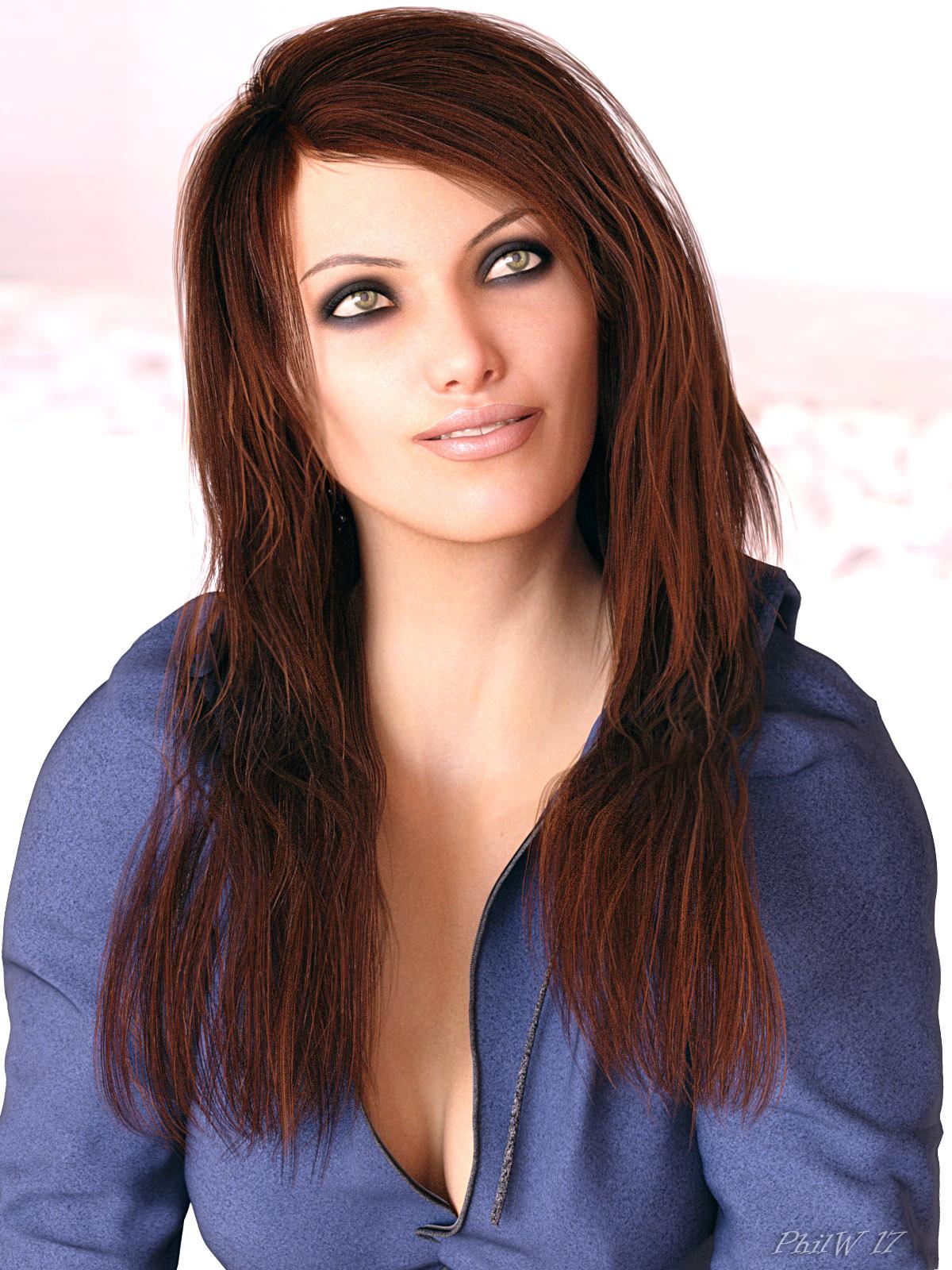
Morphs from G3 to G8Just an extra "Thank You" to Redz and others who have put together the tutorials on this thread. I got around to transferring some V4 morphs to Genesis using GenX (not even GenX2!) and then used the clones method to transfer these to G8F (I previously did a bunch of native Genesis, G2 and G3 morphs). There are a few that look a bit messed up but most are really good. Here is a V4 character transferred to G8F with Victoria 8-based textures.
 Understanding People and Figures - which to buy
Start with the Genesis 2 Starter Essentials, which have a free male and female character. See how they work for you before investing money. I'm not a Poser user, but it is my understanding that Genesis 3 characters like Michael 7 and Victoria 7 do not work in Poser. Or they only partially work with various workarounds.
If you already bought things that don't work, submit a help request for a refund and get something else that does work in Poser.
Understanding People and Figures - which to buyVery busy fine artist/painter. Working on using Poser 2014 to compile reference scenes for my painting. Not a 3D novice. Used 3Ds Max to model and texture as well as build scenes. Used Poser in the past as well. But I am having a difficulty understanding which people and characters I need to purchase. I’d rather stick with Poser instead of learning a new interface such as DAZ Studio.
Basically I need a versatile male and female character I can render as realistic people of various ethnicities, particularly African-American and Caucasian. I need figures that have a lot of pre-built African-American characters. I need to be able to dress these figures in various period costumes. Since my primary objective is the create oil painting and not be a 3D artist, I’d rather purchase the characters than spend a lot of time in Poser and 3Ds Max building props, clothes, hair, etc.
I’m thinking of buying Victoria 7 and Michael 7. I’ve heard they are the most versatile. Please advise. Thank you.
Massive Morphs for G8F [commercial]Rawn,
Very impressive, as always. Can I use this set to simply give the standard V8 character a more muscular look? Ideally, what I'd like to have is a figure that combines the head of Victoria 8 with the extreme body morph. Incidentally, this is for a fantasy warrioress so I have absolutely no interest in realism whatsoever.
Cheers,
Alex.
That is exactly what it is designed for...to be combined with whatever character you like
Thanks for the fast response. You have now made it to the very top of this week's shopping list.
Cheers,
Alex.
Massive Morphs for G8F [commercial]Rawn,
Very impressive, as always. Can I use this set to simply give the standard V8 character a more muscular look? Ideally, what I'd like to have is a figure that combines the head of Victoria 8 with the extreme body morph. Incidentally, this is for a fantasy warrioress so I have absolutely no interest in realism whatsoever.
Cheers,
Alex.
That is exactly what it is designed for...to be combined with whatever character you like
Massive Morphs for G8F [commercial]Rawn,
Very impressive, as always. Can I use this set to simply give the standard V8 character a more muscular look? Ideally, what I'd like to have is a figure that combines the head of Victoria 8 with the extreme body morph. Incidentally, this is for a fantasy warrioress so I have absolutely no interest in realism whatsoever.
Cheers,
Alex.
FIXED - Accidental Overwrite of Genesis 8 Base Female with Another CharacterPlease help! I don't know how I did it, but I accidentally overwrote Genesis 8 Base female with a character I was working on. Now EVERY SINGLE ONE of my Genesis 8 characters are showing up as that character. Even Victoria 8. I tried uninstalling Genesis 8 Starter Essentials and Victoria 8 via DIM then Reinstalling it. And it still hasn't fixed the issue. I tried uninstalling G8 Starter Essentials and V8 and LEAVING them uninstalled then starting Daz Studio, and all my saved characters with any G8F dialled in are still messed up.
I don't know how to fix this. Every one of my G8 characters are seriously screwed up (the character I was working on that overwrote G8F was a very extreme morph - so all my saved custom G8F characters look insane right now). Please help!
Benita for V8Ohhhh! So you're complaining about G8's eyelashes in general - not just Benita's? :p You're preaching to the converted about transmapped eyelashes, and I know I'm not the best at making them. Drawing them is quite hard! I agree that the bottom lash line can be hard to get to look right.Perhaps one day I'll try fibermesh eyelashes and see how they work, but I'll probably run into the same conforming issues as the current mesh eyelashes. Not to mention blinking, morphs, etc. Yikes. I like making skin, man.
Maybe someone else will come along and come up with a more elegant solution in the meantime! :)Mate, your skins and face morphs are enough for me, tbh. Just keep on giving us that, and she's all right. I tried Lainey HD eyelashes and Great Lashes for Genesis 8 Female(s) on Benita as options. Eyelashes from left to right: Lainey HD (natural), Victoria 8 eyelashes (Benita), Great Lashes for G8F (brown 01). Top to bottom: Lainey HD (natural), Victoria 8 eyelashes (Benita), Great Lashes for G8F (brown 01).
BTW, thanks for the Hivewire3d Cat LAMH presets.
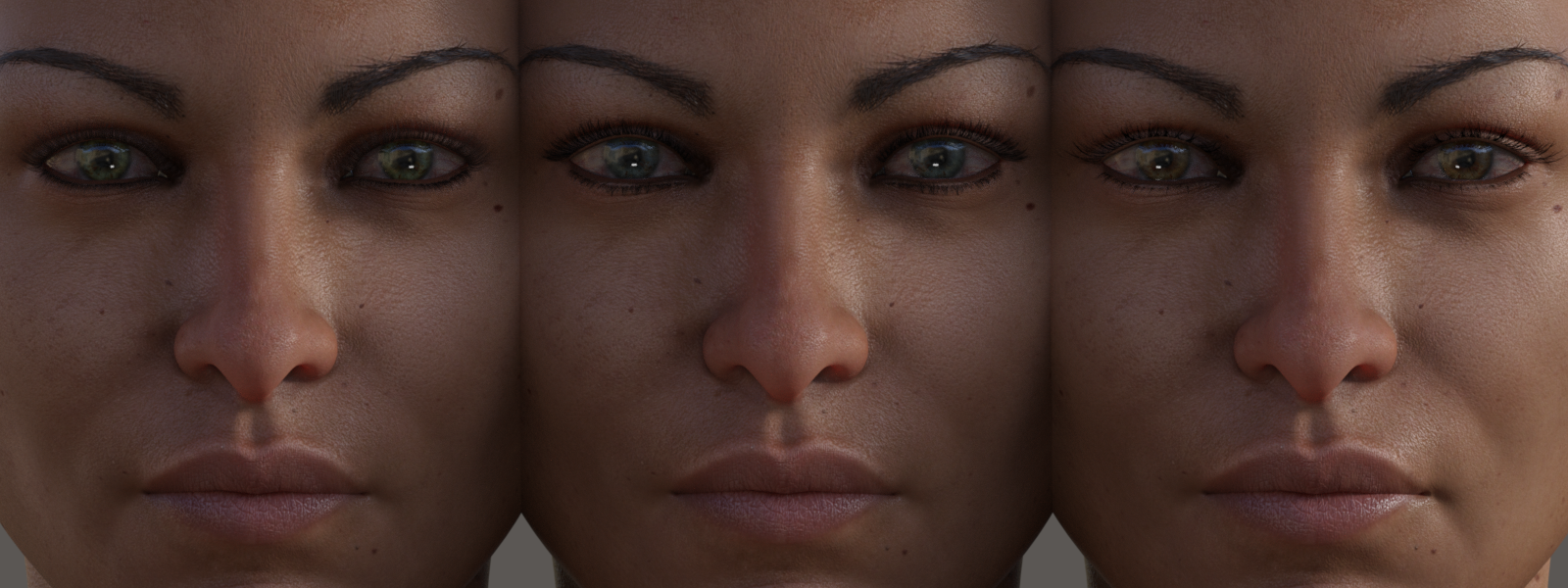
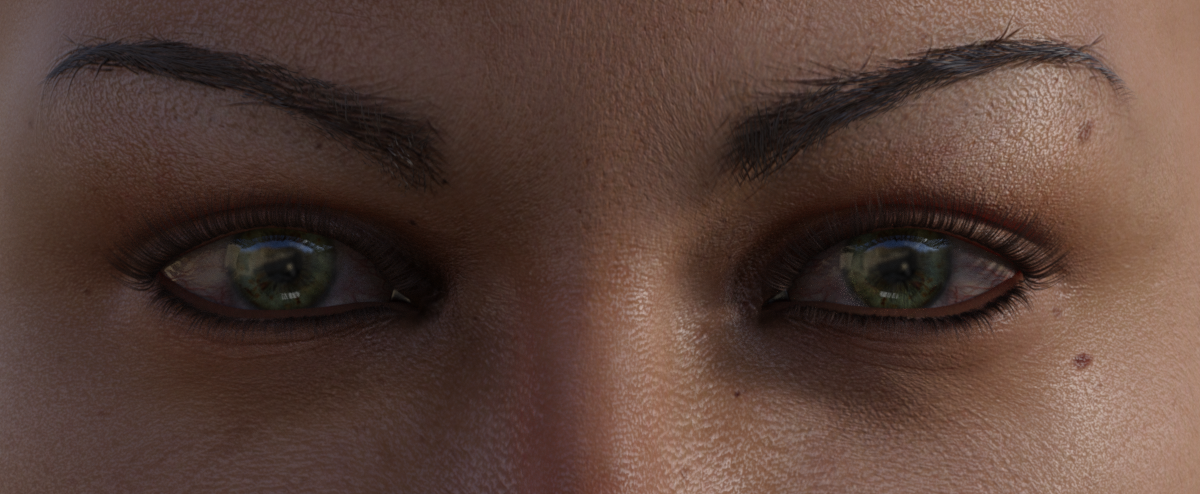
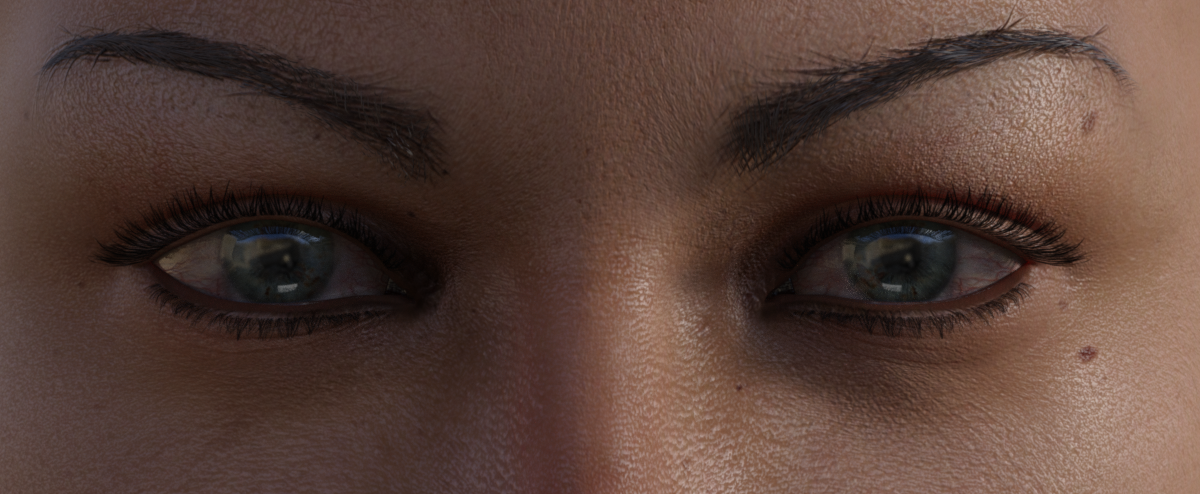
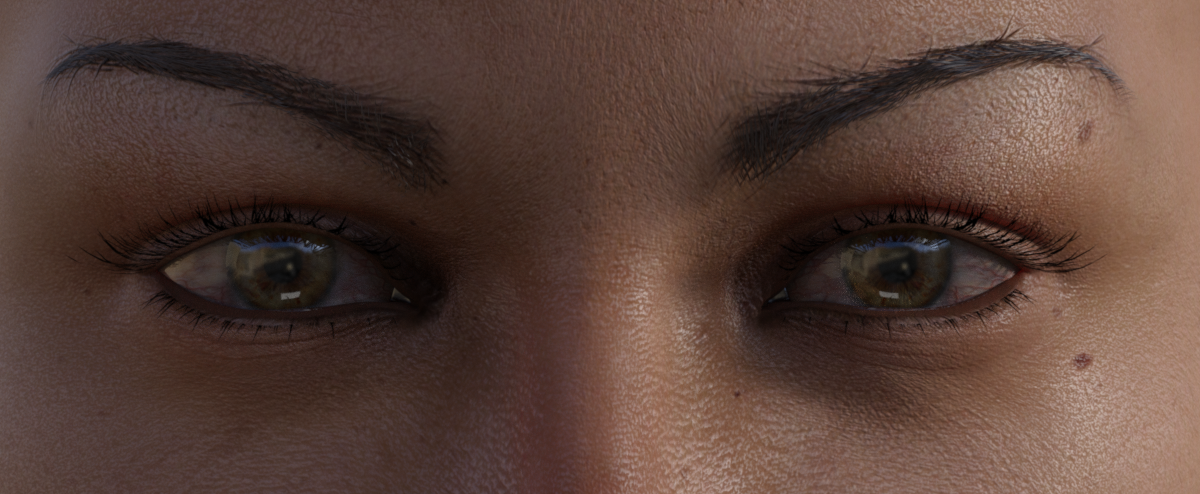
The Lainey ones look really good (but it's Raiya, our queen, come on! :p). I can't tell if it's the custom morphs making that bottom lash line look better or her trans-maps.
Food for thought though! :) I haven't got any characters in proper production at the moment, but I'll try harder on the lashes. :)Victoria 8 HD add-onWill there be a Victoria 8 HD add-on?
Most likely in another month it will be released; I'm sure they've finally completed it and it's making its way through QA.
Thanks!
Olympia 8Yeah, I the Genesis 8 characters seem to require a bit more thought to lighting and render settings than the previous generations - quite a bit like real life skin. Different lighting and render settings can make a pretty big difference. The first image is Victoria 8's texture with the default lighting and render settings. They all have the same textures and the same skin texture settings, the only thing I changed was the lighting and render settings.


Those all look great but too bad there is no evironmental context to give the viewer an ideal where she is at and what time of day and what day of the year it is.
Let me know which one you liked and I'll see if I can recreate it and share the settings.
The point I tried to get across with the post was to just play around with the render settings and the lighting until you find the settings that suit your tastes and save the settings. :)
I'd be happy to share my settings with you though, let me know which one you liked and I'll see if I can remember the settings for it and share them with you.

I like the render 1 up from the bottom the best although they are all good in proper environmental context.
I think I have some lights from Promo Style Catch Lights in the scene, so I can't include those. But here are a couple of scenes that can get you started: http://sta.sh/01fj7x0wi6vl
Just unzip it, open the folder and drop the "Scenes" folder in your "My Library". You should then find them under Scenes >> Skin Enhancing Scene 1 (and Skin Enhancing Scene 2)
The scenes use V8's mats, but you could, of course, use whatever mats you want. You'd just have to make some adjustments to Tone Mapping. Here's what the scenes/settings look like with V8's mats:


Add some cool light effects, change the Tone Mapping settings, whatever you need to get it to look the way you like. :) One thing I recommend is definitely playing with Tone Mapping >> White Point. That can really help, as well as adjusting "Crush Blacks" and "Gamma". Be careful with "Burn Highlights" as that can make things look really shiney pretty easily.
Sadly, I don't have O8 yet, so I can't set up any scenes for her. But as her skin tends to look a bit orangy from what I've seen in some of the renders, I recommend adjusting the White Point for her (under Tone Mapping).
Once you get the scene the way you want it you can then save it as a Render Setting (File >> Save As >> Render Settings Preset) so that the settings can be applied to any scene.
Thanks I will try your setting & suggestions.
Daz 3D is part of

Connect
DAZ Productions, Inc.
7533 S Center View Ct #4664
West Jordan, UT 84084Licensing Agreement | Terms of Service | Privacy Policy | EULA
© 2026 Daz Productions Inc. All Rights Reserved.