-
GoZ to modify clothing
What kind of controls are missing? If you highlght Morph Targets in the list of General Options what settings do you have in Extended Options?
Studio calculating JCM scalar values wrongSo again, following Esha's tutorial about creating and setting up JCMs, and I ran into a bit of a problem. I couldn't figure out why I was getting inconsistent morph values when it should have been at 100% (or zero, or any specific value). Anyway, eventually I found the outdated documentation for creating JCMs http://docs.daz3d.com/doku.php/public/software/dazstudio/4/userguide/creating_content/assembling/tutorials/creating_joint_controlled_morphs/start . I figured out how to link them manually, and found that it had been inputting the wrong maths into the scalar value (when relying on automatic solution). I fixed it, and reproduced the issue.
I'm working with Genesis 2F, and I've only noticed the issue on the left thigh Z rotation (of the rig extracted for the model). Has anyone else had this issue? Anyway, it's sorted, and I'm happy to have learned to hook up the morphs manually, and finally be done with a nagging issue.
Good maths ^_^

Bad maths -_-
 Need help, growing up for G3F is not working correctly anymore
Please help. For some reason Growing up for Genesis 3 female is not working corectly anymore. When dailing in the youth morph the gen 3 f breasts deform and some wierd looking ridge forms in the middle of her chest. I know not to use anything but the original G3F body but now that seems to be corrupt. Can I delete the G3F obj and reinstall it perhaps? Please help. Problem started when I used posermatics NPM. It appears one of these morphs became permanent. I deleted it and the data part of it but I still have a damaged G3F
Genesis 3 morph equivalent for V4/M4 MouthSmile-FrownI was wondering if someone knew how to get with Genesis 3 (male and female) the same expression as when you dial the MouthSmile-Frown (both, L and R) with V4 and M4.
Josh Crockett Suggestion Page for Monster Characters!Further to other suggestions, I'd like a shark-human hybrid. I know Raw Art did one ('Jawz'), but was disappointed to find it can't be 'bulked down' by using emaciated and thinning shaping morphs. I ideally want one which looks like it's more properly streamlined, rather than overly muscular (nothing wrong with that, of course, but the option should be there and Jawz doesn't have a seperate head shaping morph to be dialled in with a different body).
Could easily see a streamlined shark-like hybrid being useful for both genders of base character.
Toon Generation 2 Clothing Issues.As Mike says, you need to model around the zeroed figure or to use Reverse Source Shape from Target in the Transfer utility.
GoZ to modify clothingA morph cannot remove, add, or reorder the mesh - all it can do is push around the existing mesh. What you could do is use the Transfer Utility, setting the Source to the original figure and the Target to your modified mesh, to create a new figure.
GoZ to modify clothingI have a gown I've sent over to Zbrush with Goz, made some edits (had to separate the subtools and then reassemble) then sent back to Daz. When it comes back it comes in as a new object vs updating the old one. Is there a way to have it update the old one or transfer all the morphs and such from the old to the new? If I send it and don't separate it I can send it back just fine.
Any help would greatly be appreciated.
Wayne
SketchUp Importer for Daz StudioThanks for the feedback.
It's my impression from research conducted so far that SketchUp-OBJ to Daz is problemeatic in terms of material transfer and other isues. There is also the need to have the Pro version of SketchUp in some cases. It's my hope that the exporter I have in mind will provide a direct path from SketchUp to Daz that transfers a model with everything intact; but of course time will tell.
In Trainz, the SketchUp models came in as scenery items; in this case I envison them coming in as props. At the moment I have no illusions of anything grander than this.
Regards,
MikeReleased!-Nikolas for Genesis 3 Male (Commercial)Just an average guy- with some not-so-average options.
Three Brow options with one No Brow option, each face has additional options to choose from; Stubble, Base, Stubble with Scarring, Scarring and a Stubble with Goatee. There are morphs for his head (which only requires the Genesis 3 Head Morph pack for the Cornea Bulge option-if you use it), torso (which requires no additional morph packs), combined head/torso and an HD Morph that I was gifted from a fellow PA-ChangelingChick!
There are 5 Eye Colors and 2 Eyelash colors, along with a selection of tattoo options ranging from Black Out Torso/Arms/Head and Leg, to a few tattoos on his arms, and a mash up of all of them for greater variety.
Anatomical Elements are included.
Materials are Iray only.
He's accepted and in testing- so soonish. XD
 Teeth: Individual Manipulation?
one more question, i posted this earlier but didn't get much response.
There was an awesome morph pack called "genesis 2 morph infusion for G3F" but I'm not sure who created it or where to find it. I have a character that heavily depends on these morphs. Does anyone know where to find them?
ZDG random Daz Studio discoveries and questions.A nice sweltering 90F day is a good day to not be doing yard work, lol. The past few days I've done some simple things around my desk that I needed my tools for. As for other stuff, I watched buildzoid (on twitch earlier) bring a GT730 memory clock up significantly, on air. I'm even more tempted to see just what the Zotac card can do within reason without producing Iray artifacts. Tho that will at the least wait till temps in here settle down to the 25c (75F) mark where I've done most of my testing in the past.
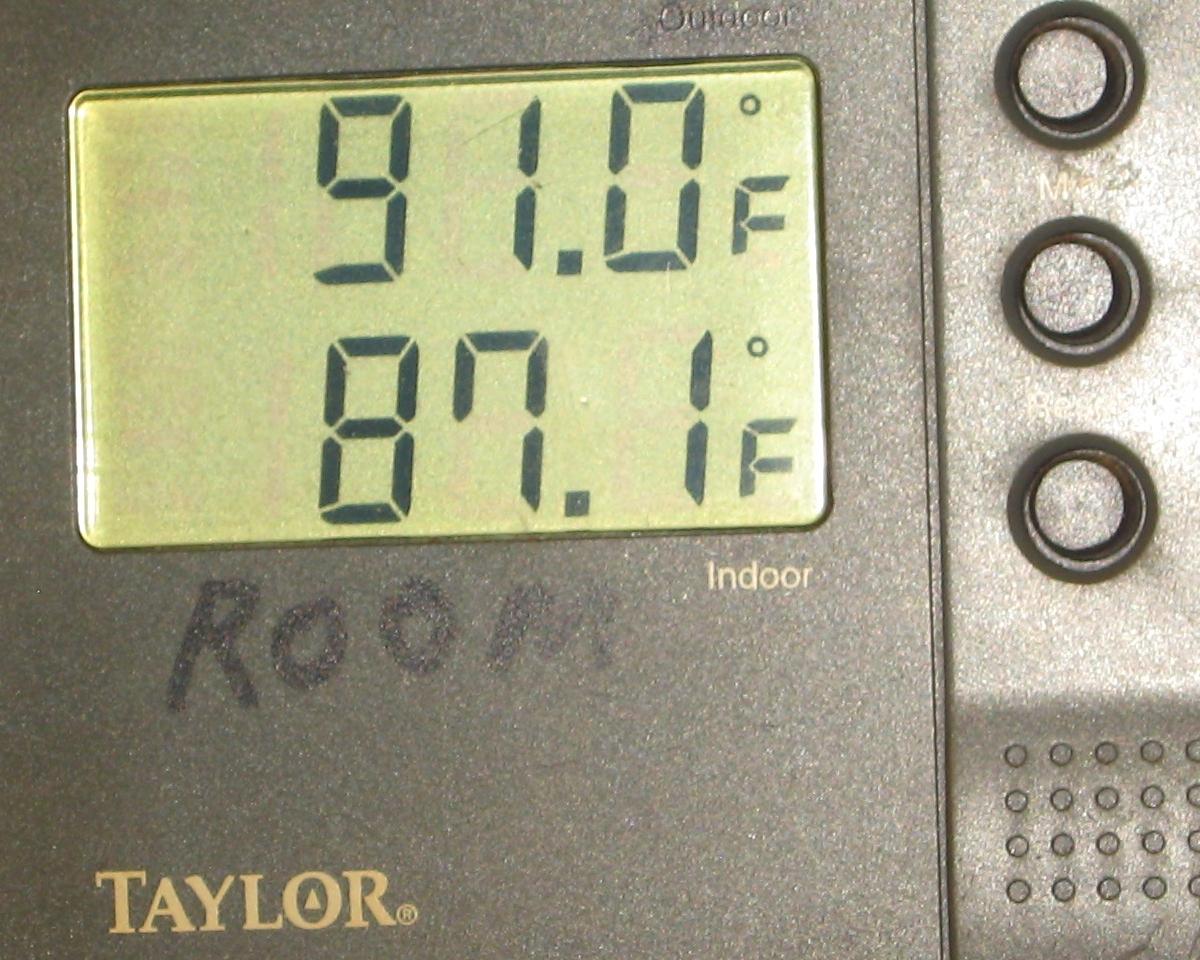
So, with the temps up there, it's a good time to sit and do just about nothing, lol. So, looks like I've missed a lot of goings on over at daz3d, time to look around and see what I've missed while looking into the new computer stuff coming out. It looks like there is some updates to a morph set that I've used a lot, so I should probably look to see if it effects anything I've worked on so far (I suspect not in a bad way, zev0 is kind of good with that stuff).

At the very least I need not worry about my computer keeping it's cool on a day like this, I don't have a wat-hog graphics card, lol.
Blender .obj to DAZ Studio Export/ImportIt may differ about each user ,,
 I prefer to keep default export option, about axis," -Z foward Y up" . scale 1.00 (if you set blender 1unit = 1m, I usualy use this unit)
then import it with scale 10000% ,(because daz 1unit = 1cm , without axis conversion. (keep X, Y,Z in daz studio) , this setting is same as Cinema4D , LightWave,when you choose those preset.
other option change, what I hope to. (make morph, or export as triangle, or need to keep group name,for mesh gorup etc)
you can google serch, with "sickleYield" (sorry miss spel,,) "daz" "blender" , She have offered many tutoriall about blender and daz studio for DS user as ds product vendor. . then you can get more presise correct way I think. (I do not know, which option she use or not when export, because best recommend option setting is often different by each user

And when you export obj from blender, there is option, export "selection only", it work about each obj, though I seldom play with Archimesh add on, if it can keep each part as each obj, "selection only" option should work. but if you generate it as one mesh, this option not work for each vertex group with your selection. you may need separate mesh, then divide as each object..
Developing a SketchUp ImporterHi, everyone. I'm new here, so please bear with me as I try to get my bearings.
I come here from the Trainz Railroad Simulator world, where I am the author of several software tools that community members have found useful over the past several years. One of these is a plugin for SketchUp that allows models to be easily ported into the Trainz environment with just a few mouse clicks. This tool works by creating an XML file that is then passed to a Trainz import utility, which in turn creates the necessary Trainz-format geometry files. My plugin also creates all the other files needed by Trainz (configuration and so on). After exporting from SketchUp, the user switches to Trainz Content Manager and imports the generated files directly, where they become immediately usable in the Trainz world-building application. The models that transfer into Trainz are very high-fidelity and carry all the original textures, transparencies, and so on.
I am interested in doing something similar for Daz. To that end I am considering writing a script in Daz that will read the XML files produced by my SketchUp Ruby plugin, and render the geometry and materials directly in Daz, after which they could be saved in a native Daz format and become useful in that environment. I found the geometry pipeline example, which seems to show most of the functionality needed to do this, but I am having a hard time with what seems to be a lack of comprehensive documentation for Daz scripting. I have consulted the Scripting API web pages, but have also found that many of the functions used in the pipeline example do not appear to be documented at all.
I am a professsional software engineer by trade, 33 years in the business, so writing the code is not the issue. What I would kindly request is some pointers to places where I can find more information related to what I am trying to accomplish, and/or some script examples that might send me in the right direction.
Any help would be appreciated, and of course comments on the idea of a SketchUp-to-Daz pipeline are welcome.
Thanks for your attention. If anyone would like to see what I've been able to accomplish for Trainz, please feel free to visit the relevant page of my web site at http://www.dhobh.net/trainz/GoogleSketchUp/RubyTMIX.htm.
Regards,
MikeSketchUp Importer for Daz StudioHi, everyone. I'm new here, so please bear with me as I try to get my bearings.
I come here from the Trainz Railroad Simulator world, where I am the author of several software tools that community members have found useful over the past several years. One of these is a plugin for SketchUp that allows models to be easily ported into the Trainz environment with just a few mouse clicks. This tool works by creating an XML file that is then passed to a Trainz import utility, which in turn creates the necessary Trainz-format geometry files. My plugin also creates all the other files needed by Trainz (configuration and so on). After exporting from SketchUp, the user switches to Trainz Content Manager and imports the generated files directly, where they become immediately usable in the Trainz world-building application. The models that transfer into Trainz are very high-fidelity and carry all the original textures, transparencies, and so on.
I am interested in doing something similar for Daz. To that end I am considering writing a script in Daz that will read the XML files produced by my SketchUp Ruby plugin, and render the geometry and materials directly in Daz, after which they could be saved in a native Daz format and become useful in that environment. I found the geometry pipeline example, which seems to show most of the functionality needed to do this, but I am having a hard time with what seems to be a lack of comprehensive documentation for Daz scripting. I have consulted the Scripting API web pages, but have also found that many of the functions used in the pipeline example do not appear to be documented at all.
I am a professsional software engineer by trade, 33 years in the business, so writing the code is not the issue. What I would kindly request is some pointers to places where I can find more information related to what I am trying to accomplish, and/or some script examples that might send me in the right direction.
Any help would be appreciated, and of course comments on the idea of a SketchUp-to-Daz pipeline are welcome.
Thanks for your attention. If anyone would like to see what I've been able to accomplish for Trainz, please feel free to visit the relevant page of my web site at http://www.dhobh.net/trainz/GoogleSketchUp/RubyTMIX.htm.
Regards,
MikeWhat features would you like to see appear in dazstudio 5?Dynamic Clothing and Hair..... It really is tme, guys.
Morph Brush
IN SYSTEM automatic update so that any new figure would autofit clothes from previous figures AT LEAST fron Genesis up without having to pay for any other products.
The ability to pin rotation and location from the Scene Tab (Minor and I know it can be done elsewhere, but....reasons)
The ability to lock ALL Parameters on an item, firgure or figure part from the Scene Tab (Not individual locks in the Parameters tab which are already there but something that will lock ALL those parameter locks so I go click and move on without fear of screwing anything up when I got it "just right.")
3D Art FREEBIE CHALLENGE-MAY 2017- WINNERS ANNOUNCED-Entries Thread OnlyHere's my entry:
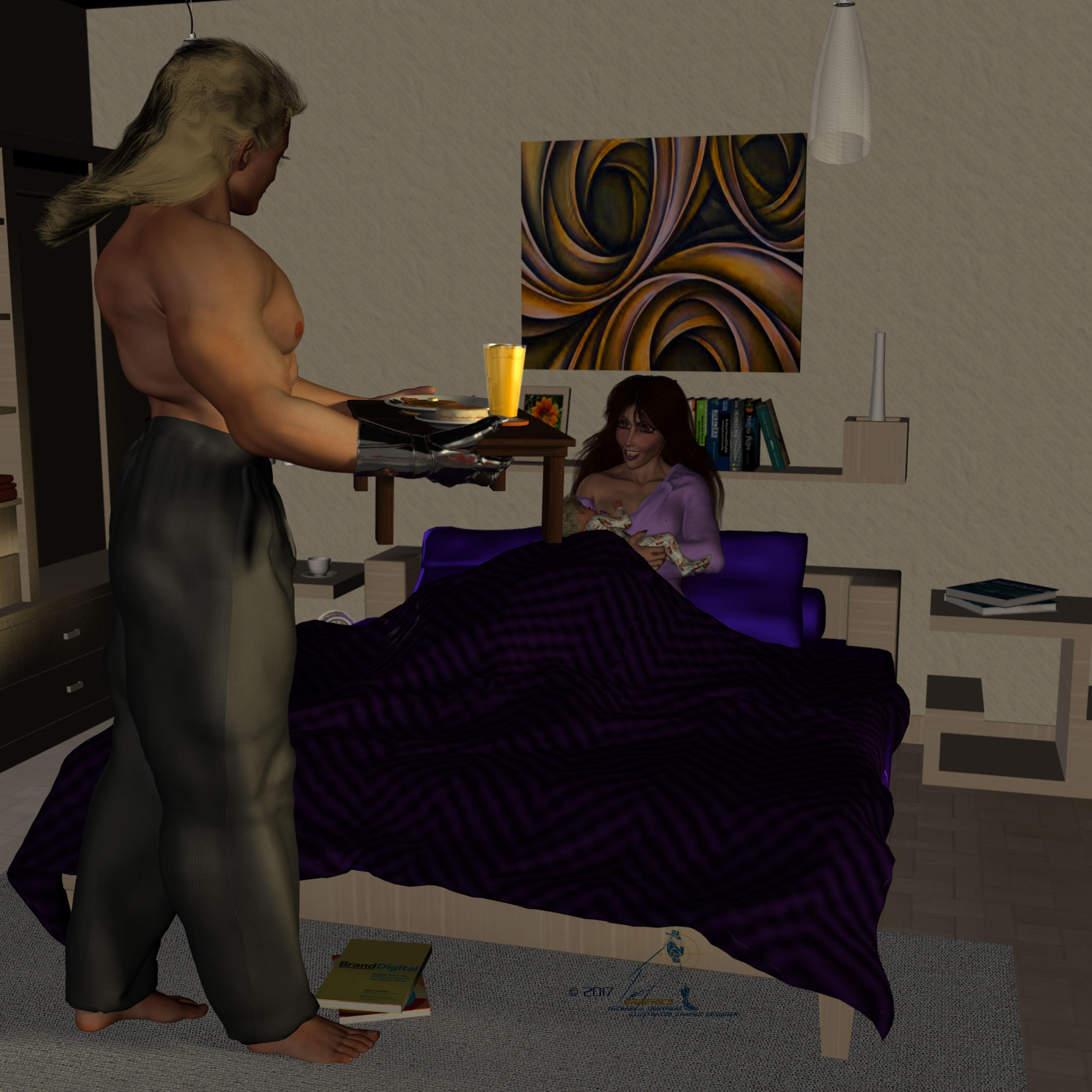
It's Marc and Maria's first Mother'sday, and Marc surprises Maria with breakfars while she's feeding baby Chris.
Breakfast in Bed
All figures Genesis
Freebies:
Die Trying’s 182 V4 morphs for Genesis (all characters)*
Ramwolf's Genesis Morph Pack (third row second column) (Jesse, Grandpa Tom, Rev. Braggart)
Ultimate Shader pack: (Chrome on Marc’s cyber hand, Maria's Earings)*
Rosalie Rose (Maria)*
Kwerki Outfit (Maria)*
Hoop Earings for #Dream's Lusitana (Maria's Earrings)*
Ashlan for M4 (Marc's and Baby Chris' skin texture)*
HFS EVAN Expansion set with custom trans maps (Marc's Cyberhand)*
Baby Genesis (Chris)*
Babygrow for Genesis (Baby Chris)
Mama & Baby poses (Maria and Baby Chris)*
Late Night Fantasic Beadspreads (Bed Spread)*
Paid-For Items:
Marja Hair for Genesis (Maria)
In Bed (bedroom)
Diner Food 1 (breakfast)
Diner Tableware (dishes)
No-Count Items:
Genesis Mullet: No Longer Available (Marc)
Wildmane Hair for Geneisis comes with DZ Studio 4 (Chris)
Ghostman's table: Can't find link (Tray)
Drinking Glass: Can't find link (Orange Juice)
 Does instances to objects do what I hope it does...?
The promo description is all about exporting. What I was wondering was, can you just turn an instance into a seperatly poseable copy and use the converted figure in the scene.? In Poser you can copy a figure and it becomes just another figure. I haven't found a way to do that in Studio, all I can do is create instances that follow the pose, morph and textures of the original.
Edit -> Duplicate -> Duplicate Node Hierachies in DS does just that. (Can be in some other menu depending och which theme is used,)
Does instances to objects do what I hope it does...?The promo description is all about exporting. What I was wondering was, can you just turn an instance into a seperatly poseable copy and use the converted figure in the scene.? In Poser you can copy a figure and it becomes just another figure. I haven't found a way to do that in Studio, all I can do is create instances that follow the pose, morph and textures of the original.
"Victoria 7 Attitude Expressions" problem - need helpedited: moved quotes to the proper locations
The product pages says "Additionally, you'll have 15 others poses files that will mix the Attitude unique morphs and Victoria 7 basic face parameters to give you truly unique expressions." I wonder what "basic face parameters" are. Is that an unlisted required product?
barbult had the right idea!:
-> On the laptop I installed as well
Genesis 3 Female Expressions
https://www.daz3d.com/genesis-3-female-expressions
and now "Victoria 7 Attitude Expressions" also work on the laptop.
I was under the impression the basic face parameters were the ones that ship with G3F/V7. In any case, I also have the Expression morphs product for G3F (blanking on the name, but it's the standard daz original one that is for sale that came out iwth the body and the head morphs)
That expression product can be very hard to find in the Smart Content tab because it does not show up when a Genesis 3 female figure with "Filter by context on" is selected.
Additional Explanation:
-> Some of the first "Morph only products" for G3 did not contain any preset files. Therefore they do not show up in the categorisations.
To remedy this most new morph only products now contain presets which have categories set as well...
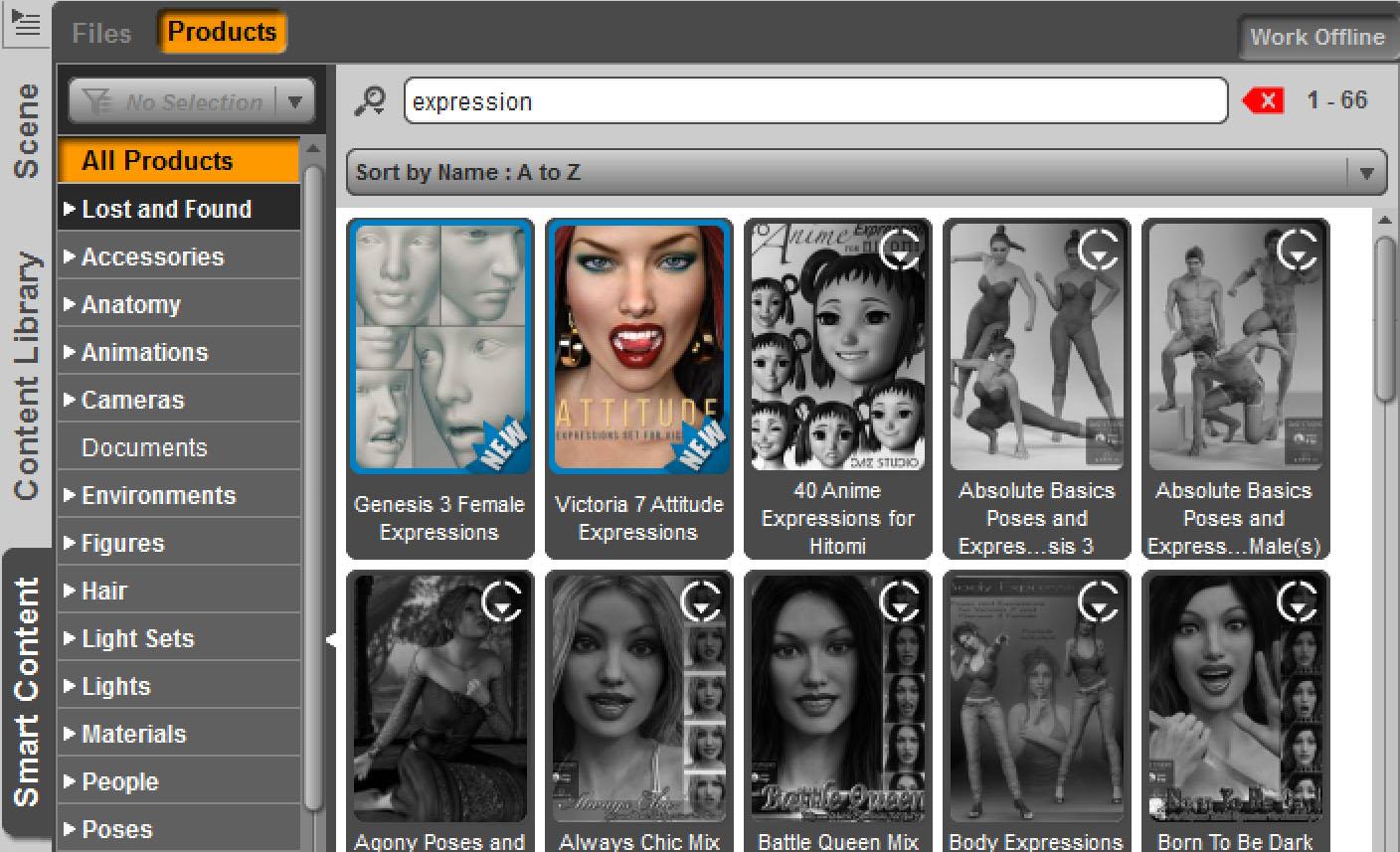
To find that product in the smart content tab
- make sure filter by context is OFF -> NOT selected
- enter "expression" in the smart content tab filter bar
Side Note:
I also made the reverse test on the pc.
- Uninstalled the DAZ Connect version of "Genesis 3 Female Expressions" in the smart content tab
-> Then "Attitude Expressions" stoped working properly
Daz 3D is part of

Connect
DAZ Productions, Inc.
7533 S Center View Ct #4664
West Jordan, UT 84084Licensing Agreement | Terms of Service | Privacy Policy | EULA
© 2026 Daz Productions Inc. All Rights Reserved.