-
Problem with Genesis3Male export
Do you really need them ? can't you use the bones in Maya and just rotate them ? the morphs are linear and does not do a "correct" eye rotation even if it's ok most of the time.
Are you limited to 0-100% morph values in Maya, there is no tweaking so you could set a negative value ? most 3D software have some clamping parameters you can set for morphs and I would guess they are set to 0-100 by default, but I am just guessing here, enver used Maya.
Problem with Genesis3Male exportThose are not morphs, they are controllers that drive the actual rotations on the eye bones. I'm not sure why one would work and the other fail, however/
I understand that, but in the fbx format it still becomes a morph/blendshape. As far as I understand, this is due to the fact that the values of this pose remain 0-100%, i.е. negative values are "cut off".
Is it possible to create a morph from a specific pose (in this case, turning the eyes) and export it as a separate morph along with the model in the fbx file?
virtual penny 4 yor carrara thoughts ?thinkin of trying Open Broadcasting Software
i luv the bandicam, but tired of recording their bannerstill need a hdmi capture for my witcher3 play.
yes xbox has an internal recorder up to 5 minutes.
there's no easy way to transfer the file to my pc.
reading something about the mbr switch, seems xbox1 runs a le of windows8 (ghastly)
used to use the fdisk mbr switch to fix boot sector viruses back in win95 days,
back in my days of 'operating' AS400.was about to order the roxio kit, but then read some seriously neg reviews on amazon.
dont want to spend my xeon saving on a 'serious' kit.http://www.xbox.com/en-US/entertainment/xbox-one/live-apps/upload-studio
you should be able to download that and get the one drive link, you can even share just the link
thanks.
- doesn't seem to transfer files to usb drive to pc.
would like to back up my witcher3 game to usb too. what if xbox crashes or something. oh gawd, losing my save would catasstrophic
seems the xbox 360 could do it, for some reason microsoft removed the 'feature' in xbox1
Rheena Centaur for G3F [commercial]Looks great! Especially since there are no real barbarian-looking female models out there, just several fitness-like types. Unfortunately I'm not into Centaurs and the like - would you consider creating a "normal" female character based on this one?
Nothing based off of this one...but most of my gals can be barbarianized pretty easily......specially with my Massive Morph sets https://www.daz3d.com/massive-morphs-for-genesis-3-female-s
G3 Version of LY Emilyyeah. Jolie is pretty.
don't know how well she'd update... but I can play with her tooJust remember... they'll have NEW names!
Thanks, Lyoness, much appreciated. I am totally gonna support your products and store, just bought your new lights today! Any idea what the new name for LY Emily will be? I will keep an eye out for it.
While you are waiting you can use the V4 skins on G3 with the Cayman UV transfer product and GenX for the morphs and you will have your wish.
I like both products but transfering a character using addons is probably not going to give the same quality of product as the original artist re-making the character, so indeed the "transfer" method is a stop-gap whilst waiting or an alternative if there is no other choice. Please, Lyoness, do go ahead and re-release your beautiful characters for G3f :)
DS Bridge not working for meThat is basically the rules I follow.
One thing not mentioned is Iray materials, you have to change the materials to 3delight or the prop will transfer over in wireframe mode.
virtual penny 4 yor carrara thoughts ?thinkin of trying Open Broadcasting Software
i luv the bandicam, but tired of recording their bannerstill need a hdmi capture for my witcher3 play.
yes xbox has an internal recorder up to 5 minutes.
there's no easy way to transfer the file to my pc.
reading something about the mbr switch, seems xbox1 runs a le of windows8 (ghastly)
used to use the fdisk mbr switch to fix boot sector viruses back in win95 days,
back in my days of 'operating' AS400.was about to order the roxio kit, but then read some seriously neg reviews on amazon.
dont want to spend my xeon saving on a 'serious' kit.http://www.xbox.com/en-US/entertainment/xbox-one/live-apps/upload-studio
you should be able to download that and get the one drive link, you can even share just the link
17,000 Store Items Gone? Wow.There was quite a few older models archived (daz Originals) a few years back. More recently some PAs left Daz and went over to other stores, taking their entire PA catalogues with them, Some PAs prefer to retire older items which no longer reach their criteria for quality. There are many reasons for products to go. After all you don't expect to go into a high street shop and buy the current fashion from 18-20 years ago.
Some of the products which are no longer in the store were for Posette and Dork. How many forum members will admit they have never used Posette and Dork because they are so old? (Posette and Dork are old I mean, not the forum members)
Also I would imagine that , by this time,
The Majority of Daz studio users are not former poser users
and thus have never used poser native content.
so any older items from the V3/M3 era or earlier, simply are vestigial
in the Daz market and should be deleted.Oh, I dunno, I still use v3/m3 content - and have some ancient stuff wishlisted.
I just picked up V3 and some content for her in the last couple of months....
Indeed. I came into the hobby with the V3 generation, but the only part of that product I've ever stopped using were the figures themselves. The morphs transfer great to all the Genesis figures with GenX2, the clothes often auto-fit better than V4 generation product does, and lately a lot of my older skins are being pulled out of mothballs thanks to Iray,NG Anagenessis 2 and the recent UV adapters from Cayman Studio. Honestly, if someone made a body shape template for the V1 and V2 generations, there are some items there that I wouldn't mind being able to use like the ancient grecian dresses.
DS Bridge not working for meDaz Studio Bridge
The Daz Studio Hexagon Bridge provides a way to bring figures, hair, clothing, and props into Hexagon via Daz Studio, modify the item using the tools and paint features of Hexagon, then bring the changes into Daz Studio and apply them to the selected item.
The created morph target is applied to the root figure and can be left as is or a morph target just for the affected body part can be spawned and imported back on to the body part. See the section on spawning morph targets in the main Daz Studio documentation.
Topics
Bridge Guidelines
When using the Hexagon Bridge, keep the following in mind:
-
Make sure that you have manually launched Hexagon and Daz Studio at least once before using the bridge. This records the location of each program so that they can launch each other as needed.
-
Materials must be in shading domains to go over.
-
By default the bridge will not let you overwrite an existing morph on a figure, however this can be over written by checking the Override Existing Morph check box on the Action dialog that appears.
-
No world translation, rotations, or scaling are sent over, in either direction (figures/props in Hexagon will look as if they had had been zero posed in Daz Studio). Applied morphs however are sent from Daz Studio to Hexagon. If a scale, rotation, or translation is desired, then these actions must be done in Hexagon using face, edge, or vertex selection.
-
Changing geometry in Hexagon will make it so that a morph cannot be created. The object can still be sent to Daz Studio but it will be imported as a prop. Geometry is changed when faces/edges/vertices are added to or removed from the sent over geometry.
-
The bridge relies on the names of objects to be the same. The object in Hexagon that will be the morph in Daz Studio must have the exact same name as the object in Daz Studio. Daz Studio will apply it to the first figure/object it finds in the scene with the sent over name. If no object matches name, the object will be brought over as a prop.
-
It doesn’t matter which application is started first; the bridge will send geometry in either direction.
-
The scale from Hexagon to Daz Studio is 10:1, 1 unit in Hexagon = 10 cm and 1 unit in Daz Studio is 1 cm.
-
If an operation in Hexagon changes an objects name, then the user must change the name back if they wish to have it applied as a morph.
-
When Send to Hexagon is pressed in Daz Studio, all selected props, figures, and their children will be sent over. Selecting a bone of a figure is considered the same as selecting the figure. Children are defined as any object fit to or parented to the selected object or prop.
-
When Send to Daz Studio is pressed in Hexagon, all selected objects in Hexagon are sent over. Daz Studio will use the name of these objects to decide if it should try to apply the changes as a morph or if it should just bring it in as a prop. Props always copy their Hexagon materials. Users are asked if they wish to copy materials for objects that become morphs.
-
Currently all morphs are applied and sent over as full body morphs.
-
The bridge does not change rigging, it only allows morphs. Objects morphed beyond their rigs look very weird when posed.
-
When objects are sent to Hexagon the textures are temporarily copied. These copies are made permanent if they are changed and the user sends the object back to Hexagon. They will be saved in the directory they originally came from with an affixed number to avoid overwriting existing files. Textures created by Hexagon and not sent from Daz Studio, must be saved normally in Hexagon.
-
Objects can be sent to Hexagon, exported, modified by another program, then re-imported into Hexagon and sent over to Daz Studio. This would be the most viable way to create a morph on a welded figure morph. The only caveat is that all programs must maintain the vertex count and order.
-
Props created in Hexagon and sent to Daz Studio will have their Studio orientation based on the Hexagon Universe.
If you get this to work please tell me, I have followed this and still nothing.
virtual penny 4 yor carrara thoughts ?thinkin of trying Open Broadcasting Software
i luv the bandicam, but tired of recording their bannerstill need a hdmi capture for my witcher3 play.
yes xbox has an internal recorder up to 5 minutes.
there's no easy way to transfer the file to my pc.
reading something about the mbr switch, seems xbox1 runs a le of windows8 (ghastly)
used to use the fdisk mbr switch to fix boot sector viruses back in win95 days,
back in my days of 'operating' AS400.was about to order the roxio kit, but then read some seriously neg reviews on amazon.
dont want to spend my xeon saving on a 'serious' kit.Darwins' SchtuffSneak peak at the challenge morph I started for Oliver- Lennox. He's wearing Evan's skin atm. I do believe I've captured a realtively close likeness. XD
This one is before some minute tweaking:
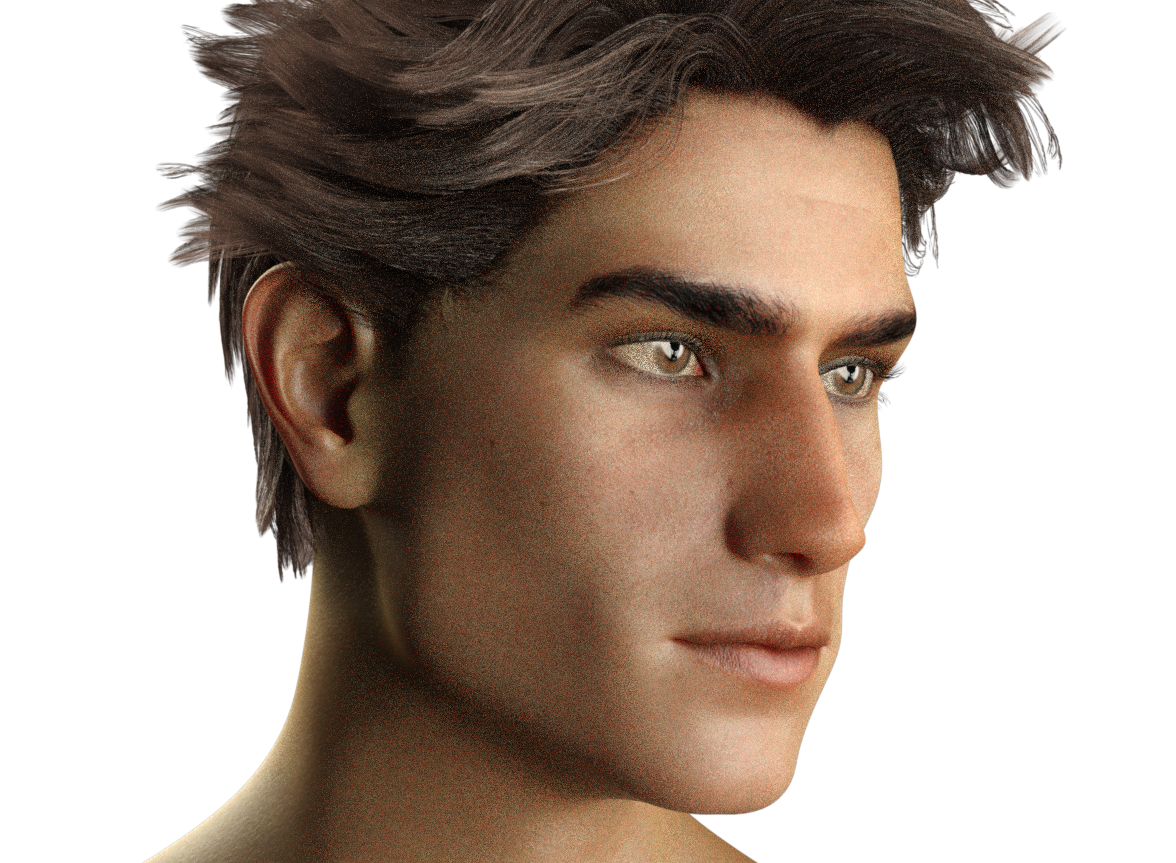
and after the minor tweaks, but to me it made a world of difference:
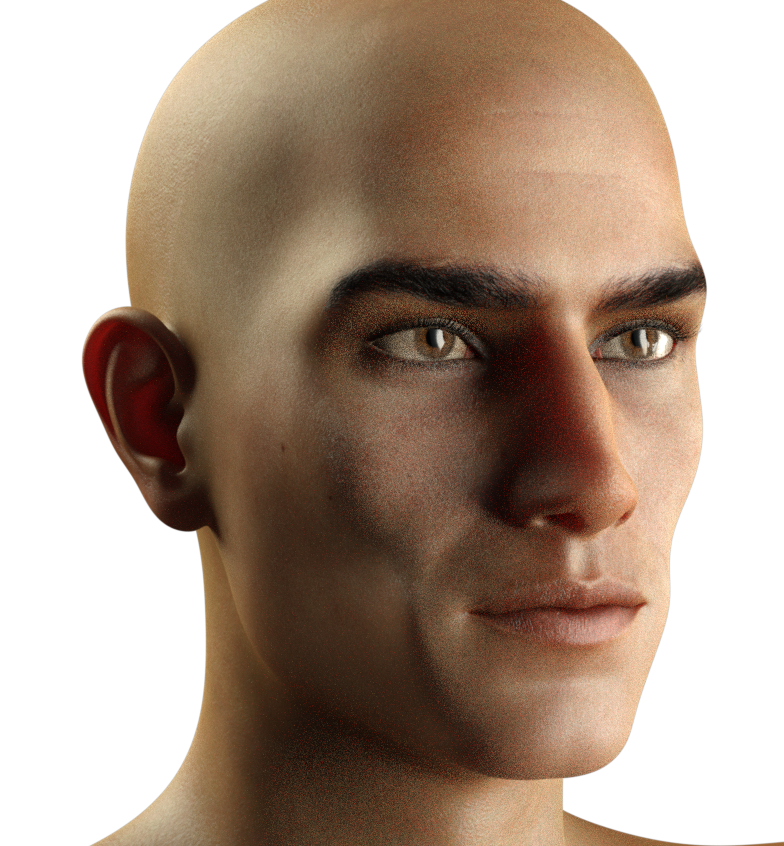
The renders are grainy- I apologize for that, but I was impatient and only let them render for about 5 minutes.
I really like his eyebrows and the shape of his mouth and jaw...
S.H.A.D.O.ws from the past - [WIP]"In the meantime, what specifically did you need to tweak?"
There were three things, WandW. It took me a little while to figure out what was amiss, but once I did, it was a relatively quick fix, as I mentioned. Here's what I found:
1. Upon first applying the converted morph to G3F, it looked somewhat similar, but not quite right. On an inspiration, I checked the G3F morph sliders, in particular that for V4, and sure enough, it was set to 0. I watched as I slid the dial to 100% and, presto! - there was Lt. Ellis as she should be!
2. The eyes didn't morph with the rest of the character. Basicly, since the head for the character is relatively large, applying the morph left the eyes recessed in the skull. So, I simply had to select both eyes in the parameters tab and translate them forward along the Z axis until I was happy with their position.
3. I didn't discover this immediately, until I happened to open the characters mouth: the teeth, as with the eyes, hadn't morphed with the head, so, again, I needed to select both upper and lower teeth and translate them to fit properly behind the gums.
As I mentioned, I am not certain whether these issues were due to my missing something during the conversion process or not, but one way or another, I got to where I wanted to be without too much fuss.
"so perhaps you could ask Gary for permission when he returns."
Or I could just send it to him and he could distribute it if he wished, since he has more experience with that and has an active account on ShareCG to begin with.
 S.H.A.D.O.ws from the past - [WIP]
Sorry, lukon, but Gary would still hold the copyright to the original character morph and sharing/distributing the converted morph would constitute infringement without his permission - even though it is converted, the morph is still his.
The readme doesn't appear to allow it to be distributed as RTEncoded against the original, so perhaps you could ask Gary for permission when he returns.
In the meantime, what specifically did you need to tweak?
S.H.A.D.O.ws from the past - [WIP]Sorry, lukon, but Gary would still hold the copyright to the original character morph and sharing/distributing the converted morph would constitute infringement without his permission - even though it is converted, the morph is still his.
AIUTO...CHI CONOSCE L’ITALIANO? PARTE UNDICIQuando ho letto il tuo messaggio ho pensato fossi ironico... Invece c'è una valanga di roBBa seria!
Addirttura c'è un morph di Genesis 1 che era nella mia wishlist da tempo immemore e che non avevo ancora comprato causa portafogli rachitico!
Grande DAZ! Ora manca solo un bel update che risolva tutti i bug! Centaur 7
For the most part, probably. But with the female centaur we finally have a mare morph for the horse portion, whereas the DAZ Horse2 had only a gelding morph. It might make no difference, it might make some difference in the relevant area.
Darwins' SchtuffThank you! Must get skin for him, since he's going to actually look much different, but the morph I like. Now it's Oliver's turn to state whether or not I half-way succeeded in my attempt. lol
Thank you, Serene! Quite a compliment coming from one of my favorite Sci-Fi artists. :) Much appreciated.
Daz to Blender bridge.Some kind of script for Daz that prepares a model(s) for transfer over to Blender, would be fantastic.
Hi
Do you mean for rendering in blender or modeling operations to send the geometry back to DS, like the Zbrush bridge??
Both, actually. I'd love to see the same kind of bridge that Zbrush has, but for Blender. And I'd love to be able to carry over my Daz characters to landscapes and environments I create in Blender. For instance, I just completed a kitchen model, and I'd really like place a Daz character in it to give it human context.
Wouldn't it be easier to just bring the kitchen prop model into DS instead? It's what I do when I create something in Max, much easier than dealing with rigging issues not to mention clothing and other DS only options.
Sure, either direction is fine by me. But right now, the way things are, getting MTL files over to Daz is frustrating, my models are often mirror images, so I have to flip them (blender is z up and flipped), and so many other things a good bridge could address.
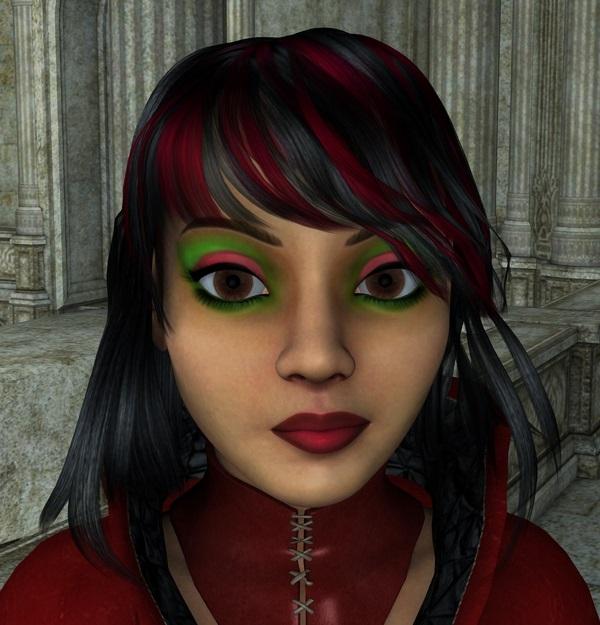
MimicMolly's Renders & WIPsYesterday, I ended up doing more makeup for the texture I'm working on. I saw this random makeup somewhere and decided to copy it. Unlike the other two textures this one is just me painting with the textured brushes I'm accustomed to, so it's not as detailed as it should be.
For these test renders, I used the skin (diffuse only) with my custom/dial-spun character named Carly, who I also lament making a full body preset. She is mostly based on Aiko 5. Her outfit is the Magus outfit included in DS, and so is her hair, Aldora, which I prefer in this morph because it looks nice to me. The background is Alchemy Chasm.
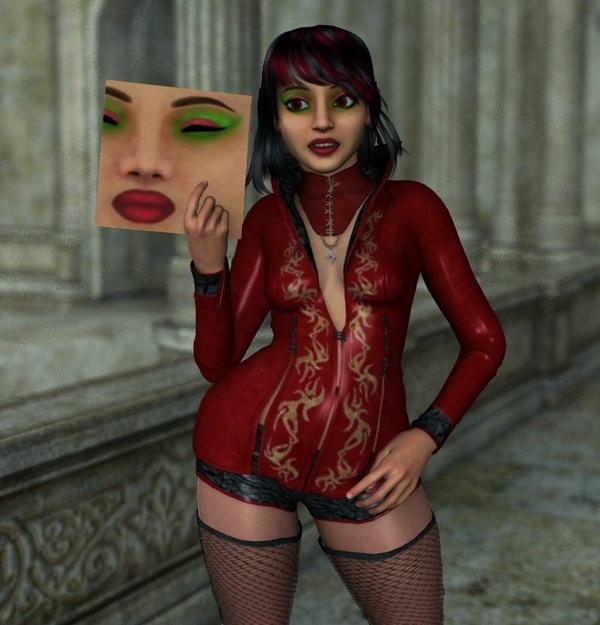
Not sure if the texture is clearly visible, I tried to do this where I cropped it and put it on a plane primitive, to be used as a prop so it wouldn't look like I'm redistributing it or whatever. The other is a zoomed up portion of her face, I may work on it a bit later. I'm sure once I get this one down, I can do other makeups I have in mind. :3
 shape morphs not working with decimator
I have a piece of clothing for genesis 2 that has a shape morph for the sleeves, if i apply the shape then go into the decimator the shape reverts back, then if i apply the decimation the sliders are still showing 100% i can lower them and reraise them and in the viewport the shape changes as expected but as soon as i let go of the slider the morph in the display goes back again even though the slider remains at 100%. The end goal is to export the decimated figure with the the sleeve morph at 100% and baked in. Any idears?
Daz 3D is part of

Connect
DAZ Productions, Inc.
7533 S Center View Ct #4664
West Jordan, UT 84084Licensing Agreement | Terms of Service | Privacy Policy | EULA
© 2026 Daz Productions Inc. All Rights Reserved.