-
Searching for a specific morph
Go to the morph in DS, click on the cog icon and select Parameter Settings. That will tell you where the morph file is located, the name of the product, and the creator's name. That will give you at least some hint at where you would look for a similar morph in G9.
Searching for a specific morphI have a g8 doll that I am transferring to a g9. It is working perfectly, but a specific morph is making a lot of difference to the final result of the g9. I'm looking for the lip contour hd, available in the g8.1, could anyone who has the g9 morphs tell me if this is in the package? I still don't have any morph g9 packages.
how do i get a george body without the headDrogo Nazhur said:
Richard Haseltine said:
When the shape is chnaged as radically as this it is often not possible to hav a separate head and body morph. You could try Shape Splitter, or the Head Split dForm, for the non-HD morph but I suspect it will be nigh impossible to get a sensible transition in the neck.
I'm getting this message when I try to run the splitter ...
/Scripts/X-Tools/Presets-DFormShape Splitter Genesis 3 Male Split DFormer.duf
File does not exist
... it was installed with DIM. Should I uninstall it and re-install it?
Worth trying.
Is Strand-based hair taking a step backward in realism, lately? August 2024The reason why I said direct Auto-Fit doesn't work and manual fixing will be needed was because we ever experimented a lot with this sort of "new hairs".... I have to say the way with which you Auto-Fitted the hair breaks a couple of things: original "Fit to" structure, ghost morphs on the hair's root node, and dForce modifier ~~ So if one does need a conversion... the better way should be always the old school way : Auto-Fit (or Re-rig with Transfer Utility) + Fix Base. With this hair, key steps :
1) Load hair into the Scene, just auto-fit Face Dummy and Summer Style Wavy Long Bob Hair root node to G8. (Re-rigging with Clone will also do. )
2) Load hair on G9, dial G8F Clone on G9. Export Cap and Strand nodes to OBJ files. Import OBJ files onto Cap and Strand nodes on G8 with MLP as "Fix Base" morphs. Then dial the morphs.
3) Save a Wearable Preset or a converted version Figure Asset. Done ~With this way, everything on G9 version's hair will be kept on the converted one on G8, and works well.
That is a MUCH better method, thanks for Tip, added a warning in my first post. I do tend to break stuff when I play around ;) It's how i learn to fix it.
How to save new character morphs?
No problem!yuyu.atem said:Ah, ok, I never think to use Reverse Deformation! I didn't see your answer and I finally deleted the previous morphs before to create new one. At least, it works correctly. I also understood why the new morph was taken into account by the Shape Splitter: I dindn't understand that the morph was saved only on this G8M character and not as an morph asset for every G8M... I tried again and this time, it works correctly. Thank yuou very much!
 How to save new character morphs?
Ah, ok, I never think to use Reverse Deformation! I didn't see your answer and I finally deleted the previous morphs before to create new one. At least, it works correctly. I also understood why the new morph was taken into account by the Shape Splitter: I dindn't understand that the morph was saved only on this G8M character and not as an morph asset for every G8M... I tried again and this time, it works correctly. Thank yuou very much!
How to save new character morphs?Yes ~ with the setting in the screenshot. And do not dial any other morphs before you import OBJ files with Morph Loader Pro to update an existing Morph. For instance, to update "Phan Head fixed", you can only dial this morph to 100% before importing OBJ with MLP.
Is Strand-based hair taking a step backward in realism, lately? August 2024mrpenguin76 said:
crosswind said:
Uthgard said:
ArgleSW said:
Looking at OOT's (outoftouch) recent products which have started to use strand based hair, I feel the materials and overrall look have taken step backwards. The colors do not look natural and has an odd metallic look to it (even after lowering glossiness). While the strand based technology might be more advanced and has greater potential, the out of the box final look in renders can look off in my opinion. When I try to apply a blonde material for example, they all end up looking like a metallic gold.
Speaking of OutOfTouch, how feasible is it to use the G9 hairs on G8? Are they on a cap, or is that strand-based thing where they can only be used on the figure they were made for? Sorry for the slight out-of-topic, but I didn't want to make a new thread for this, and one of their hairs is today's big sale item.
Not feasible... direct Auto-Fit doesn't work. There's a Cap indeed but the Cap + SBH are both under another root Hair node. After Auto-Fitting, the root Hair node will not be redirected to the correct position, so a manual fix is always needed. So... easy and straigh-forward way is still parenting the hair to figure's hair node.
It is Possible to fit OOT G9 strand based hair to G8 using auto-fit, it just requires a couple extra steps to do it. I'll use dForce Strand-Based Summer Style Wavy Long Bob Hair for Genesis 9 | Daz 3D as my example for how to do it.
First of course have your G8F/M Loaded. Now bring in the strand based hair with the character UNSELECTED. You will still get a pop up on this one as the dforce dummy will still try to auto fit, just hit cancel. Now click and expand the Summer style Wavy Long Bob Hair, and unparent the STRANDS. Now select that, in parameters change it's "fit to" to NONE. Now right click on the scene tab and choose edit scene info. One the prefered base for the strands set it to Genesis 9 Base and hit accept. Now right click on the Strands and choose fit to Genesis 8F/M (i used both Genesis 9 CS and MMX Gensis 9 clone and result were pretty much the same) I used shoulder length as the tempate. Now right click and auto fit the other pieces that already have the G9 Base Prefered. And the results are on the Left...
Now IF you load the hair with the character selected and do choose to Auto fit at the point you can Also simply Unparent and UNFIT the strands, changed the prefered base to Gensis 9 Base and RE-auto fit the strands... So why didn't i just say that in the first place? well, something about skinning a Ca---- a Buck, yeah a Buck (don't want to offend the cat lovers ;)).
....
The reason why I said direct Auto-Fit doesn't work and manual fixing will be needed was because we ever experimented a lot with this sort of "new hairs".... I have to say the way with which you Auto-Fitted the hair breaks a couple of things: original "Fit to" structure, ghost morphs on the hair's root node, and dForce modifier ~~ So if one does need a conversion... the better way should be always the old school way : Auto-Fit (or Re-rig with Transfer Utility) + Fix Base. With this hair, key steps :
1) Load hair into the Scene, just auto-fit Face Dummy and Summer Style Wavy Long Bob Hair root node to G8. (Re-rigging with Clone will also do. )
2) Load hair on G9, dial G8F Clone on G9. Export Cap and Strand nodes to OBJ files. Import OBJ files onto Cap and Strand nodes on G8 with MLP as "Fix Base" morphs. Then dial the morphs.
3) Save a Wearable Preset or a converted version Figure Asset. Done ~With this way, everything on G9 version's hair will be kept on the converted one on G8, and works well.
how do i get a george body without the headRichard Haseltine said:
When the shape is chnaged as radically as this it is often not possible to hav a separate head and body morph. You could try Shape Splitter, or the Head Split dForm, for the non-HD morph but I suspect it will be nigh impossible to get a sensible transition in the neck.
I'm getting this message when I try to run the splitter ...
/Scripts/X-Tools/Presets-DFormShape Splitter Genesis 3 Male Split DFormer.duf
File does not exist
... it was installed with DIM. Should I uninstall it and re-install it?
how do i get a george body without the headWhen the shape is chnaged as radically as this it is often not possible to hav a separate head and body morph. You could try Shape Splitter, or the Head Split dForm, for the non-HD morph but I suspect it will be nigh impossible to get a sensible transition in the neck.
how do i get a george body without the headWith regards to George (either G3M or G8M -- it doesn't matter) ... how do I do just the body morph with the head not being affected? Other characters have a head morph and a body morph but George doesn't seem to have that for either G3M or G8M
Pls help to identify hairs in these promosYeah it has to be since the base presets are for the Dual Lobe Shader. and they look pretty bad at that. Not sure why they used it on that since it isn't strand based. With that said, you would need to convert that surfaces to Iray Uber and use your favorite regular hair textures and then make some custom Cutout Opacity (Tr) textures for it. THEN you need to make some morphs to correct for the hair band being hidden and un-smushing the underlying hair, (which in the promo from behind i thought he spotted how he had done just that, but i was also tired when i first studied the promo's so could have been seeing what i wanted to see) along with making that tail a little fatter at the top (which can somewhat be done with scaling a couple of the bones, but moving some verts and making a morph would be better) So with all that in mind, is THAT what Romeo did? Beginning to question now if it is Soiree Glam after all. When I first looked at it inside DAZ to compare, I was sure. However, after messing with it for awhile, I'm no longer sure he went through the hassle of all that, and it could just be one I've never seen. No matter what, it is not Stock Soriee Glam. THAT is for sure.
Is Strand-based hair taking a step backward in realism, lately? August 2024Yep, but the question was about auto-fitting. That one doesn't drape much anyway during sim, not taking into account using wind there, But that is beside the point anyway. To get A SIM into that now fitted G8 hair, you need to run a sim with that hair on a G9 Base, or Dev load this is in the G8F/M clone shape (via Paramaters/hidden/clone {I'm sure you already know this Chevybabe25, this is for others}) then open joined editor and right click on the screen,choose edit, adjust rigging to shape, put a check in adjust orientation, and Accept. Then run whatever complex sim is need to achieve the end result. When it is done export that STRANDS as an .obj in Base res (which they already are), then use morph loader pro and to inject that as a morph into the STRANDS of the G8 hair, and now you have a simulated g8 hair. Tedious process, but possible to do none the less.
How to save new character morphs?Ah, ok, it works much better, now!
I have a new question: by this whay, I had to create new morphs with another name (I had "Phan Haed" and "Phan Body", and the new morph are "Phan Haed fixed" and "Phan Body fixed") because morph loader pro told me that I couldn't give to the new morphs the same name as the previous morphs. So now, I would like to know if it is possible to update the previous morphs from the new ones, or if I have to deleate them before.I tried in the parameter settings to give to the new morph the same name and path as the previous morph, but when I do that, the previous and the new morphs seem to be added and the face is completely deformed:
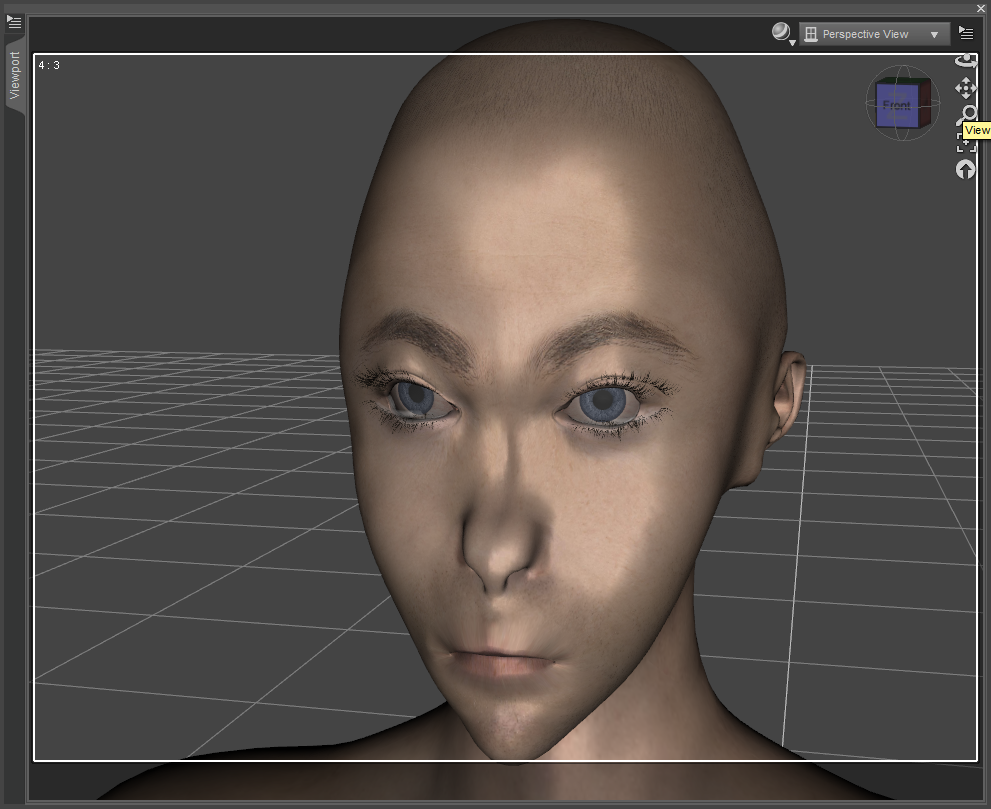
Thank you in advance!
HH Scarlett for G9 [Commercial]Love the knee bend corrective morph, JCM?
I wish other artists do this as well.
Face Transfer - Saving the whole figurecrosswind said:
... then, yes, saving All that you need as a Scene Subset is just the best way.
Thanks, that did it. Works great. Just in case anyone else might be interested...........Save your FT morph first so that your textures (if you want them) are saved) then finish your character completely with all required morphs and shaping, then save the entire figure as a Scene Subset, Works perfect
Figure helpAs per a logic when making companion products in that linked Bundle, I guess this character was customized based on Pablo 8.1 https://www.daz3d.com/pablo-8.1-la-revolucion-bundle ...of course not on 100% head morph of it and probably mixed with other head morphs with certain %.
Figure helpThe skin is probably https://www.daz3d.com/alistair-hd-for-genesis-8-male, don't know about the morph though.
Face Transfer - Saving the whole figureSaving through Face Transfer removes the watermarks and saves the morph, otherwise you get the preview version with the watermark. You can then refine the result as needed (adding extra morphs, say) and save that as Character preset.
Face Transfer - Saving the whole figureI finally had a reason to use Face Transfer (original version, not unltd or V2) and would like to save the whole figure with all the morphs (head and body) as a Scene. Can this be done? or does need to be saved as a Scene Subset?
When saving through FT does the Scene Subset include all the figure morphs or just the head? Tried looking around for an answer but noone has addressed this that I can find.
Thanks for any help
Daz 3D is part of

Connect
DAZ Productions, Inc.
7533 S Center View Ct #4664
West Jordan, UT 84084Licensing Agreement | Terms of Service | Privacy Policy | EULA
© 2026 Daz Productions Inc. All Rights Reserved.