-
AWE Shading Kit for DAZ Studio and 3delight
OK. I think I found out what the deal is with Genesis 8 eyes. I was troubleshooting RAMWolff's Gino when I noticed I couldn't get any type of reflection/specular highlights, no mtater what I do. The only way I can get any sort of highlights is by turning on opacity. Once that's done, I tried re-enabling transmission and of course, the black spots shows up. No matter what settings I used, they simply won't go away.
So I sent the model to Hexagon and tried pulling out the eyes out of the head to see if something in the head was messing around with the render. Didn't help, but I forgot to turn on subdivision again and then I noticed the dark spots changed shape. OK. Then i guess it must be a geometry issue, since subD changes geometry. I sent the model to Hexagon again, selected the eyesurface and pull it out slightly so it slightly bulges outward. Re-render things in DS and the black spots are gone.
It does look like the cornea and eye moisture polygons of Genesis 8 are placed too close together for the default bias used by 3delight. The easiest workaround would be a morph to slightly bulges them outward, though I don't know how this would behave with closed eyelids (at the moment).
Edit:
OK. Worked out a possible solution in the shader, by adding a 0 (zero) bias to transmission. Hey, would that make AWE Surface "unbiased" ?
 Textured Bob Hair for Genesis 8 and 3 Female - can't find the morphs
I don't have that hair but usually morph dials are found under Actor in the parameters tab with the Hair selected.
Sydney 8It sounds to me that the kind of aging you want you're going to get mostly from normals and hi-def morphs. Fine lines and wrinkles are things that are best gotten on a base figure, like Sydney. You can make any character you want based on Sydney or on her textures. Some of the best ones you might want to look at are Eva, Sydney, Alexandra and maybe Edie. Those are all closer to the age group you're after.
In the image (forgive the grain - I didn't let it finish rendering fully), I didn't even use any aging morphs. There are a few morphs for aging in the base morph pack for Genesis 8 male and female, like a hi-def under eye crease, crows feet, etc. For women in the 45-55 age range, most of the wrinkles are going to be around the eye, maybe some light ones between the brows and maybe a few around the mouth, but not too many elsewhere. I achieved the extra "aging" by just mixing morphs in very small increments.
Laurie
Hello Laurie,
Yes, I like a light to medium aging. Usually between 40 an 65 ish. Eva is a bit too young still and only is a bit older than most of the women featured on Daz. Alexandra is more what I am after, but I am willing to go a bit older too. I am not sure if I could age her more with what I currently have. Sydney seems to come in at the right level, but I also want the ability to pull back the aging on her to make her bit younger too. Edie is getting into the 70+ arena and I just don't like her look. I would say that Alexandra and Sydney are my favorites in terms of a 'pretty' older woman that has her wrinkles in the right places.
That woman you created is awesome! Pretty much what I am looking for. Think too, Sandra Bullock. She is aging beautifully and I love her all around look. One thing I have noticed that Sydney has in comparison to Ms Bullock. That little crease in the middle of the nose tip. I love that! It is one of Sandra's defining features. She has a large nose, but I like that too. I am a fanatic of large, but pretty noses on a woman. Almost all the women I have created with Daz so far have a large (but pretty) nose. Only the last woman I just finished creating has a narrower nose, but it is still long. So Sydney, right off the bat wins it in the nose department. However, I do want to get rid of that orange look to her skin. It looks so much better with a natural look as with your creation and also the other one a bit up that I liked.
I have found out how to do a return, but I don't think that the people at Daz are there as Ihave not received a response as of yet. I guess they do not work weekends! But I wanted to return that one package and then get Sydney as she is still on sale.
Thank you!
If you want to minimize the orange, all you have to do is use the low or medium translucency setting that is included in most Daz Original material settings. The default, IMVHO, is much, much too high at 90%. That might be ok for a frog or a salamander, but not human skin ;). While it might be true that human skin does allow a good bit of light thru, it doesn't really intrude very far into the skin, not at 90% anyway. I also recommend Divamakup's Altern8 for the Genesis 8 crowd....it helps a lot to get a better looking skin.
As for Edie, give her another look. You'll notice that her skin looks much younger than she herself does...I think because she's more a fantasy figure that one jumps to the conclusion that she is old, when in fact her skin is quite nice (so is Ollie's for that matter). Anyway, just thought I'd mention it. :)
Oh, and btw...that character you liked above IS Eva, so her skin does lend itself to well to an older woman if you can pull off the morphing :). In fact, most of her IS Eva.
Laurie
Sydney 8It sounds to me that the kind of aging you want you're going to get mostly from normals and hi-def morphs. Fine lines and wrinkles are things that are best gotten on a base figure, like Sydney. You can make any character you want based on Sydney or on her textures. Some of the best ones you might want to look at are Eva, Sydney, Alexandra and maybe Edie. Those are all closer to the age group you're after.
In the image (forgive the grain - I didn't let it finish rendering fully), I didn't even use any aging morphs. There are a few morphs for aging in the base morph pack for Genesis 8 male and female, like a hi-def under eye crease, crows feet, etc. For women in the 45-55 age range, most of the wrinkles are going to be around the eye, maybe some light ones between the brows and maybe a few around the mouth, but not too many elsewhere. I achieved the extra "aging" by just mixing morphs in very small increments.
Laurie
Hello Laurie,
Yes, I like a light to medium aging. Usually between 40 an 65 ish. Eva is a bit too young still and only is a bit older than most of the women featured on Daz. Alexandra is more what I am after, but I am willing to go a bit older too. I am not sure if I could age her more with what I currently have. Sydney seems to come in at the right level, but I also want the ability to pull back the aging on her to make her bit younger too. Edie is getting into the 70+ arena and I just don't like her look. I would say that Alexandra and Sydney are my favorites in terms of a 'pretty' older woman that has her wrinkles in the right places.
That woman you created is awesome! Pretty much what I am looking for. Think too, Sandra Bullock. She is aging beautifully and I love her all around look. One thing I have noticed that Sydney has in comparison to Ms Bullock. That little crease in the middle of the nose tip. I love that! It is one of Sandra's defining features. She has a large nose, but I like that too. I am a fanatic of large, but pretty noses on a woman. Almost all the women I have created with Daz so far have a large (but pretty) nose. Only the last woman I just finished creating has a narrower nose, but it is still long. So Sydney, right off the bat wins it in the nose department. However, I do want to get rid of that orange look to her skin. It looks so much better with a natural look as with your creation and also the other one a bit up that I liked.
I have found out how to do a return, but I don't think that the people at Daz are there as Ihave not received a response as of yet. I guess they do not work weekends! But I wanted to return that one package and then get Sydney as she is still on sale.
Thank you!
What features would you like to see appear in dazstudio 5?*sigh* I keep finding lovely freebies in .3ds format. Being able to import those would be so helpful. The others probably would too.
You can convert .3ds files online to .obj. and use them in DS. Or if you have Poser installed you can save them as a prop and import into DS.
As for a new DS feature I'd like to see.... a morph brush just like the Poser one.
Number one on my list. A morph brush. Would go soooooo far in helping to smooth, fit, do quick morphs.
Laurie
I think d-Force was supposed to be that but it's too fiddly. I agree. Some basic modeling options from within DAZ Studio like a push, pull and smoothing brush option with a panel for controlling what's happening would be very very helpful. I don't always like to fire up ZBrush!
You can already do that with Dformers. There's also an ability to paint a map with a brush for it.
Sorry, changed my original post to D-Formers. I meant that not D-Force! LOL I was all in a flurry yesterday with stuff going on around the house and my mind was a bit chaotic ...
Sydney 8You can make someone pretty with the aging morphs. Just remember that less is more ;). SMALL increments. Nothing too big. Just slide a morph in very small steps.
Laurie
Yes, they have a picture on the Aging Morphs package that shows the variation in intensity, but it still looks a bit harsh to me. Would you happen to know if Sydney comes with some adjustable morphs or no?
Thanks,
Geo
It sounds to me that the kind of aging you want you're going to get mostly from normals and hi-def morphs. Fine lines and wrinkles are things that are best gotten on a base figure, like Sydney. You can make any character you want based on Sydney or on her textures. Some of the best ones you might want to look at are Eva, Sydney, Alexandra and maybe Edie. Those are all closer to the age group you're after.
In the image (forgive the grain - I didn't let it finish rendering fully), I didn't even use any aging morphs. There are a few morphs for aging in the base morph pack for Genesis 8 male and female, like a hi-def under eye crease, crows feet, ect. For women in the 45-55 age range, most of the wrinkles are going to be around the eye and maybe a few around the mouth, but not too many elsewhere. I achieved the extra "aging" by just mixing morphs in very small increments.
Laurie
You can make someone pretty with the aging morphs. Just remember that less is more ;). SMALL increments. Nothing too big. Just slide a morph in very small steps.
Laurie
Yes, they have a picture on the Aging Morphs package that shows the variation in intensity, but it still looks a bit harsh to me. Would you happen to know if Sydney comes with some adjustable morphs or no?
Thanks,
Geo
It sounds to me that the kind of aging you want you're going to get mostly from normals and hi-def morphs. Fine lines and wrinkles are things that are best gotten on a base figure, like Sydney. You can make any character you want based on Sydney or on her textures. Some of the best ones you might want to look at are Eva, Sydney, Alexandra and maybe Edie. Those are all closer to the age group you're after.
In the image (forgive the grain - I didn't let it finish rendering fully), I didn't even use any aging morphs. There are a few morphs for aging in the base morph pack for Genesis 8 male and female, like a hi-def under eye crease, crows feet, etc. For women in the 45-55 age range, most of the wrinkles are going to be around the eye, maybe some light ones between the brows and maybe a few around the mouth, but not too many elsewhere. I achieved the extra "aging" by just mixing morphs in very small increments.
Laurie
Gorgeous morph work Laurie. Whats your subd at? Three, four?
Whatever Eva loads at since I used her as the starting point. 4 I think? :)
Laurie
G8 Male Anatomical Elements.Did you all know that you can easily have all your G3M anatomical element addons also for G8M - simply copy the morph data folders to G8M (same folder structure) and search/replace with notepad G3M and Genesis 3 Male with G8M and Genesis 8 Male for the non compressed files. Compressed files need to be decompressed first of course to be editable. Geometry for G3M AE and G8M AE are exactly the same. And did you know that we once named the AE "penis"? - man those past times....
Thanks for this hint! Works also for Females and G3 to G8!
*closed* RRRR - What can go wrong when moving - Render ContestA rules query - my first pull included the V4 Bodysuit Unimesh Fits .
But if I simply use the V4 Bodysuit on a standard V4, then I'm not actually using the V4 Bodysuit Unimesh Fits (although who's going to know - unless some idiot blabs... oh bu**er!)So does the wearer of the aforesaid bodysuit need to have one/some of the extra morphs that said item supports applied ?
That is what we in Sweden call a "slamkrypare" (mudskipper), something that will slip through holes in the rules.
I actually found a way to use the 'Unimesh Fits' part of it, specifically the V4 Male morph. Here's my render for pull #1 - tentatively entitled "Finding Out Who Really Wears The Trousers..."
"Nightwatch" English-subtitles-style caption included in the image, so no explanation necessary
#1 - 1333 - Sixties Dinette Set
#2 - 707 - Horizon Redux
#3 - 818 - Lawn Ornaments
#4 - 1592 - V4 Bodysuit Unimesh Fits
LB1 - 1332 - Six Feet Under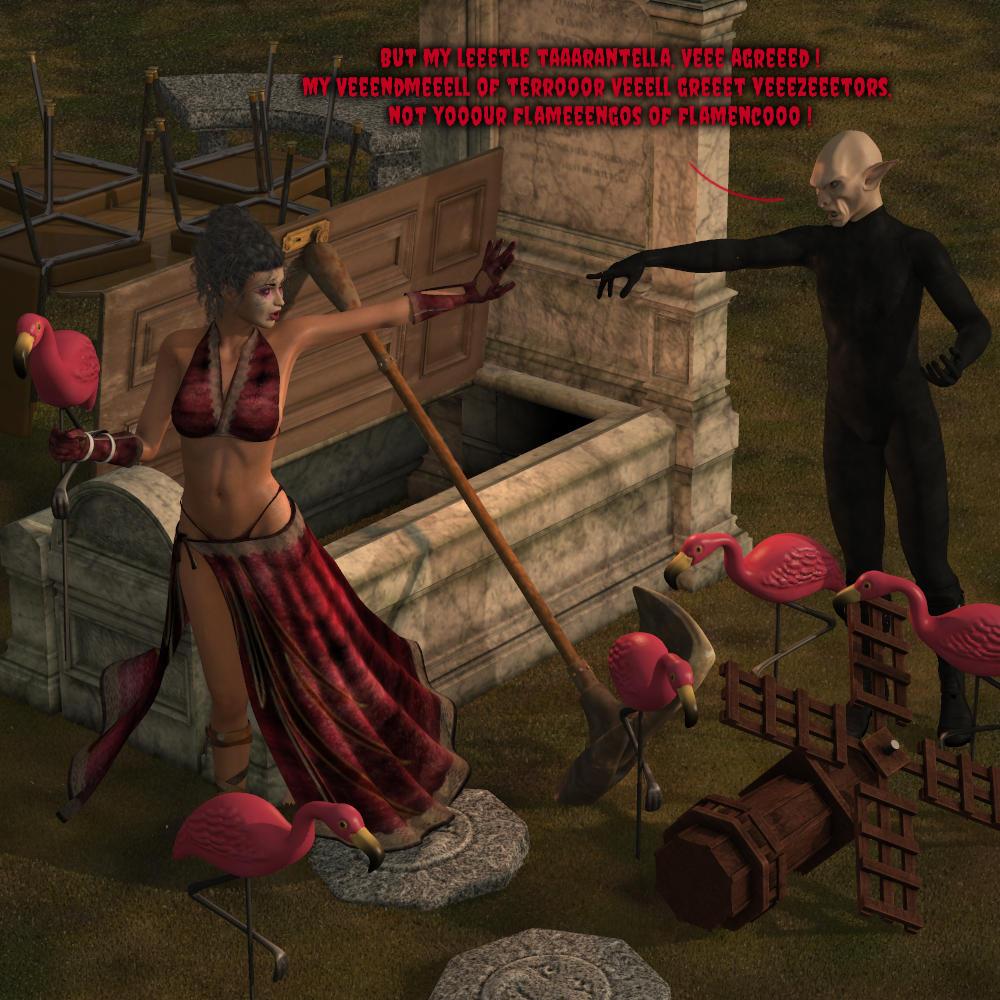
( The 'Windmill Of Terror' was almost certainly subconciously inspired by 'What We Do In The Shadows' - imagine Mr Drac talking about it in the style of Viago/Vladislav...
"Sooo,you vant to know how my Veeendmeeell Of Terrooor verks?"
[raises an eyebrow and makes a little head gesture]"Veeeeeell... ven a veeezeeetor arrives, I creeep out and hide behind the veeendmeeell.... eees kvite deeeficult becaaause ze veeendmeeel is kvite small.
Zen I start to turn ze handle - I need to use both hands because eees kvite rusty - after being outside in the rain for hundreds of years.
Eet makes an eereetating skveeking noise too... but zat's okay... because it's kvite creeepy noise.
Zen ze hands of ze veeendmeeell start going round and round...
no, zat's not ze scary bit - zat's just vot veendmeeells do.
I turn ze handle faster and faster and zen... a scary clown pops out of the top of ze veendmeell like a jack-in-the box... and vails... like a baaanshee.Vell... it used to. But it vasn't designed to be left out in ze rain for hundreds of years.
Nowadays ze clown doesn't pop out... he veeeery slowly vobbles up and zen... sort of... flops... and ze noise is like vun of zose tin can toys zat you turn upside down and zey go 'mooooo'.Like a cow.
But eeet's steeel kvite scary"
Import clothes in DSI think the issues with this jacket comes from the Transfer Utility and the template "dress knee-length" that isn't "suitable" for the shape of the jacket.
I guess the default settings in the Transfer Utility works best with skin tight clothing while your jacket is more of a loose shape and not as close to the body.
No, when i made jacket i specifically made it tight and fit the body as close as possible. It not loose at all. It just appear that way in some areas.
To see if there are JCMs working in the backround try this: while the figure is posed select the clothing and have a look at the Parameters pane under "Currently Used" also make shure Show Hidden Properties is checked in the Paramertes Option Menu the button on top with the lines and the arrow. I'm shure there will be hidden morphs that are named JCM those morphs are working in the backround on I guess any joint bending on figures with General Weight Maps rigging.
Yep, you right! I zeroed chest side JCM and problem disapeared. Finally! Thank you, Thank you, Thank you.
But now i have some strange rips in clothes after posing and returning to base pose. (last pics)
There are a few settings in the Transfer Utility options that you could try. The first is the Distance Tolerance slider that you can turn up to increase the projection distance so the weight maps and morphs of the Source figure will get transfered to even further away from the body Target clothing items.
No effect.
Ok as i understand besides JCM there is problem with auto generated weight maps. Maybe utility does not work well with MD? Anyway, is there good tutorial on how to do them manualy? The ones i watched had too little info about it. All did them with transfer utility.
Nail Color doesn't show on G8F No-Suit?So, based on the promo images it LOOKS like you have the option of not loading part of the suit, or something. Because there's that last image where the woman's bare hand is showing.
I'm not sure from the product description what controls the surfaces. It says there are 9 geografts but I am not sure if those go hand-in-hand with redefining the surfaces.
Entirely hiding some body parts should help with the burden on Iray and viewport navigation.
You're correct, the bare hand shows but with a default nail color, no nail color. So my issue in this instance is that the surface zone that controls the nail color is also the entire hand. Image maps don't work. If I try to copy a black fingernail surface off a base G8 to this zone, it turns the whole hand black.
The geografts act like gloves and mask, the fingertip ones cover the finger so that's not an option.
And to use no-suit you must load the entire no-suit actor, there is no in-between and you can't morph it out of base G8
Sydney 8I like Sydney, she has a ton of detail that I felt would be good to add to my GF8 gene pool. Origanally I was going to get the deal on the pro bundle with the free items and the gift card, but after spending time looking at the pro bundle there really wasn't anything in it I wanted. So I have been thinking about it and decided to just get the base character with the HD addon. The orange skin deal isn't that bad IMO and is an easy fix, so it isn't an issue for me as I tweak EVERYTHING all the time and hardly ever use anything stock.. The breast issue isn't that bad for me either since i have found that as long as I have the Sydney body at 50%, it's not an issue and I can add other morphs to it just fine.
Anyhoo, here is a test image with the HD at 100% and the base head morphs at 50% and the base body morph at 25%, plus many more body morphs to get her where I wanted her to be.
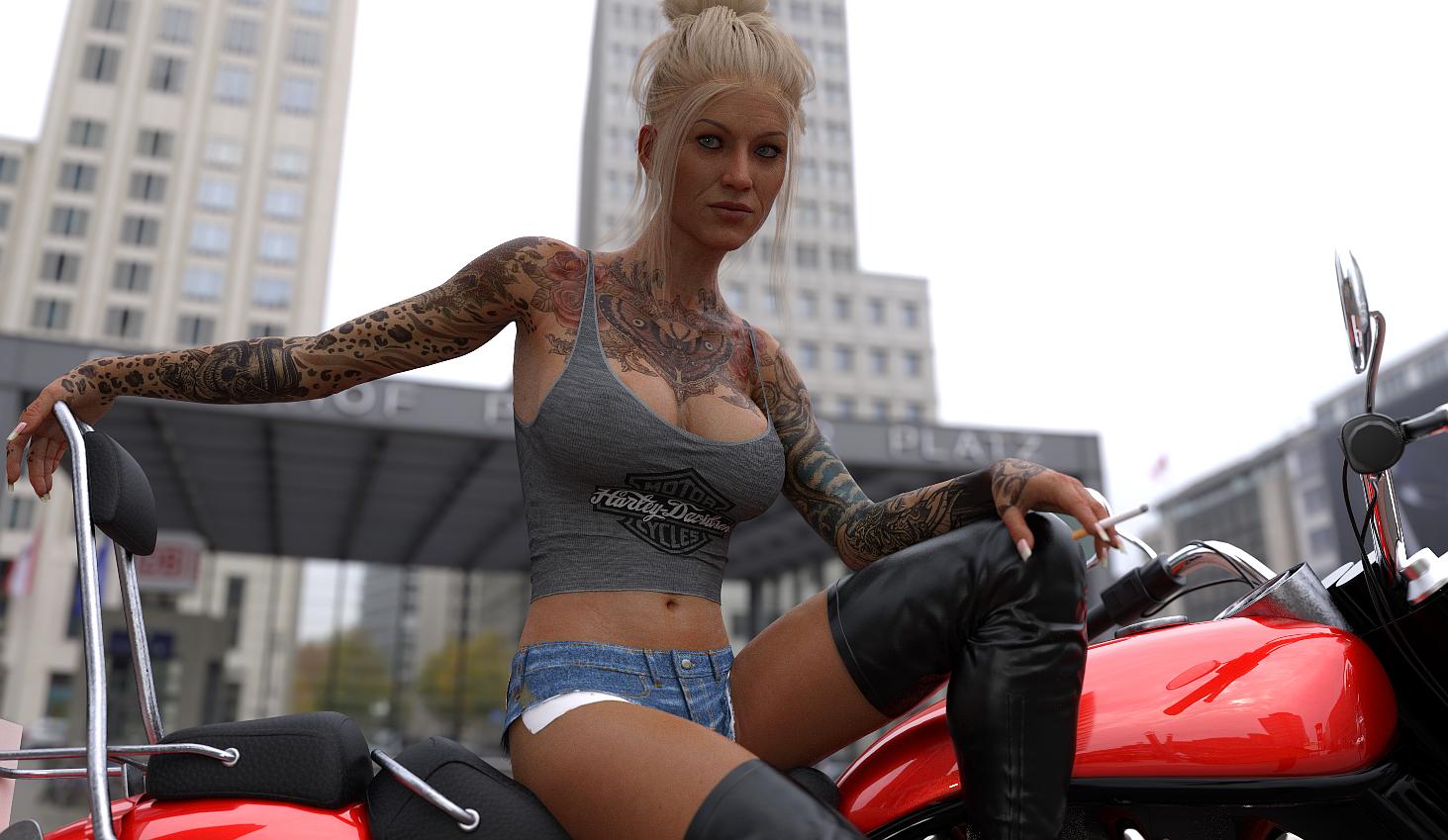
Oh, she is in my home town. :-D
Sydney 8You can make someone pretty with the aging morphs. Just remember that less is more ;). SMALL increments. Nothing too big. Just slide a morph in very small steps.
Laurie
Yes, they have a picture on the Aging Morphs package that shows the variation in intensity, but it still looks a bit harsh to me. Would you happen to know if Sydney comes with some adjustable morphs or no?
Thanks,
Geo
It sounds to me that the kind of aging you want you're going to get mostly from normals and hi-def morphs. Fine lines and wrinkles are things that are best gotten on a base figure, like Sydney. You can make any character you want based on Sydney or on her textures. Some of the best ones you might want to look at are Eva, Sydney, Alexandra and maybe Edie. Those are all closer to the age group you're after.
In the image (forgive the grain - I didn't let it finish rendering fully), I didn't even use any aging morphs. There are a few morphs for aging in the base morph pack for Genesis 8 male and female, like a hi-def under eye crease, crows feet, etc. For women in the 45-55 age range, most of the wrinkles are going to be around the eye, maybe some light ones between the brows and maybe a few around the mouth, but not too many elsewhere. I achieved the extra "aging" by just mixing morphs in very small increments.
Laurie
Gorgeous morph work Laurie. Whats your subd at? Three, four?
medieval lands productMaterial of ground is non-standard, it is created in the shader mixer on the basis of PBR material for DAZ Studio Iray, so it will not be easy to transfer such material to the Octane render.
On your screenshot you can see that there is not enough alpha and translucent maps for trees.
3DXChange and DAZ rigging confusionYep, I turned off limits, but not sure what you mean by unlock nodes. None are locked in the parameters menu. I assumed they were all unlocked when limits were turned off. The only thing that seems to consistantly be problematic with G3 is that the twist of eith the shoulder or upper arms, the just don't quite twist as far as the motion does on G1 or G2. Like I said before the motion calls for hands being place on hips and after transfer the arms are twisted to about a 45% degree angle away from the hips outward. Its the same for all the G2 to G3 conversions I try.
Sydney 8You can make someone pretty with the aging morphs. Just remember that less is more ;). SMALL increments. Nothing too big. Just slide a morph in very small steps.
Laurie
Yes, they have a picture on the Aging Morphs package that shows the variation in intensity, but it still looks a bit harsh to me. Would you happen to know if Sydney comes with some adjustable morphs or no?
Thanks,
Geo
It sounds to me that the kind of aging you want you're going to get mostly from normals and hi-def morphs. Fine lines and wrinkles are things that are best gotten on a base figure, like Sydney. You can make any character you want based on Sydney or on her textures. Some of the best ones you might want to look at are Eva, Sydney, Alexandra and maybe Edie. Those are all closer to the age group you're after.
In the image (forgive the grain - I didn't let it finish rendering fully), I didn't even use any aging morphs. There are a few morphs for aging in the base morph pack for Genesis 8 male and female, like a hi-def under eye crease, crows feet, etc. For women in the 45-55 age range, most of the wrinkles are going to be around the eye, maybe some light ones between the brows and maybe a few around the mouth, but not too many elsewhere. I achieved the extra "aging" by just mixing morphs in very small increments.
Laurie
Sydney 8You can make someone pretty with the aging morphs. Just remember that less is more ;). SMALL increments. Nothing too big. Just slide a morph in very small steps.
Laurie
Yes, they have a picture on the Aging Morphs package that shows the variation in intensity, but it still looks a bit harsh to me. Would you happen to know if Sydney comes with some adjustable morphs or no?
Thanks,
Geo
Slow posing over generations with clothing & withoutHey folks, hope this doesnt sound like the regular "oh things are too slow" moan post, but looking for an assist and my spec and investigation seems to point to "this shouldnt be happening"
I've been a Daz user for years now and noticing over time how sluggish things are getting over versions with both new and old characters. Generally getting to the point of losing interest in using Daz as it is just too slow, but can’t really as I have invested a great deal of time using it for comic and illustrated story work I do. (Recently got commissioned too, so my work will be “on the clock” so speed is of importance)
Going to try raising a ticket with Daz but wondered if anyone here in the forums might have same experience.
Faults in Brief.
- Viewport navigation is fine, but posing characters is too slow! Even just 1 figure!
- Early Generation figures are "lightening" to load and pose with "light" clothing...but getting very slow with more complex outfits.
- Later Gen characters (2,3,8) have increasingly long and glitchy load times, painfully unresponsive.
- Later generation figures (3 and 8 especially) are extremely slow to pose even unclothed. Once they have any clothing or are in scenes with multiple other figures it’s almost impossible to get any momentum going due to time it takes for loading and posing.
- I’ve experimented a lot; various "lite" clothing and "heavier" clothing (have several video examples I will upload) for example some vendors clothing is high texture, high resolution and expectedly sluggish but even the most "basic" of outfits can be unusably sluggish.
- Unexpectedly, per generation and studio version jump performance is getting slower for example…
- M4V4 (unclothed or "light" clothing) -> Super fast load, decent posing speed. But a scene with a above "basic" clothed character (or two), and performance dives.
- Genesis (clothing or not) -> Fast, I din't really do much with Genesis as when it was "new" I was on a bit of a Daz hiatus so I missed the boat and don't use it much.
- Gen 2 -> reasonable (until clothed), again a fully clothed, haired, proped character can be very slow, having multiples and even slower.
- Gen 3->Sluggish, too slow when clothed, because of this I haven't really used G3 that much...but WANT to!
- Gen 8-> forget about it....a real pity as there is some interesting characters out there, from the few clothing items and characters I have, they are slow as drying paint to move.
As you will read below, I have been thru A LOT of debug and pretty rigorous with trying to find the cause, and it can't be my machine spec.
- Two Intel Xeon E5 2690 @ 2.90Ghz Processors
- 128 Gb Ram (yes...I know...excessive)
- Two Nvidia Titan X with 12Gb..each! (again…yes…excessive)
- Running of SSD's for content and .exe
Ok so troubleshooting...
The Obvious Checks – Within Studio
Edit->Preferences->Interface->Display Optimisation – Trying all options (None, Better, Best), Disabling Per Pixel Shading, Trying on / off for Hardware Anti-Aliasing, Texture Performance Pixel Buffer, etc. No changes.
Interactive update always off. (does anyone use it on!?)
Inactive viewport delay set to on. (I don't use Aux viewport or anything fancy)Checking Log file for any issue with Plugins at startup. Nothing odd there.
Disabling / reenabling plugins - Octane, Fluidos, Powerpose, etc, or any "superfluous" plugins, have even stripped down to just the "bare minimum”. Still very sluggish.
With figures and clothing; setting resolution to base rather than high resolution, disable or set smoothing iterations to lowest. I used to do this manually a lot but. As I have to do often I even made my own little script "De:Re LOD” it’s not perfect but pretty handy! (see attached – works on most figures and clothes!)
Going this route of setting all to base and no smoothing for pose work has "some" improvement but not as good as I would like and as you see per video, still very laggy.As per videos (see links below) and good posing practice I extensively use pins for transform, universal and active pose tools. (Without doing so performance is almost unresponsive)
Adjusting Tool settings of aforementioned tools such as ActivePose to "fast" rather than accurate for Drawing Options. Not much change.
Checking there are no "dumb" collision items other than the base figure.
Trying clearing DSON cache files via Preferences->General. No change there, if anything slows loading times.
With Draw Settings ensuring Subdivision Updates is set to Delayed and Manipulation binding to Optimized
Studio Checks Conclusion
While Rotate Tool and the top left “pose tool ball” (whatever you call it) are pretty responsive, ActivePose, Transform and Universal pose tools are very unresponsive. Using Pins DOES help but nowhere near as fast as it should be (or was...I can’t remember Daz feeling this slow…) You can see in my referred videos some good examples. Basically, by the time a character is clothed, base resolutions set, etc it can still be a real drag moving stuff around.
The Obvious Checks - Hardware
Disabling extra monitors – I’ve done this both by physically removing cards and just disabling in device manager. My main display is connected via HDMI, 2nd and 3rd via DVI. 3rd Monitor is vertical display, I don't use that often. I could try having my 2 main displays JUST HDMI, but I prefer 1 unutilized Nvidia card to be used JUST reserved for unfettered render (A Boon with Octane). But even if I just have 1 monitor and/or card enabled, no performance improvements.
Reinstalling Nvidia drivers, roll back a few versions, or using latest. No Changes.
Ensuring there are no "superfluous" display adapters present (Pc has no onboard Intel adapters or anything like that).
Running RAM checks with mdsched. Clean bill of health there.
Ensuring BIOS is up to date.
Conclusion
I'm either over spec'd, or have some seriously faulty but non error reporting hardware.The Obvious Checks - Software & OS
Reinstalling Daz and all plugins. No Change.
Reinstalling Daz completely - I remove %appdata%\Roaming\DAZ 3D\Studio4 and use CCleaner to remove any old registry entries.No Joy.
Before you suggest it…No I am not re-installing widows 10...I have clean bill of health all across the board..have dug DEEP using event viewer, done SFC checks, all up to date drivers, checked all Windows system updates, etc.
Checked and repaired all VS c++ redistributables.In Event viewer - only issue I do have is WHEA logger errors. This has been this way since I had the system (5 years plus) it is due to high amount of ram and it's because it is dual processors with 16 cores each. The firm that built the machine (Scan.co.uk) informed me of this when I purchased (whish was $$$ as you can imagine and they are very reputable dealers) and the motherboard BIOS accomodates this with "suppress WHEA errors" - common practice in overclocked or higher spec'd machines.
Disabling Swap file (strictly you shouldn’t use Swap file on an SSD, the internet is full of endless debate on this one...but IT techs I know say SSD + Swap file = bad. Tried...failed.Checked GPUZ see attached, nothing awry afaics.
Power management set to high for PC and NVidia cards.
Checking environment variables - only odd thing I’ve seen that seems slightly Daz related is QT_DEVICE_PIXEL_RATIO...hmmm…QT framework….
Trying disabling ANYTHING that might impact performance at startup (virus software, defender, dropbox, etc) Services.msc...mmm don't want to really go there...but by the looks nothing awry.Conclusion
Outside of re-installing windows nothing is jumping out at me and...ugh re-installing windows...plus the amount of stuff I would have to reinstall and setup again..UE4, Unity, Cinema4D, Premiere,Photoshop, Games, Utilities, etc,etc <SHUDDER>
The Arcane Checks
In Nvidia control panel trying SLI (ok, not recommended with iray) just process of elimination. No Change.
In Nvidia control panel trying combinations of "Use my preference emphasising performance" & "Let the 3D application decide" & Experimenting with advanced "program specific" options. No Change.Removing ONE of the Nvidia cards a) disabling in device manager b) physically removing
Unplugging and not using my 3D mouse (Connexion Spacemouse Pro - https://www.3dconnexion.eu/products/spacemouse/spacemousepro.html).
Using Process lasso and /or Task manager to set priority to High / Realtime for Daz.
Using Process lasso and /or Task manager to set I/O priority and memory priority to HighUsing Process lasso and /or Task manager to to specify less CPU cores via set affinity. (Tried various combinations...I've had some 3D apps in the past I had to disable seevral cores)
The "lets try something different" Checks
I made a separate runtime with "JUST" the base figure installed, no morphs or characters, nothing, just plain "out of the box" Gen 2, 3 and 8. They do respond a little bit better…but with clothing attached…back to sluggish performance.ALSO making my own "stripped down" version of the figures using "saving Morph assets" and "save figure Prop".
Both of these ideas have had a marked improvement, but as soon as clothes go on...slow...it is decidedly better, but not ideal because I want to cloth, texture, sculpt, morph, shape, etc with an active character with options for shaping and tweaking rather than "ok I’ll work with my "Lowly Base" figure unclothed and afterwards copy over the morphs I need or make a new asset.
(Actually, I was writing a script for this too…almost like a “powerloader” in reverse: a script to go thru all the morphs in a character, detecting which ones are in use and then stripping out those unused either via save assets / prop method or deleting non active morphs in an automated fashion akin to Edit Mode in a figure…I’d be interested in a coding buddy to look at what I have…a potential product I’d say...my attempts worked, but code is slow and the assets/prop method can be fickle)Folder by folder removing and re-adding character morphs that just seem broken from the relevant data folder ie data/daz3d/genesis 3/Female/Morphs (there have a been a few from Rendo that just "break" figures)
Trying “merge fitted figures geometry” – This can have a speed increase for “heavier” clothing but to detriment of the ACTUAL geometry (ears get crinkly, some outfits just turn into a mess)
Final Conclusion (and exhaustion and exasperation)So given all the above checks, attempts and even trying to make my own scripts to get round this and sadly…not much result.
I swear there is one tiny thing I am missing, but I am at a loss to find it and sadly it’s eating more time in troubleshooting than actually doing what I should be doing which is…ART!
Hope some of you folks have some ideas, because I am fresh out of em! Thanks in advance for any assists.
See attached too many screen caps of my sys if you need info. VIdeos can be found at https://www.dropbox.com/sh/jp4q445rq6zsadv/AACdpBzOLf9urDOsP0WJ5Gf6a?dl=0
Cheers!
Sydney 8Hi jukingeo,There are two issues with Sydney. One, the HD morphs which if I understand correctly, leaves a crease in the lower chest area of a figure when not combined with the Sydney base shape (messy). The second issue is the breast deformation on Sydney. It is entirely possible that daz may argue that this is not an issue at all and never fix it. So you will have to morph out the issue which is what ive been attempting. If you want to make your own older characters you should try Aging Morphs for Genesis 8 Female(s), https://www.daz3d.com/aging-morphs-for-genesis-8-female-s . If your looking for a pre made character, one of my favorites is https://www.daz3d.com/grandmother-hd-for-genesis-8-female-and-edie-8 . Also, theres Mabel 8, https://www.daz3d.com/mabel-8 .
Remember, Daz has an excellent return policy. 30 days, return for any reason. Just make sure that you specify how you want that refund, the daz default is store credit.
Yes, this was my understanding to and reading on, I found that it only happens with the Sydney overlay on OTHER characters. I guess that is understandable, but I do understand how those might want to add the wrinkles to the skin of other characters. So far I think Sydney is the only one that has the HD overlay for that, if I am not mistaken. I have looked at the Aging Morphs package and while effective, they are too strong and pretty much would be good for creating 'old hag' type characters. A great look for an old witch. But what I am looking for is a 'pretty' older look. Alexandra 8 was one I have been eying for a while but she is a bit expensive right now. Even with my Platinum Club status...over $30 just for a base figure is steep. So I am having a hard time making a decision here. Sydney does have her wrinkles in the right places and outside of the orangish skin and the breast issues (which are not totally deal killing), I do like her and can get her base for nearly $10 less than with Alexandra. Overall though, I don't like what the Sydney pro package has to offer and like more what the Alexandra Pro Package offers....but at over $90?!?! Naw. I can do around $60, but over $90 is too much.
The other night I bought this package:
https://www.daz3d.com/ej-daisy-and-malmorda-for-genesis-8-female
I am not happy with it. The Daisy character, the one on the right, I was hoping to get somewhat that look or even better. But after a couple hours of tweaking around, I was not successful. Now I don't mean to scare you, but this was the best I came up with (see attached):
Yeah, I know, pretty scary, huh? Again, great for a witch, but what I want is to make a beautiful older woman.
Can you explain to me how the return procedure works? I didn't even know that was possible. As I would rather return this pack and get Sydney.
I did the following character nearly entirely with Zev0's aging morphs (in this case for Genesis 3 Male) and I can vouch for their awesomeness ;). He was pretty thorough, even right down to morphs for knobby fingers...
It does help to have an aging skin to go with the morphs so if you wanted to buy that character set, you could definitely augment them with Zev0's morphs and make your own character :).
Laurie

I have seen this package, but like I said above, it seems a bit too severe. For an 'old hag' type witch or in the case of your gentleman above, it's great and I might think of it for a future purchase. But I want to create a 'pretty' older woman. Think of Ravenna with a few more wrinkles:
Yes, I know that aging skin is a two part process one being the skin texture and the other the morphs. As it is I am already considering purchasing Zevo's 'other' package, the Skin Builder for Genesis 8. In fact it is in my inbox right now.
To let you in on my attempts, the second picture below was my attempt with out the wrinkles and aged skin from the Daisy / Malmorda package (see 2nd photo). Again, the results were less than spectacular. The weird thing though is that I think my first attempt was better! She doesn't look aged enough, but she doesn't look pretty either. She looks very homely looking and I don't want that.
Another one with just Sydney (and no tattoos) this time. Can't work out if she is happy she never got tattoos or regrets not getting them and meeting Christian lol

YES!! YES!!! This is what I am looking for. Older but pretty. How did you remove that orange tinge to Sydney's skin? I am not fond of the eyebrows and I would change them out, but other than that, this is pretty much what I am looking for. She doesn't look like an old hag or witch (even though she can be), but she is attractive. That is mainly what I am after. After seeing this, I think I am going to get Sydney. Did you use the HD overlay too? BTW, are the hand veins a part of Sydney, or were those added later?
Thanks for the input ladies and gents! Looks like I am returning the Daisy / Malmorda package and getting Sydney instead!
Geo
You can make someone pretty with the aging morphs. Just remember that less is more ;). SMALL increments. Nothing too big. Just slide a morph in very small steps.
Laurie
Sydney 8Hi jukingeo,There are two issues with Sydney. One, the HD morphs which if I understand correctly, leaves a crease in the lower chest area of a figure when not combined with the Sydney base shape (messy). The second issue is the breast deformation on Sydney. It is entirely possible that daz may argue that this is not an issue at all and never fix it. So you will have to morph out the issue which is what ive been attempting. If you want to make your own older characters you should try Aging Morphs for Genesis 8 Female(s), https://www.daz3d.com/aging-morphs-for-genesis-8-female-s . If your looking for a pre made character, one of my favorites is https://www.daz3d.com/grandmother-hd-for-genesis-8-female-and-edie-8 . Also, theres Mabel 8, https://www.daz3d.com/mabel-8 .
Remember, Daz has an excellent return policy. 30 days, return for any reason. Just make sure that you specify how you want that refund, the daz default is store credit.
Yes, this was my understanding to and reading on, I found that it only happens with the Sydney overlay on OTHER characters. I guess that is understandable, but I do understand how those might want to add the wrinkles to the skin of other characters. So far I think Sydney is the only one that has the HD overlay for that, if I am not mistaken. I have looked at the Aging Morphs package and while effective, they are too strong and pretty much would be good for creating 'old hag' type characters. A great look for an old witch. But what I am looking for is a 'pretty' older look. Alexandra 8 was one I have been eying for a while but she is a bit expensive right now. Even with my Platinum Club status...over $30 just for a base figure is steep. So I am having a hard time making a decision here. Sydney does have her wrinkles in the right places and outside of the orangish skin and the breast issues (which are not totally deal killing), I do like her and can get her base for nearly $10 less than with Alexandra. Overall though, I don't like what the Sydney pro package has to offer and like more what the Alexandra Pro Package offers....but at over $90?!?! Naw. I can do around $60, but over $90 is too much.
The other night I bought this package:
https://www.daz3d.com/ej-daisy-and-malmorda-for-genesis-8-female
I am not happy with it. The Daisy character, the one on the right, I was hoping to get somewhat that look or even better. But after a couple hours of tweaking around, I was not successful. Now I don't mean to scare you, but this was the best I came up with (see attached):
Yeah, I know, pretty scary, huh? Again, great for a witch, but what I want is to make a beautiful older woman.
Can you explain to me how the return procedure works? I didn't even know that was possible. As I would rather return this pack and get Sydney.
I did the following character nearly entirely with Zev0's aging morphs (in this case for Genesis 3 Male) and I can vouch for their awesomeness ;). He was pretty thorough, even right down to morphs for knobby fingers...
It does help to have an aging skin to go with the morphs so if you wanted to buy that character set, you could definitely augment them with Zev0's morphs and make your own character :).
Laurie
I have seen this package, but like I said above, it seems a bit too severe. For an 'old hag' type witch or in the case of your gentleman above, it's great and I might think of it for a future purchase. But I want to create a 'pretty' older woman. Think of Ravenna with a few more wrinkles:
Yes, I know that aging skin is a two part process one being the skin texture and the other the morphs. As it is I am already considering purchasing Zevo's 'other' package, the Skin Builder for Genesis 8. In fact it is in my inbox right now.
To let you in on my attempts, the second picture below was my attempt with out the wrinkles and aged skin from the Daisy / Malmorda package (see 2nd photo). Again, the results were less than spectacular. The weird thing though is that I think my first attempt was better! She doesn't look aged enough, but she doesn't look pretty either. She looks very homely looking and I don't want that.
Another one with just Sydney (and no tattoos) this time. Can't work out if she is happy she never got tattoos or regrets not getting them and meeting Christian lol
YES!! YES!!! This is what I am looking for. Older but pretty. How did you remove that orange tinge to Sydney's skin? I am not fond of the eyebrows and I would change them out, but other than that, this is pretty much what I am looking for. She doesn't look like an old hag or witch (even though she can be), but she is attractive. That is mainly what I am after. After seeing this, I think I am going to get Sydney. Did you use the HD overlay too? BTW, are the hand veins a part of Sydney, or were those added later?
Thanks for the input ladies and gents! Looks like I am returning the Daisy / Malmorda package and getting Sydney instead!
Geo
Licence clarificationThat depends on what you mean by content.
The EULA does not permit you to re-disritbute any part of the actual figure which you purchase, either as is or in a derirative, altered or morphed version.
The license permits you to use the figure to make images, or videos.
The Content is provided for User's exclusive use. User does not have the right to provide the Content to others in any form or on any media except as set forth in this Agreement., User may (i) access, use, copy and modify the Content in the creation and presentation of two-dimensional animations and renderings, (ii) incorporate two dimensional images (including two dimensional images that simulate motion of three dimensional objects) derived by User from the Content in User’s other works, and (iii) publish, market, distribute, transfer, sell or sublicense User’s two-dimensional animations, renderings and other works; provided that User may not in any case publish, market, distribute, transfer, sell or sublicense any renderings, animations, software applications, data or any other product from which any Content, or any part thereof, or any substantially similar version of the Content can be separately exported, extracted or de-compiled into any re-distributable form or format.If you need clarification you should submit a help ticket to Daz https://helpdaz.zendesk.com/hc/en-us/requests/new
Daz 3D is part of

Connect
DAZ Productions, Inc.
7533 S Center View Ct #4664
West Jordan, UT 84084Licensing Agreement | Terms of Service | Privacy Policy | EULA
© 2026 Daz Productions Inc. All Rights Reserved.