“Simple and Blazingly Fast. I love the DAZ Install Manager, it has saved me DAYS of work!”Daniel Presedo | Adobe Photoshop Team
NOTE = Use Install Manager to download and install your 3D content for DAZ Studio and Poser.
You must have DAZ Studio installed to then manage purchased content with Install Manager.
] get DAZ Studio PRO
“Holy bananas Batman! The last time I downloaded and installed 124 items in 9 minutes was - well uh, NEVER! This is going mach one! Top tool now it shows its potential at full speed.”Chris - 26Fahrenheit - Premier Artist
DAZ Install Manager makes it easy
Quickly let DAZ Install Manager help you
Add DAZ Install Manager to your system
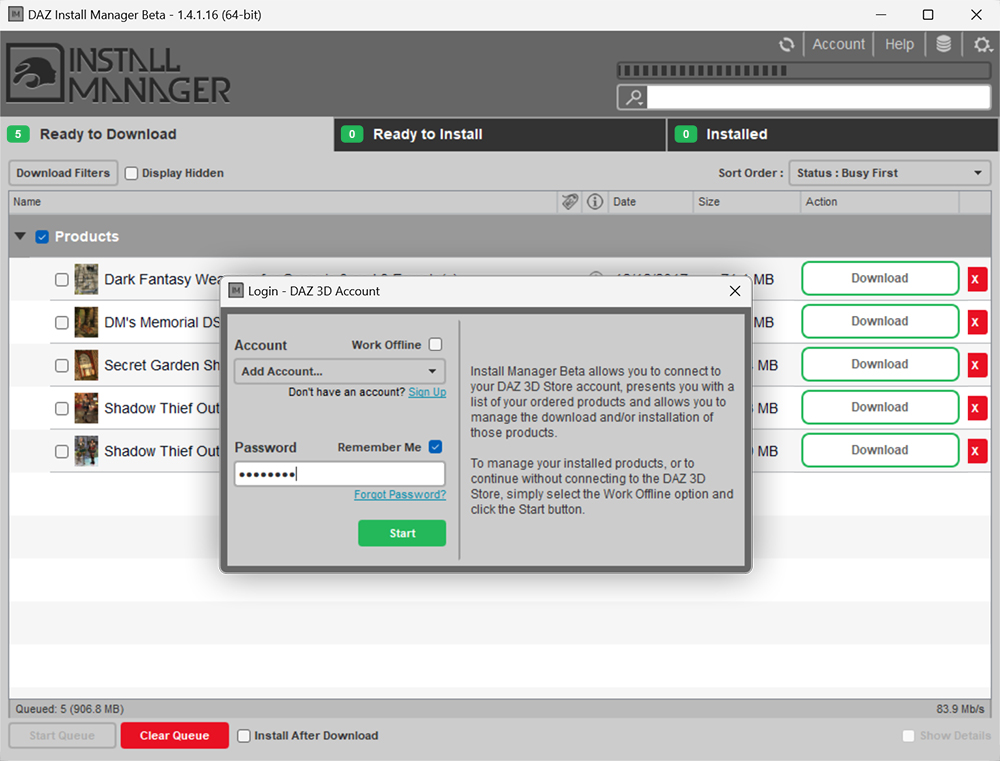
Install Manager provides the ability to work in either an online or offline mode. While working in the online mode, Install Manager presents you with a list of available downloads and/or updates for your account. It allows you to selectively download all of the items in the list, specific items in the list or each item individually. You also have the option of automatically installing items in the list after it has finished downloading.
DAZ Studio is a feature rich 3D figure customization, posing, and animation tool that enables anyone to create stunning digital illustrations and animations. DAZ Studio is the perfect tool to design unique digital art and animations using virtual people, animals, props, vehicles, accessories, environments and more.
“DAZ just keeps getting better and faster. No more trying to guess which file to download. No more agonizing over where to put it. DIM does it all, better and faster. I can’t imagine having to use manual installers again.”Anne Toney - Customer
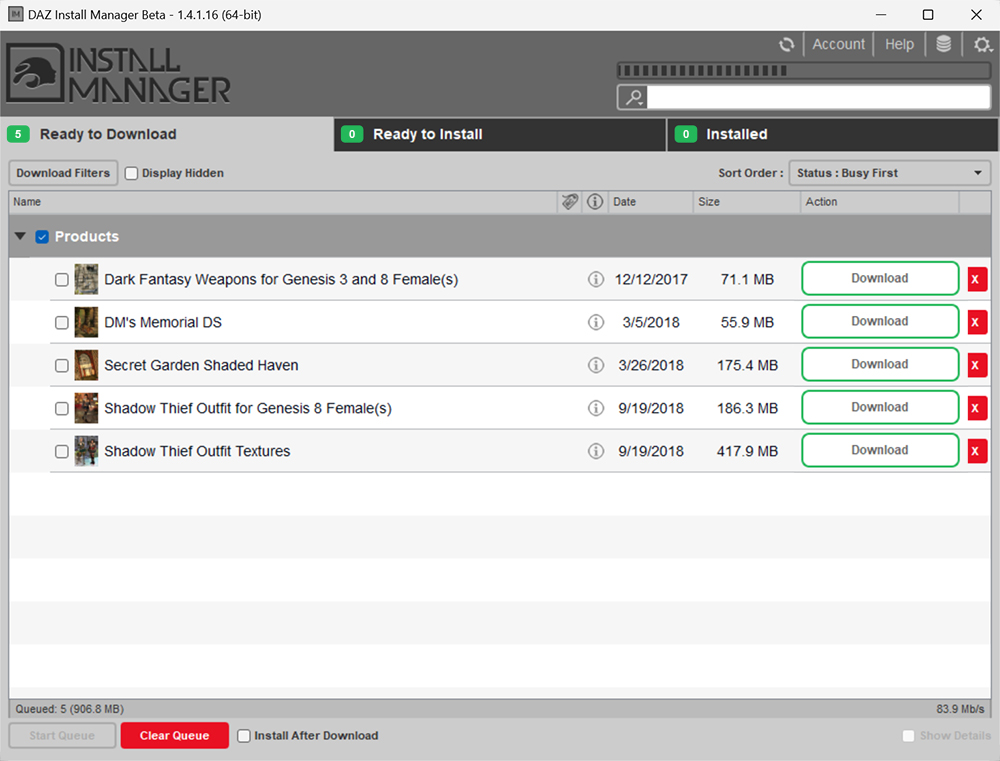
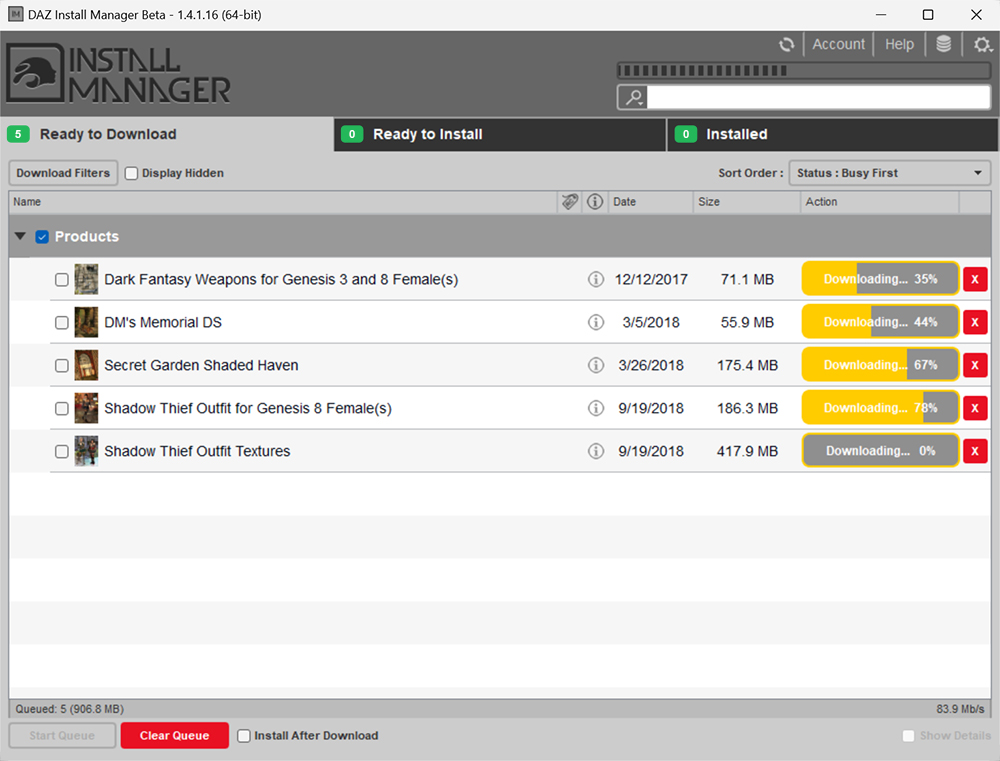
This image shows you a “Ready to Download” screen populated with the files waiting in our account.
You are able to see the Product Name and can tell immediately if the file is new and waiting for Download, or if it is an Update as seen with “Ethnicity” and “Evolution” morphs in our example.
If you are logged in, and have no files listed, this means you have nothing new to download. If you are sure you have new files, make sure you are logged in to the correct account, and that you are not “Working Offline”. Also make sure you are showing any files you may have hidden. The “Display Hidden” box should be checked if you have hidden files and wish to see them.
There are several advanced options for viewing and managing files in the Right-click context menus. Please refer to the Reference Guide for more information on these features.
You now have the following choices:
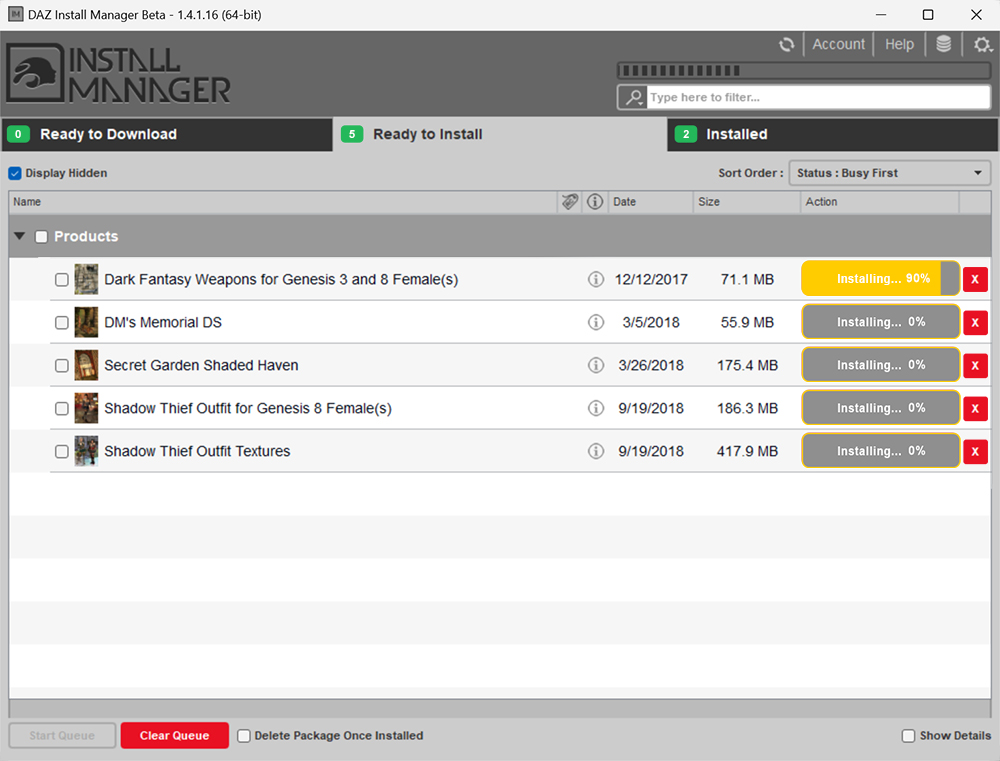
Checking the “Install After Download” box will do exactly that. As soon as the Zip is downloaded it will install to the currently selected location. This goes on even if you are still downloading other files. If you want to install files to different locations, make sure to Uncheck this box!
Clicking the Refresh Button causes the lists on the Ready to Download Page, Ready to Install Page and Installed Page, in the Product Status area, to be rebuilt from the information available at that moment in time. For the average user, this is useful for causing the list on the Ready to Download Page to refresh when a new purchase has been made on the DAZ 3D store, after you have already signed in to your account with Install Manager. For the advanced user, this is also useful if you have made changes to the downloads folder or configuration files while the application is running.
Below is a list of interface elements that the Refresh Button can exist within:
Once you have logged into Install Manager you will see the following screen.
In the top right corner is a small Gear icon. This is where you access your settings.
Click the “Gear icon” now.
Your Settings window has several Page and options:
You can click the ” + ” in the bottom left corner of the Accounts or Installation pages to add accounts/locations at any time, as needed. Remember, each account can have different download locations and preferences.
For more advanced information on these Features, please see: User Interface (UI)
We will now move to the Downloads Page to begin telling IM where we want things to go…
The Downloads and Installation pages are where most of your customization will take place. In Downloads, you tell the application where to save the files you download from your store account.
Download To Where - Click the ” … ” browse button and choose the location you want the application to save any content installers it downloads from your account. This can be on your local drive, or an external location. For help on downloading files from your account, please see Downloading With Install Manager (WIP)
Using the application Show filter - Sometimes finding what you want in your account can be a bit daunting. Especially if you have a large catalog of purchases. In this section, you can filter the products by the application(s) you choose. Different combinations will give different results. If you are expecting a file you do not see, try adding another filter to your selection. Older files are backwards compatible, with some exceptions. This means if you have DAZ Studio 4.5 selected you will see more content than if you select DAZ Studio 3. DS 3 will not read .DSF (DS 4) or .DUF (DS 4.5) files so any of this type content would be filtered out. DS 4.5 will read all files extension, so you would see a great deal more products listed.
Once you have your location added, switch over to the Installation Page…
Install To - If you use one program and have a single location set for content installation, you will see “Recommended Folder”. If you use multiple programs such as DAZ Studio, Poser and Carrara on the same machine, you may have multiple content locations mapped. If you add your various folder paths, you will be able to choose where you want your content to be installed at any given time. For more on this please see Installing With Install Manager (WIP).
Any added locations will now be available in the Install To: drop-down selection above.
It is highly recommended that you choose an install location that is different than you currently installed content.
You can quickly sort your files by “A to Z” or by several other options. The “Sort Order” drop-down contains the following selections:
Filtering in Install Manager is very easy, but also has very advanced filtering modifiers available. We will cover the basic keyword filtering below. Please refer to the Reference Guide section on Advanced Filtering for more ways to view the products you want to see, and how you want to see them.
If you want to filter your file view to show only specific files, you can type your chosen keyword in the “Filter Field” as shown in the left-hand image below. We used 'Genesis'. Only products with the keyword 'Genesis' in the name, are showing. You can also use phrases. If you know all or part of a product name, type it in and the filter will show any products with that particular 'phrase'.
The nice thing about this feature is that is keeps your checked selections as you change filter words. Here, we are going to check the selection boxes for 'Genesis'.
In the right-hand image below, we left our “Genesis” filtered products checked, and then filtered by 'Victoria' and checked these products as well. When we return to our full list of products, you can see both filtered selections we made remain checked. The “Genesis” products remained checked, even when we ran a new filter and added the other product for “Victoria”.
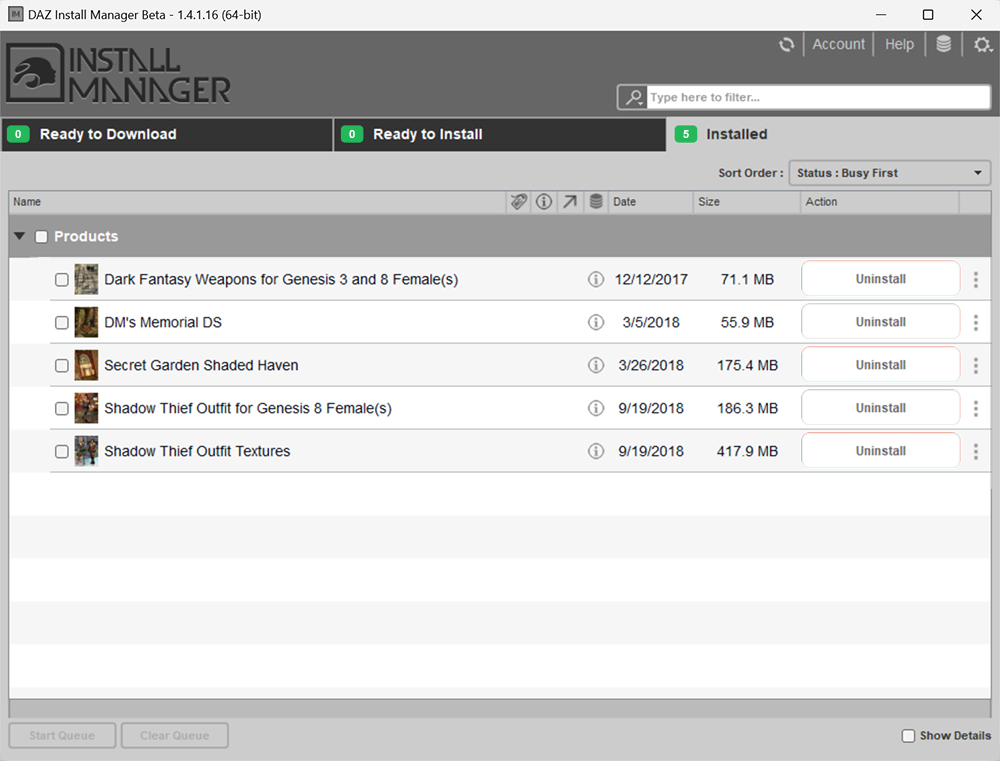
The filtering feature works across all the status windows. By this, we mean if we have 1 product with “Genesis” in its name already “Installed”, and 6 waiting in “Ready to Install”, we will see all 7 products. You can see this in our “Genesis” example here. We installed the Gorilla product from our previous filtering exercise. You can now see we only have 6 left in Ready To Install, and 1 is now listed in Installed.
You can do the same thing using the SKU number to find a particular product. Just put the number, for example, sku::12356 (or a range of numbers sku::12350-14350) in the Filter Field. Please see: Advanced Filtering for more advanced filtering options.